All guides
Start here
Customers and billing
Hotspot
Network
- Devices, OLTs and ONUs
- Routers, RADIUS and sessions
- TR-069 and remote ONU setup
- Zones, nodes, topology and the map
Support and messaging
Your team and settings
For your subscribers
Troubleshooting
On this page
What it does#
The assistant answers questions about your ISP from your own live data. Ask it the way you'd ask a colleague.
- Answers and look-ups. “Who expires in the next 3 days?” “How much did we collect today, by payment method?” “Is there any outage right now?”
- Finding out why. On a customer's page, ask “why is this customer offline?” It checks their expiry, payments, RADIUS logins, device lock, router and ONU, then tells you the cause in plain words.
- Doing the work, with your OK. It can record a payment, extend a subscription, suspend or reactivate someone, resync RADIUS, send an SMS or open a ticket. It prepares each change on a card. Nothing happens until you press Approve.
- Charts and reports. Ask for a chart, or say “make me a PDF of this month's collections”. You get a report on your letterhead, as PDF or Excel, ready to download or share.
- Taking you there. Say “open Grace Wanjiru” and it opens her page.
It only ever sees your own ISP's data.
Ask a question#
- Press ✨ at the top of any page, or press Ctrl K (⌘K on a Mac). The assistant opens beside your work.
- Type your question in the box (Ask about a customer, payments, the network…) and press Enter. You don't need to name the customer if you're on their page: “this customer” is enough.

- Watch it work. It shows each step as it checks your data, then the answer with links to the records.
Every answer costs credits. The chip at the top of the assistant shows how many you have. There are two kinds of answer: Standard, and Deep for harder questions. Deep costs more. Hover over each to see its cost.
- If a long answer reaches its limit, it stops and offers Continue, with the cost on the button.
- Not happy with a Standard answer? Press Redo with Deep.
- Press the expand button to see your past conversations. Start a fresh one with New conversation.
New to it? Settings → AI Assistant → Take the tour walks you through it in a minute.
Approve the changes it prepares#
When you ask the assistant to change something, it doesn't change it. It shows a card headed Review this change, marked Needs approval, with every value it will use.

- Read the card. Check the customer, the amount, the dates and the M-Pesa code.
- Something wrong? Change the value on the card. The button becomes Update with my changes, and the assistant prepares the card again with your values.
- Press Approve to run it, or Reject to drop it. The card then shows Done, Failed or Rejected, and the assistant tells you what happened.
It can only do what you can do. Every change runs as you, with your role's permissions. If your role can't record payments, neither can the assistant when you use it.
If your ISP needs a second person to approve an action, such as a suspension, the card sends it to Approvals instead. It isn't done until someone approves it there. See Approvals.
What it won't do#
Some jobs stay with people. The assistant will tell you where to do them in the app:
- Imports, and moving customers in from another system.
- Pushing configuration to routers, OLTs or ONUs, including TR-069 changes. It diagnoses and explains, then sends you to the device page.
- Bulk changes, such as extending everyone in a zone.
- Sending money out, such as refunds.
- Staff, roles and passwords.
- Payment gateway, SMS provider and API key settings.
- Your own CoreSync subscription.
It never reads passwords, keys or other secrets. They're masked before it sees anything.
Help setting up#
New to CoreSync, or moving from another system? Ask “what do I still need to set up?” The assistant reads the same checklist as the Getting started page. It tells you how far along you are and walks you through the next step.
- It can prepare your zones, speed profiles and plans as approval cards. Give it the names, speeds and prices. It never makes up a price.
- It can add a router or OLT record. Once the device is connected, it runs the live checks and tells you whether it works.
- It warns you to connect a payment gateway before you import customers. Otherwise their payments arrive unmatched and paying customers get cut off.
Imports, gateway and SMS credentials, and device configuration are yours to do. It points you to the right page.
Credits#
Every answer is paid for with credits. See yours in Settings → AI Assistant, on the Overview tab. The Prices box there shows what one credit costs and what each kind of answer uses.
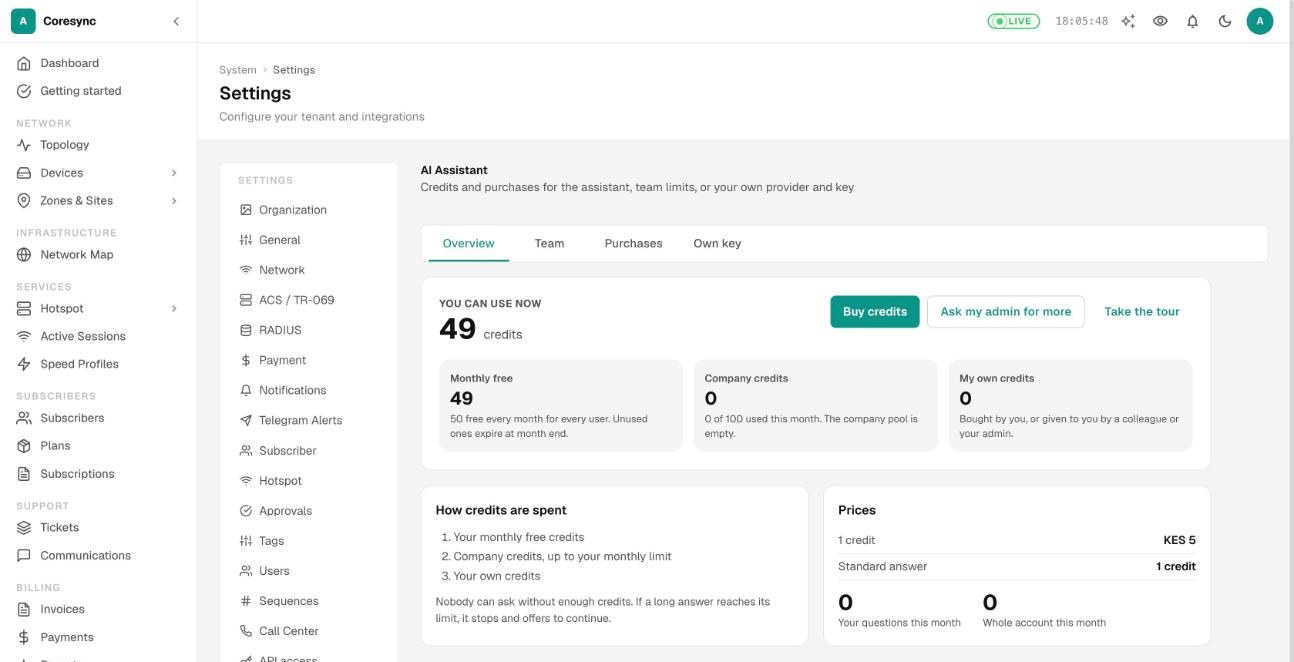
A question takes credits in this order:
- Your monthly free credits. Everyone gets some each month. Unused ones end with the month.
- Company credits, up to your monthly limit.
- Your own credits, bought by you or given to you. These don't expire.
Nobody can ask without enough credits. The assistant shows a card with a way to top up instead.
AI credits pay only for answers. SMS the assistant sends is paid from your SMS balance with your SMS provider, like any other SMS.
Buy credits#
- Press Buy credits in Settings → AI Assistant, or press the credits chip in the assistant.
- Pick a pack, or type a number under Or enter credits.
- Under For, pick Me, A colleague or, if you manage the assistant, Company pool.
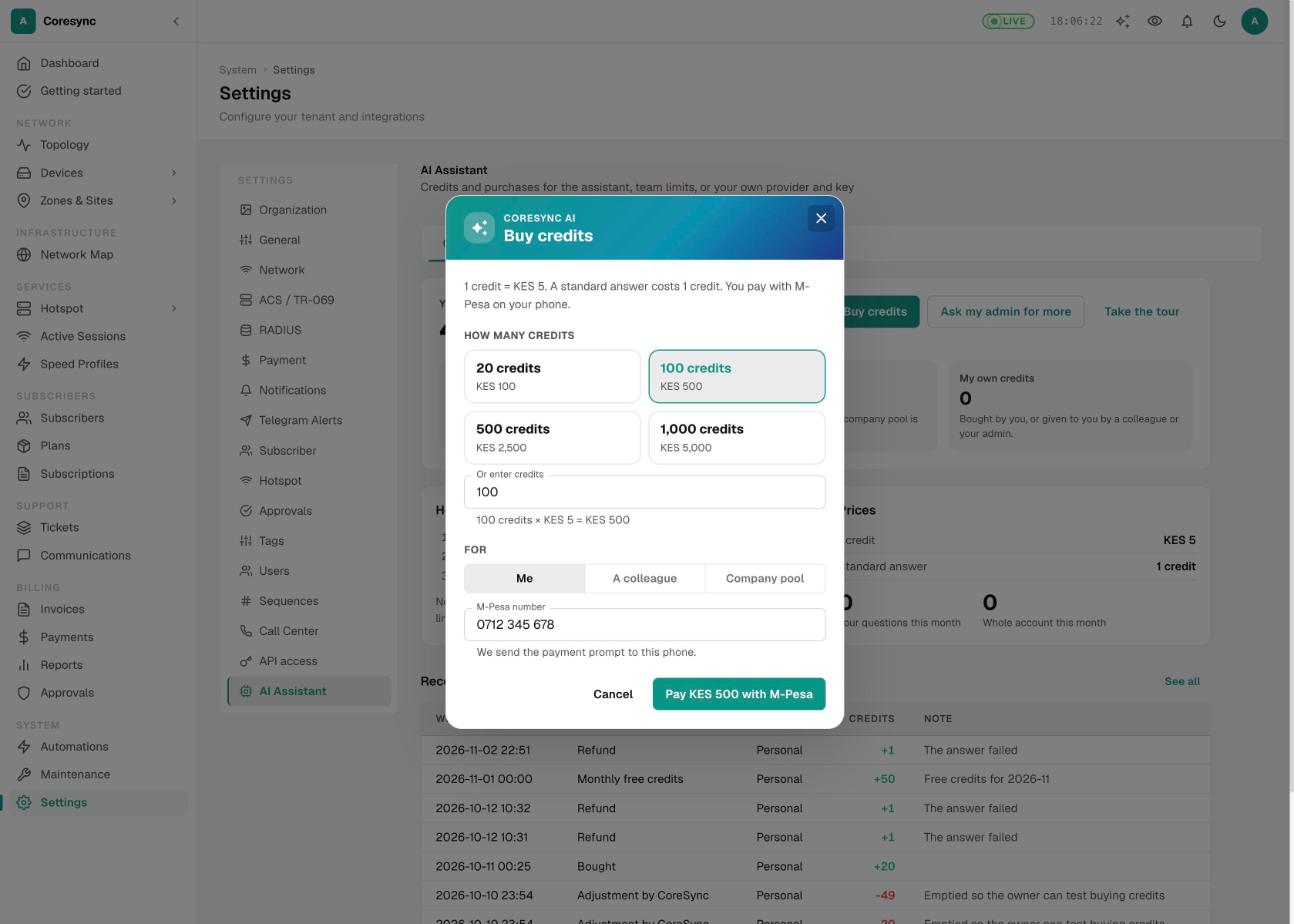
- Type the M-Pesa number to pay from, such as 0712 345 678, and press Pay … with M-Pesa.
- Enter your M-Pesa PIN on the phone. The credits land as soon as M-Pesa confirms. You can close the dialog while you wait.
Out of credits and not paying yourself? Press Ask my admin for more. Everyone who manages the assistant gets told.
All purchases are on the Purchases tab. Credits aren't refundable once used. Prices are on the pricing page and in the app.
Team limits#
The Team tab is for whoever looks after the assistant. It shows the company pool and how much each person uses.
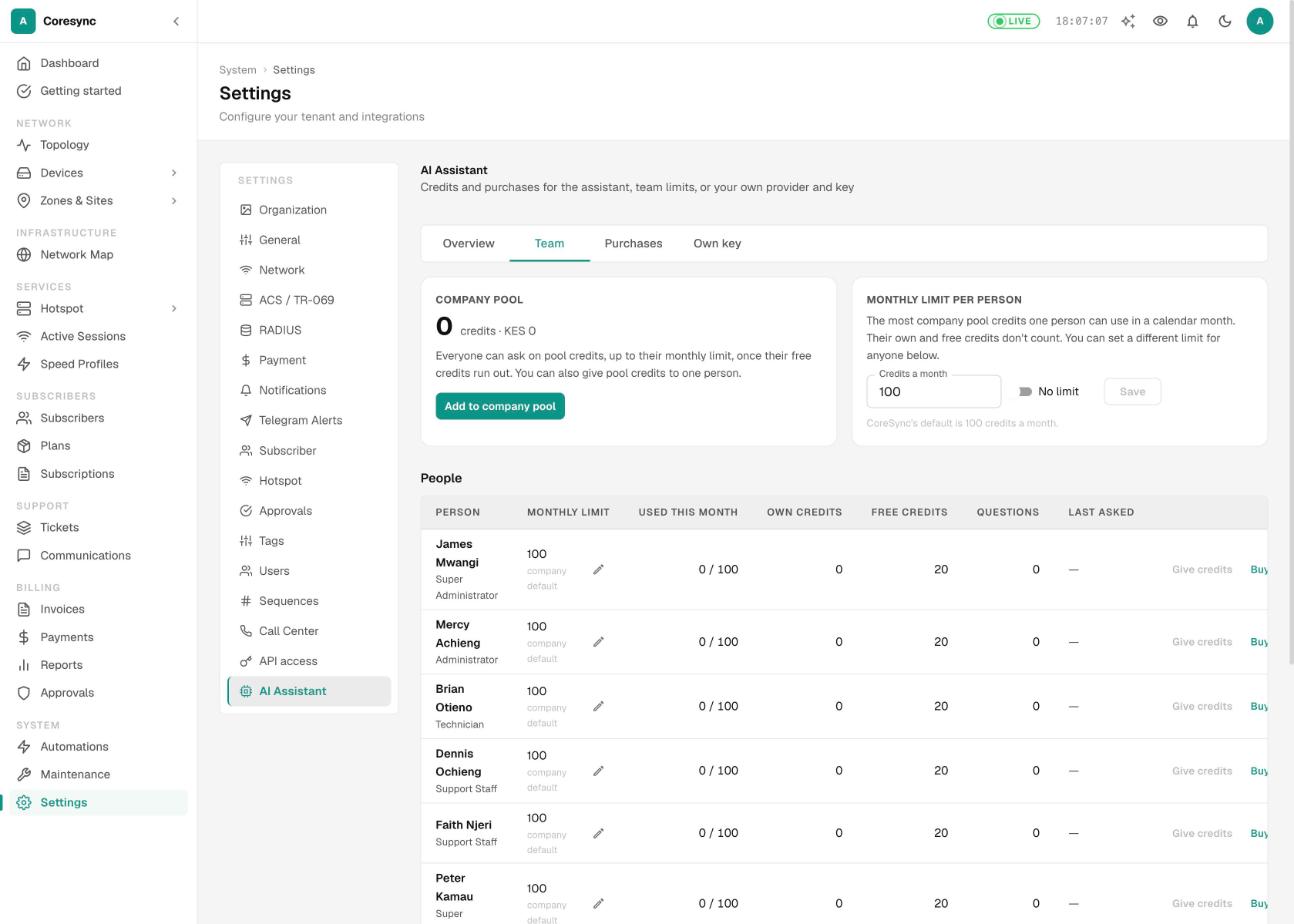
- Company pool: credits everyone can use once their free ones run out. Top it up with Add to company pool.
- Monthly limit per person: the most company credits one person can use in a month. Type a number in Credits a month, or turn on No limit, then press Save.
- People: each person's limit, use this month, own credits, free credits, questions and last question. Press the pencil beside a limit to give one person a different limit. Press Give credits to move pool credits into their own wallet, or Buy for them.
You see how many questions each person asked, not what they asked.
Use your own AI provider key#
If you already pay an AI provider, the assistant can use your account instead of CoreSync's. Questions then cost no credits, and your provider bills you directly.
- Open Settings → AI Assistant → Own key. The box at the top shows the monthly fee in credits.
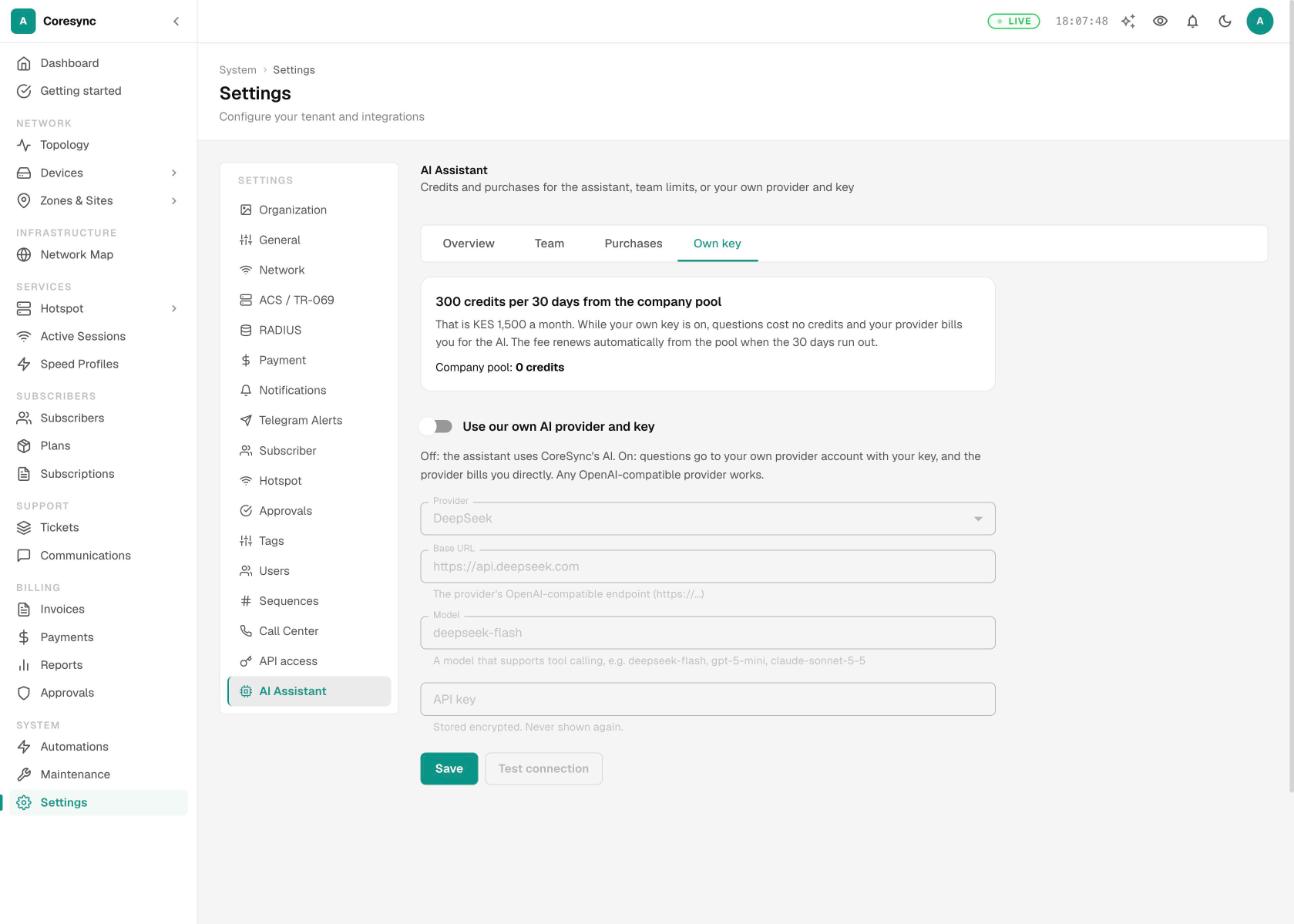
- Turn on Use our own AI provider and key.
- Pick the Provider. CoreSync fills in the Base URL and a Model. Any OpenAI-compatible provider works, as long as the model supports tool calling.
- Paste your API key and press Test connection.
- Press Save and confirm. CoreSync takes the fee from the company pool now and again every 30 days while it stays on.
Your key is stored encrypted and never shown again. Only its last few characters appear, so you can tell which key it is.
Your data and privacy#
- When you ask a question, CoreSync sends your question, and the records the assistant reads to answer it, to the AI model provider. These records can include customer details. The provider is listed on our sub-processors page. With your own key, they go to your provider instead.
- Passwords, keys and other secrets are never sent. They're masked first.
- The assistant only reads your ISP's data. It can't see any other ISP.
- Your conversations are yours. Colleagues and admins see how many questions you asked, not what you asked.
- Your ISP decides who uses it. Take Use AI Assistant off a role and those people can't open it.
Common mistakes#
- Approving without reading. Check the customer, amount and dates on every card. Edit the card if anything is off.
- Asking it to import customers or configure a router. It won't. Do those in the app; it will tell you where.
- Reporting a change as done when it went to Approvals. If the card says it was sent for approval, it hasn't happened yet.
- Thinking AI credits pay for SMS. They don't. SMS uses your SMS balance.
- Letting the company pool run dry with your own key on. The 30-day fee renews from the pool.