All guides
Start here
Customers and billing
Hotspot
Network
- Devices, OLTs and ONUs
- Routers, RADIUS and sessions
- TR-069 and remote ONU setup
- Zones, nodes, topology and the map
Support and messaging
Your team and settings
For your subscribers
Troubleshooting
On this page
What approvals are for#
Some actions cost you money or a customer if they're done wrongly: giving free days, moving a payment, cutting off someone who has paid. With approvals turned on, these actions don't happen straight away. CoreSync saves them as a request, and nothing changes until someone with the right permission approves it.
This is called four-eyes: one person asks, a second person checks.
Actions that can need sign-off#
Each of these has its own switch in Settings → Approvals, and its own approve permission.
| Switch | What it holds back | Who can approve |
|---|---|---|
| Pause Subscription | Pausing a customer, now or from a later date. Started with Pause Subscription on the subscriber's Subscription tab. | Approve Subscription Pauses |
| Extend Subscription | Free days from Quick Extend (add days) and days from Grant Pay-Later Extension. | Approve Subscription Extensions |
| Apply Compensation | Free time for an outage, when someone presses Apply on a ticket's compensation. | Approve Compensations |
| Suspend Subscriber | Pressing Suspend on a customer whose subscription hasn't expired yet. | Approve Subscriber Suspensions |
| Terminate / Delete Subscriber | Terminating an account, and moving one to the recycle bin. | Approve Subscriber Terminations |
| Approve Payment Match | Giving an unmatched payment to a customer with Redeem on the Payments page. | Approve Payment Matches |
| Move Payment | Moving a payment from the wrong customer to the right one with Move. | Approve Payment Moves |
Two things work differently:
- Suspending an expired customer is never held back. That's routine. The switch only holds back suspending someone who still has paid-up time.
- Approvers skip the queue for extensions and compensations. If you hold Approve Subscription Extensions, your own Quick Extend adds the days straight away. The same goes for Approve Compensations. For every other action, even an approver's own request waits in the queue.
Turn approvals on#
Decide who will approve before you switch anything on. Requests nobody can approve just wait.
- Give the approvers' role the approve permission for each action, in Settings → Users. See Staff and roles.
- Open System → Settings → Approvals.
- Switch on each action you want held back. Each switch saves the moment you flip it.
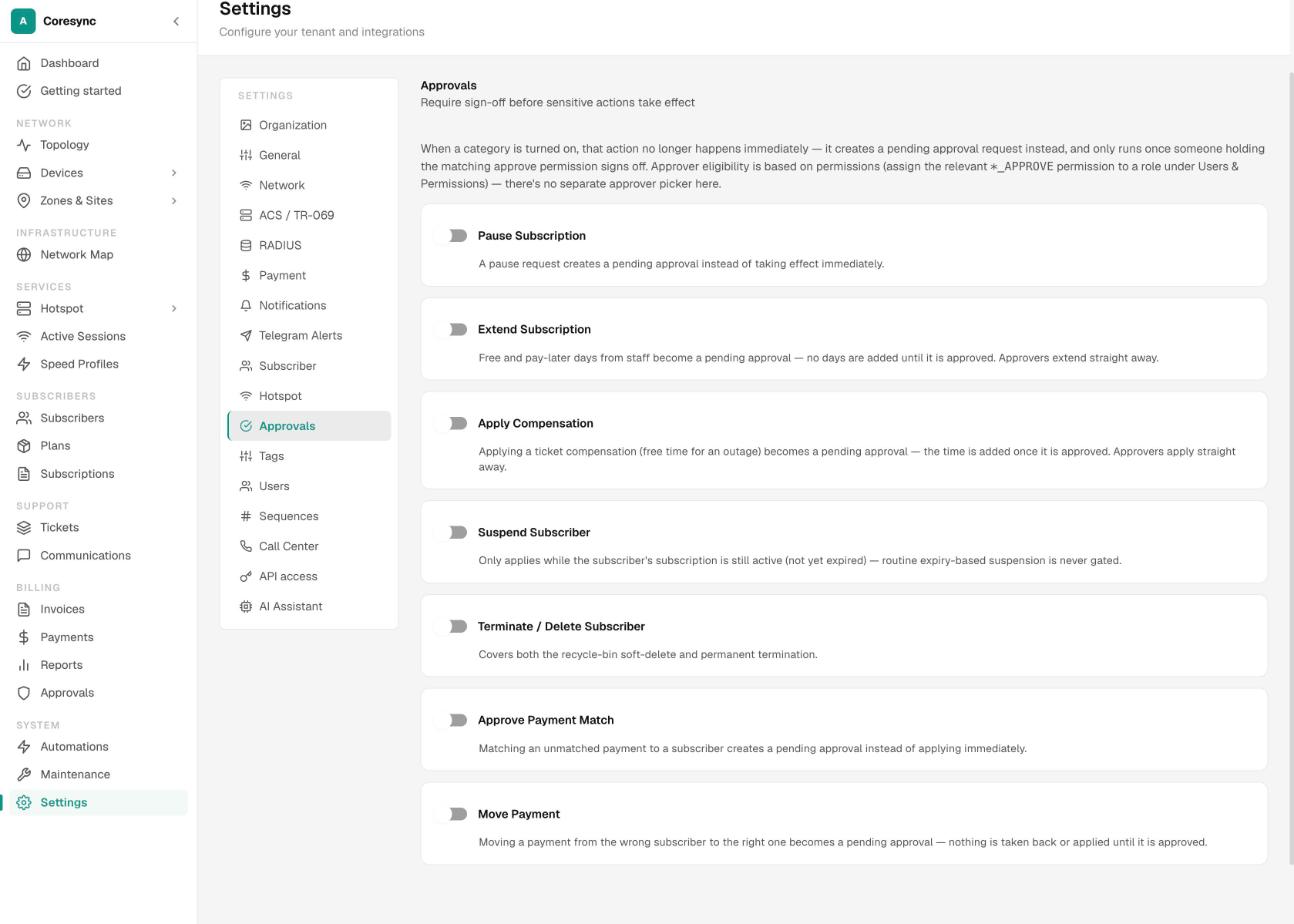
There's no list of approvers to pick from. Anyone whose role holds an action's approve permission can approve that action. Out of the box, that's the Super Administrator role.
If you can open the tab but see You don't have permission to manage approval settings., your role lacks Manage Approval Settings. Only give it to the owner or a manager you trust: whoever holds it can switch the checks off.
When your action needs approval#
You do the action as normal. Instead of it happening, CoreSync tells you it has gone for approval:
| Action | What you're told |
|---|---|
| Suspend | Suspension requires approval — a request has been submitted to an eligible approver. |
| Terminate | Termination requires approval — a request has been submitted to an eligible approver. |
| Quick Extend or pay-later days | Extension sent for approval — the days are added once an approver accepts it. |
| Pause | Pause requires approval — a request has been submitted to an eligible approver. |
| Redeem a payment | Match requires approval — a request has been submitted to an eligible approver. |
| Move a payment | Moving payments needs approval here — a request has gone to an approver. Nothing changes until it is approved. |
| Apply a compensation | Compensation sent for approval — the time is added once an approver accepts it |
While it waits:
- Nothing changes. A customer you asked to suspend stays online, and days you asked for aren't added.
- The subscriber's page doesn't show that a request is waiting. Tell the customer it's being checked.
- You can't withdraw a request. If you sent the wrong one, ask the approver to reject it.
- Don't send it again. Each try makes another request.
When someone decides, you get a notification in the bell at the top right: Request approved or Request rejected, with who decided. If you're logged in, a message also pops up at the bottom of the screen.
Approve or reject a request#
Approvers get a notification the moment a request comes in: Approval needed followed by the action. You don't get one for a request you filed yourself.
- Open Billing → Approvals. The Pending tab lists what's waiting.
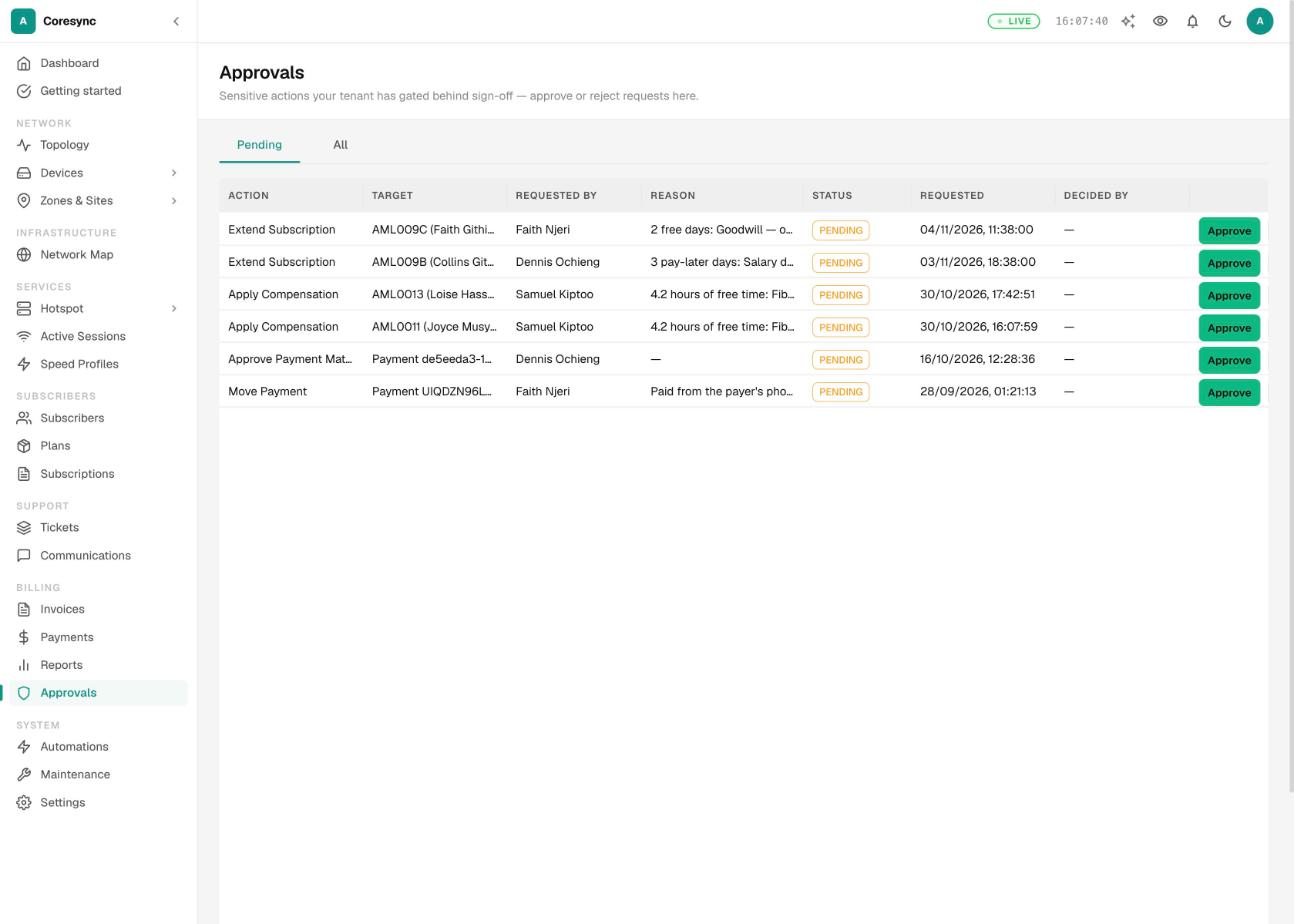
- Read the row: Action, Target (the customer or payment), Requested By, Reason and when it was Requested.
- Check it before you decide. Open the customer and look at their payments and expiry. For a payment, check the M-Pesa code and who sent it.
- Press Approve or Reject. Add a Note (optional) to say why, then press Approve or Reject in the box.
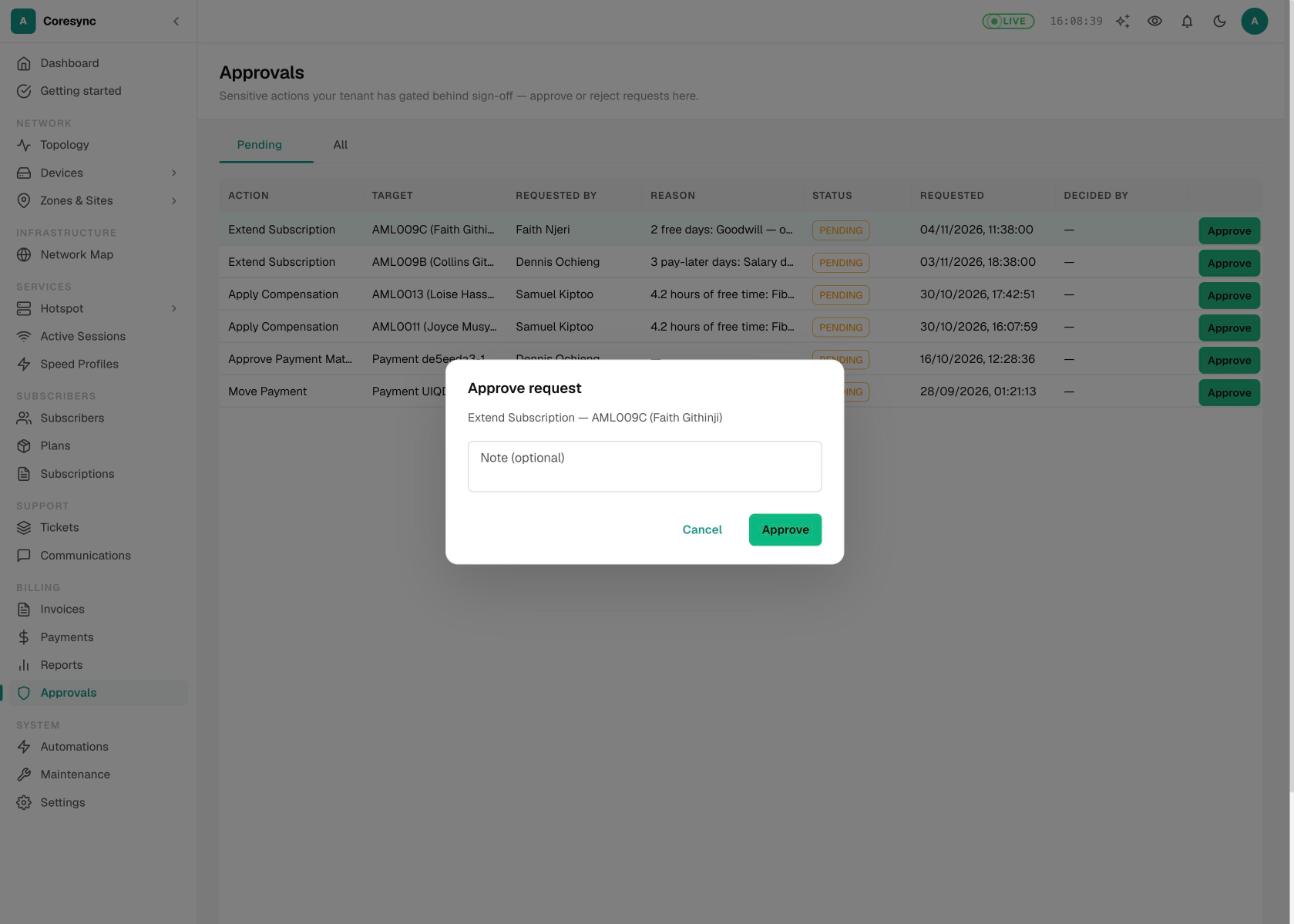
Approve runs the action there and then. A suspension disconnects the customer. Days are added. A payment is applied to the customer, the same as if they had paid to the right account. Reject does nothing to the customer and closes the request.
You can also decide from the bell. Pending requests there have their own Approve and Reject buttons, which is handy on a phone. These don't take a note.
The All tab keeps every request with its outcome and who decided it, so you can look back.
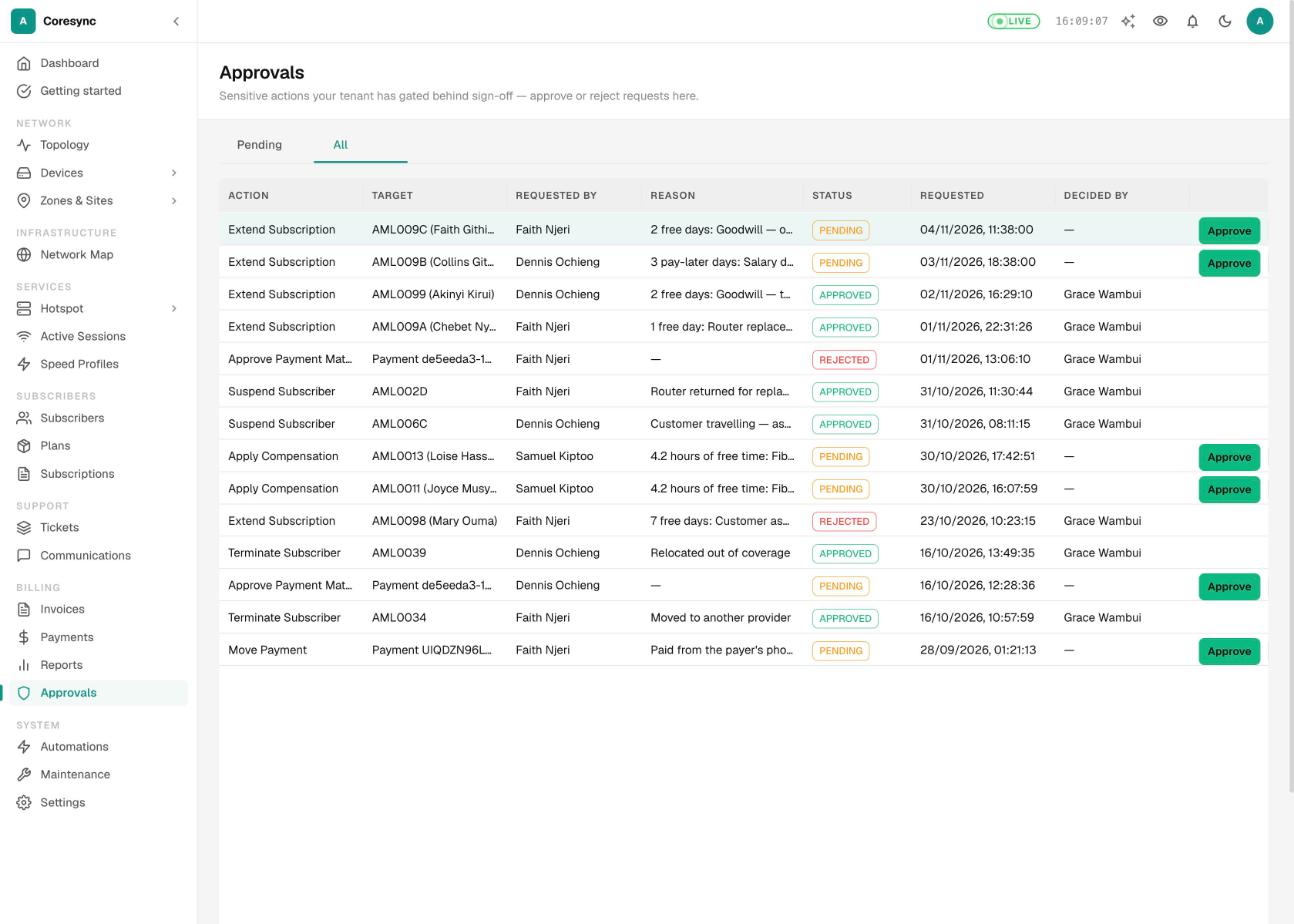
To decide a request you also need that action's approve permission, for example Approve Subscriber Suspensions for a suspension. With only View Approvals you can see the queue, but pressing Approve tells you that you're not an eligible approver.
Common mistakes#
- Turning a switch on before anyone can approve. Requests pile up and staff think the system is broken. Give someone the approve permission first.
- Approving your own request. If you hold the approve permission, CoreSync lets you approve a request you filed. That defeats the point. Leave it for someone else.
- Sending the same request twice. Each press makes a new request. If an approver approves both extension requests, the customer gets the days twice.
- Approving without looking. Open the customer or the payment first. The approval is what stops mistakes, so it only works if you check.
- Thinking approvals cover bulk actions. Bulk extend and bulk terminate don't wait for approval. Keep them for trusted roles.
If it doesn't work#
| What you see | What to do |
|---|---|
| Approvals isn't in the menu | Your role needs View Approvals or one of the approve permissions. Ask your admin. |
| You're not an eligible approver | Your role can see the queue but can't decide this kind of request. Ask someone who holds its approve permission. |
| Approved but failed to execute: … | The approval went through but the action couldn't run, for example because the payment was already applied or the pause ends after the customer's expiry. The request stays in Pending. Fix the cause and approve again, or reject it. |
| Request is no longer pending | Someone else decided it first. Check the All tab. |
| Nobody got a notification | Only people whose role holds that action's approve permission are notified. Check the roles. |
More on the actions themselves: Subscribers, Plans and renewals, Payments and Tickets.