All guides
Start here
Customers and billing
Hotspot
Network
- Devices, OLTs and ONUs
- Routers, RADIUS and sessions
- TR-069 and remote ONU setup
- Zones, nodes, topology and the map
Support and messaging
Your team and settings
For your subscribers
Troubleshooting
On this page
Your CoreSync address#
Every ISP gets its own address, made from its name: for example amanilink.coresyncisp.com. Your team logs in at that address followed by /admin. Your customers log in to their own portal at the same address followed by /login.
There's no shared login page for all ISPs. If someone can't find the login page, send them your address.
Log in#
- Open your address with
/adminat the end, on a laptop or a phone.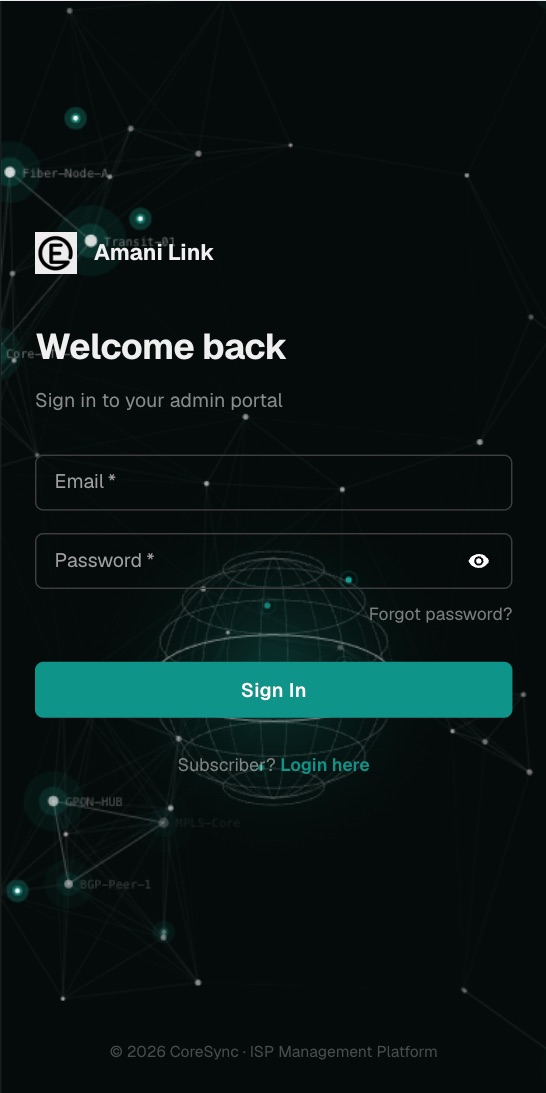
- Type the email and password your admin gave you, then press Sign In.
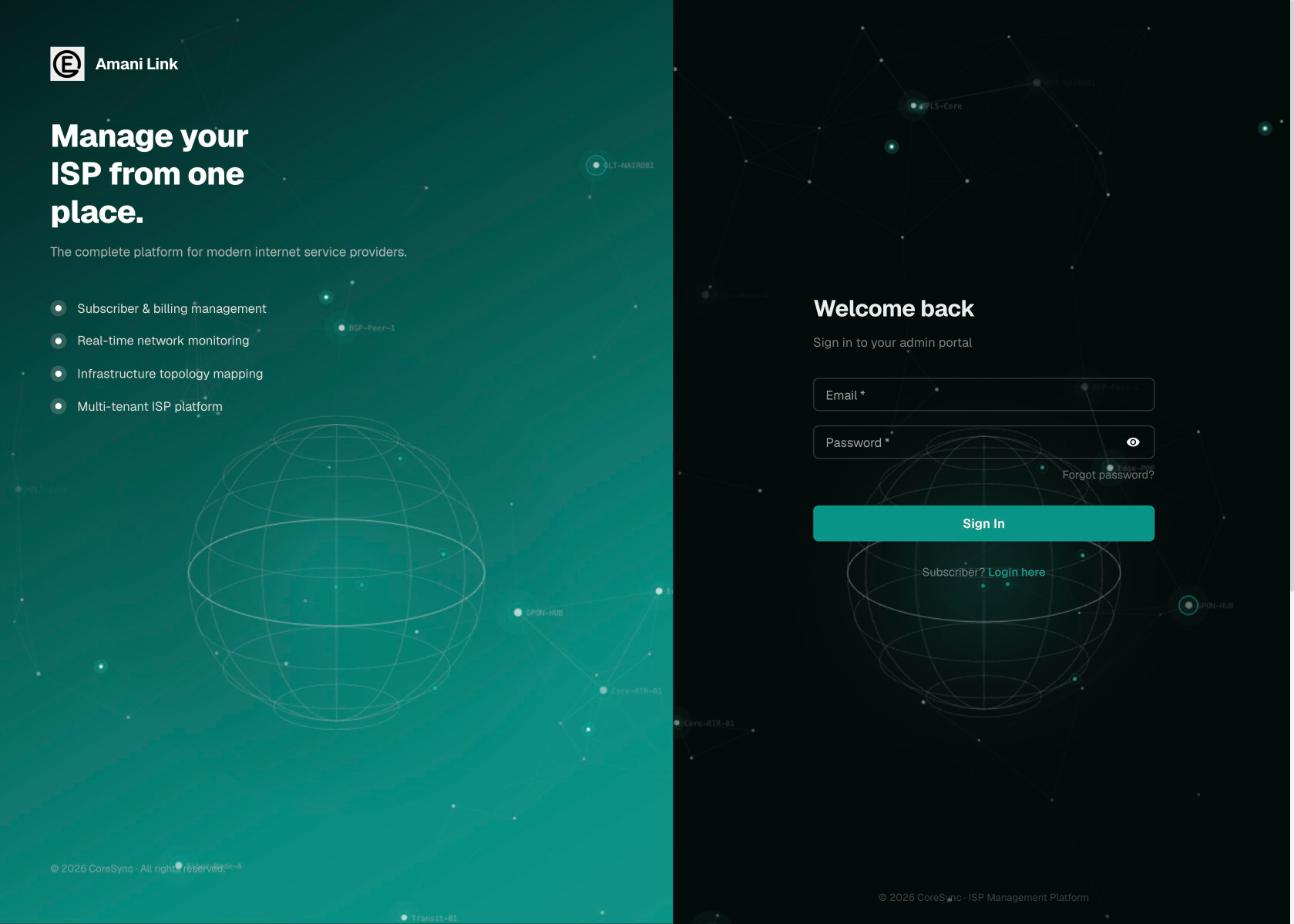
- Forgot your password? Press Forgot password? and type your email. If it belongs to an account, CoreSync emails you a link to set a new one.
Find your way around#
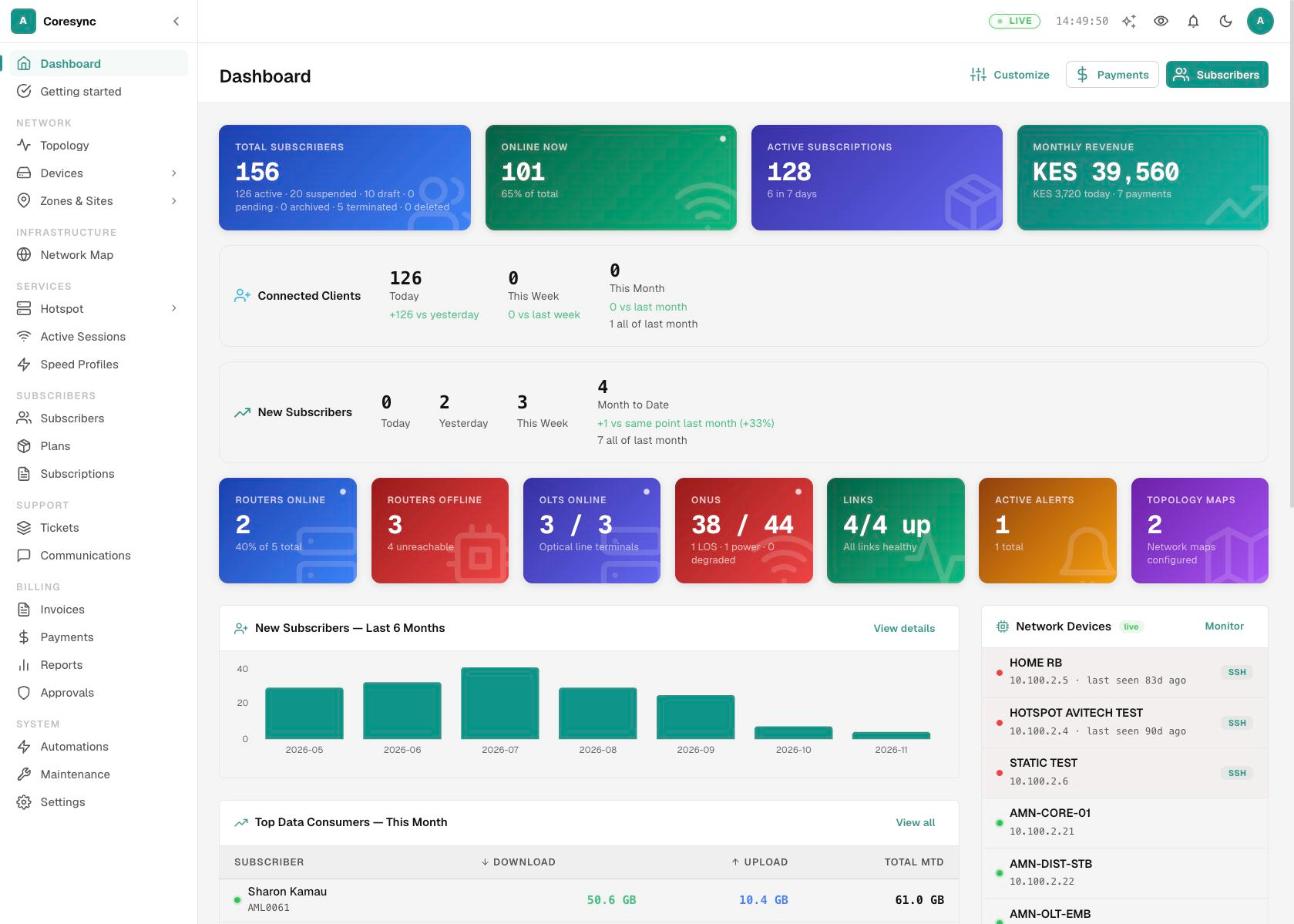
The menu on the left is grouped by job. On a phone, open it with the menu button at the top left.
| Section | What's in it |
|---|---|
| Network | Topology, devices (routers, OLTs, ONUs), monitoring, IP pools, zones and nodes. |
| Infrastructure | The network map: fibre routes, closures, splitters and nearest-facility search. |
| Services | Hotspot, active sessions (who is online now) and speed profiles. |
| Subscribers | Your customers, your plans and their subscriptions. |
| Support | Tickets and communications (SMS and email campaigns). |
| Billing | Invoices, payments, reports and approvals. |
| System | Automations, maintenance tools and settings. |
You only see what your role allows. If a menu item is missing, your role doesn't include it, or your ISP hasn't turned that part of CoreSync on. Ask your admin, who can check your role in Settings → Users.
The dashboard#
The dashboard is the first page after you log in. It answers the morning questions at a glance:
- How many subscribers are active, suspended and online right now.
- Who expires today and in the next few days.
- Money collected today and this month, if your role can see money figures.
- Payments that came in but didn't match a customer.
- Routers, OLTs and ONUs that are offline or have weak signal.
- Your heaviest users, network usage and recent monitoring alerts.
Click any card to open the list behind it. For example, the unmatched payments card opens those payments.
Set up in the right order#
Getting started, just under Dashboard in the menu, is a checklist of everything a new ISP needs. CoreSync checks each step itself by looking at your real data, so a step only turns green when it's actually done. Each step has a button that opens the right page.
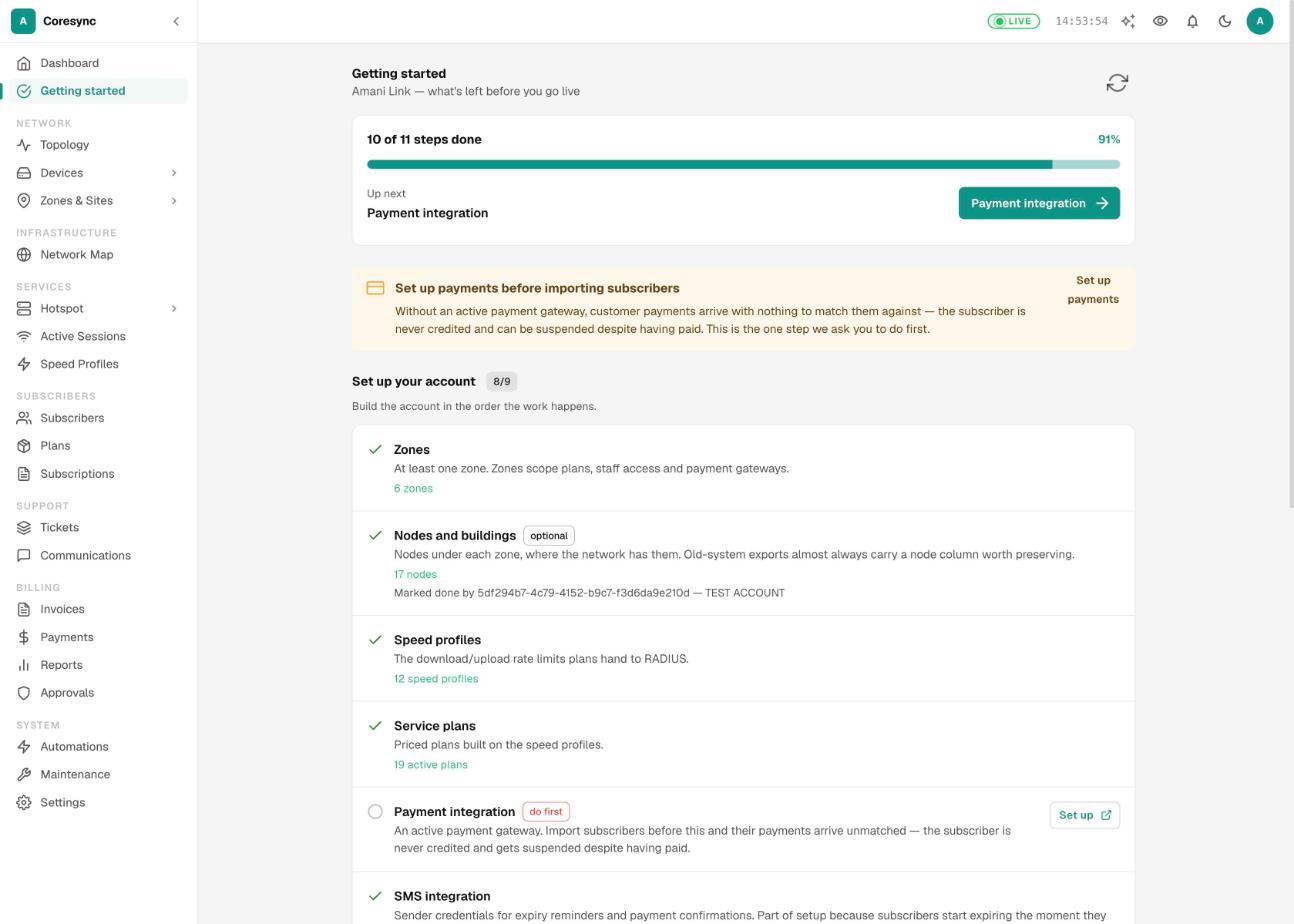
Work through it top to bottom:
| Step | What CoreSync looks for |
|---|---|
| Zones | At least one zone. Zones decide which plans, staff and payment gateways apply where. |
| Nodes and buildings | Nodes under each zone, if your network has them. Optional. |
| Speed profiles | The download and upload limits your plans give RADIUS. |
| Service plans | Priced plans built on those speed profiles. |
| Payment integration | An active payment gateway, such as your M-Pesa paybill or till. |
| SMS integration | Your SMS provider, so reminders and payment receipts go out. |
| Devices added and connected | Your routers and OLTs, reachable over the management tunnel. |
| NAS provisioned | RADIUS set up on your routers for PPPoE or hotspot. |
| Subscribers imported | Your customers, loaded after plans and payments are ready. |
| RADIUS verified | Active subscribers have logins and can connect. |
Moving from another billing system? Read Moving from another system before you import anyone.
Your CoreSync bill#
Owners and finance staff can see what CoreSync charges your ISP. Open the account menu at the top right and choose Platform billing. It shows this month's charge worked out line by line, the customers it covers, and your past invoices to download.
The item only appears once Avitech has switched it on for your account, and only for people who can see money figures.
Prices are on the pricing page.
Common mistakes#
- Sharing one login. Give everyone their own account, so the record of who did what means something.
- Importing customers before payments are connected. Payments go unmatched and paying customers get cut off.
- Giving everyone the admin role. Make roles that fit each job. Customer care rarely needs settings or money figures.
- Looking for a missing menu. It's usually the role. Your admin can check it in Settings → Users.