All guides
Start here
Customers and billing
Hotspot
Network
- Devices, OLTs and ONUs
- Routers, RADIUS and sessions
- TR-069 and remote ONU setup
- Zones, nodes, topology and the map
Support and messaging
Your team and settings
For your subscribers
Troubleshooting
On this page
What invoices and reports are for#
An invoice is a bill you give a customer: a number, an amount and a due date. Some customers, often businesses, need one before they pay. In CoreSync an invoice is a piece of paper. It doesn't move money, and it doesn't change anyone's expiry date.
Reports show how your ISP is doing: subscribers, money collected, the network and the customers you lose.
Both live under Billing in the menu.
Find an invoice#
The Invoices page lists every invoice your ISP has issued, newest first. Each row shows the invoice number, the subscriber and their phone, the plan, the amount, the status, and the issued, due and paid dates.
- In the menu, open Billing → Invoices.
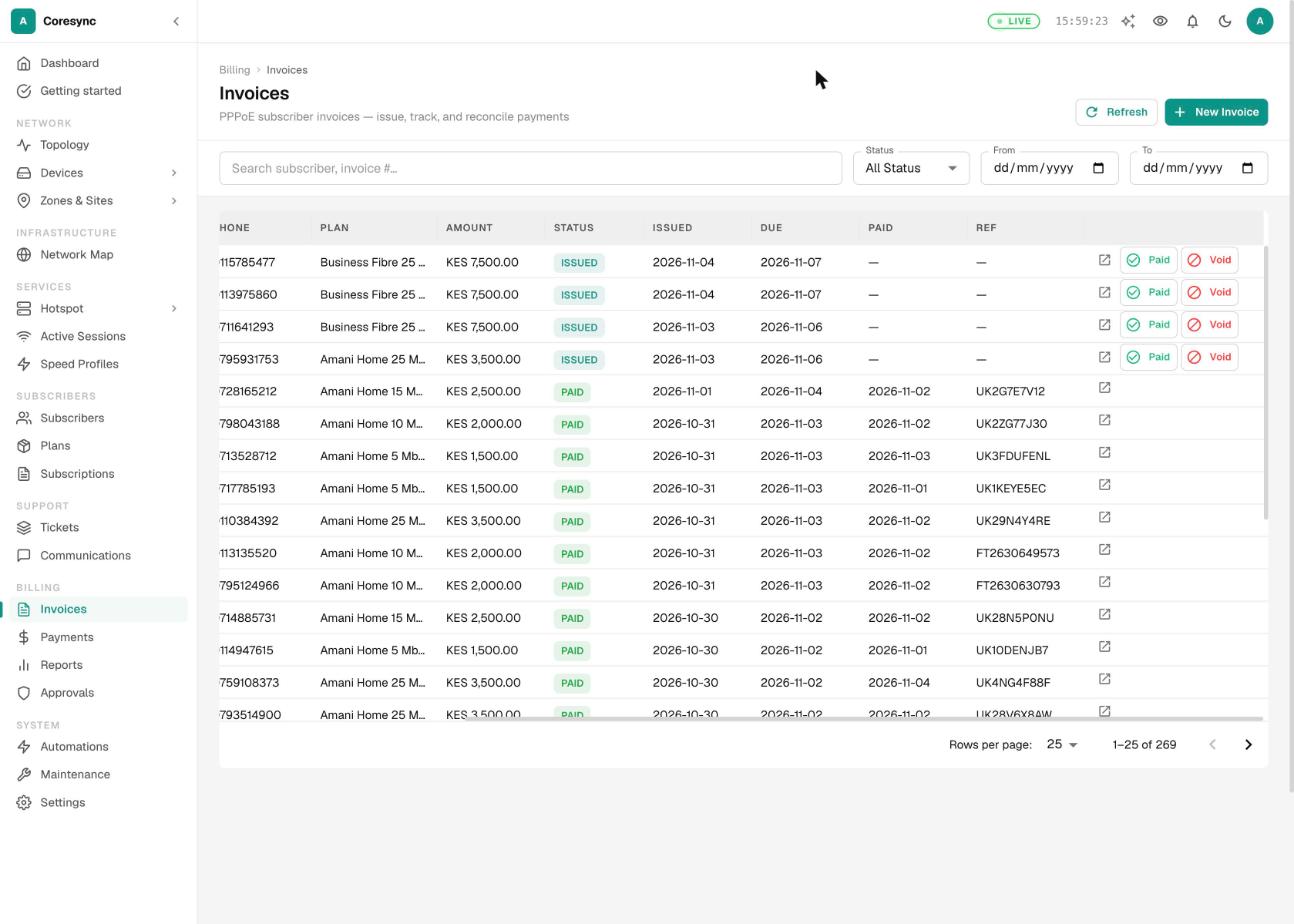
- Type a name or an invoice number in Search subscriber, invoice #….
- To narrow the list, pick a Status, or set the From and To dates.
| Status | What it means |
|---|---|
| ISSUED | Sent to the customer and not paid yet. |
| PAID | Someone marked it paid. |
| OVERDUE | Past its due date. CoreSync doesn't set this on its own today, so you'll rarely see it. |
| VOID | Cancelled. A void invoice can't be brought back. |
INV-202611-0007: the year, the month, then a running number.View and print an invoice#
Open an invoice to see it laid out as a document, with your logo, the customer's details and the amount. Print it, or save it as a PDF to send by email or WhatsApp.
- On the invoice's row, press the open icon (View / Print).
- Check the details. Billed To shows the customer's name, phone and subscriber code.
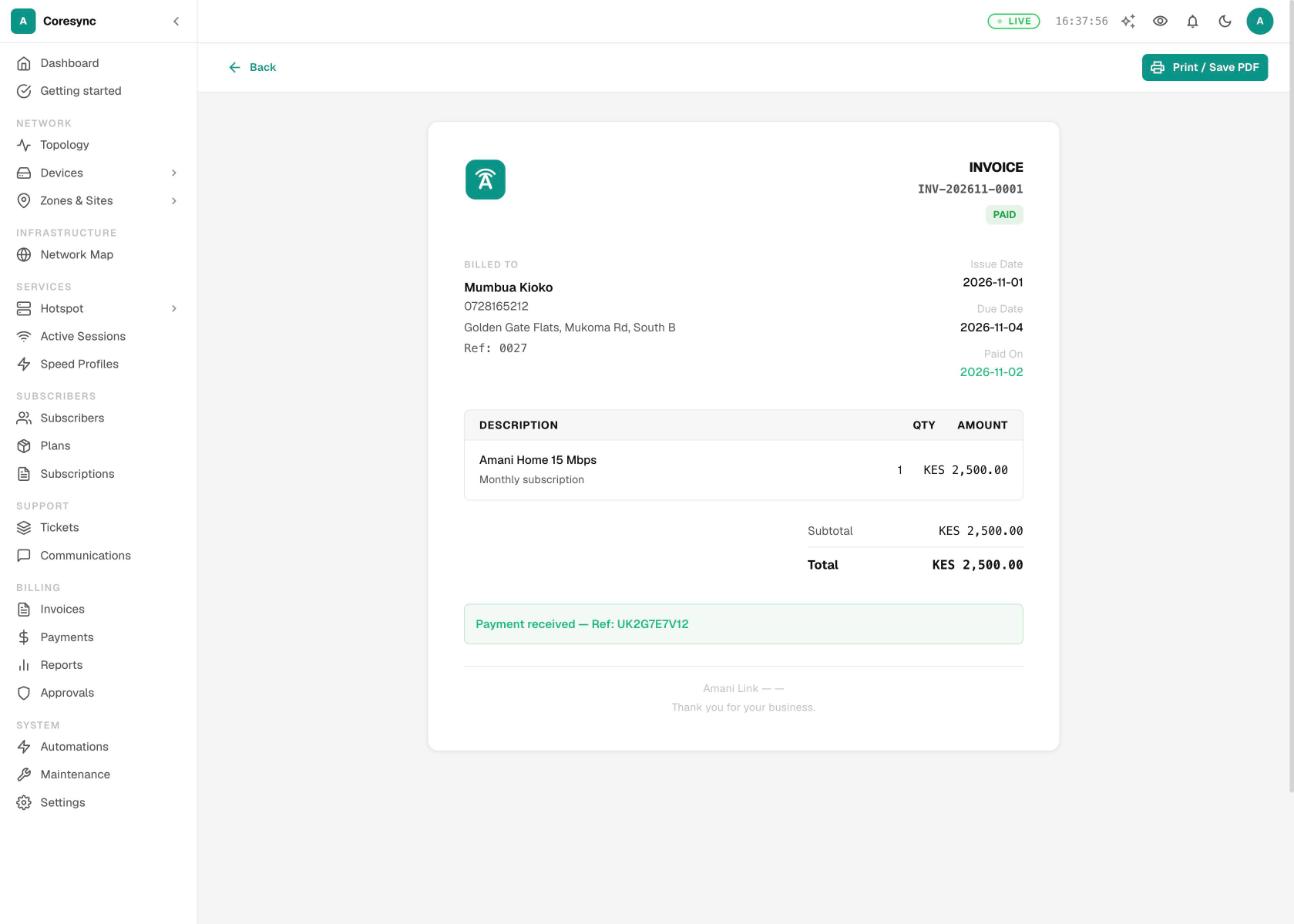
- Press Print / Save PDF. Your browser's print window opens. To make a PDF, choose Save as PDF as the printer.
The logo and company name on the invoice come from Settings → Organization. If the invoice just says "Company", add your logo there. See Settings.
Your customers can also see their invoices in their own portal, if you've turned invoices on there. See The customer portal.
Issue an invoice by hand#
Use this when a customer asks for a bill before paying, or for a one-off amount you want on paper.
- On the Invoices page, press New Invoice.
- In Subscriber, type at least two letters of the name or phone, then pick the customer.
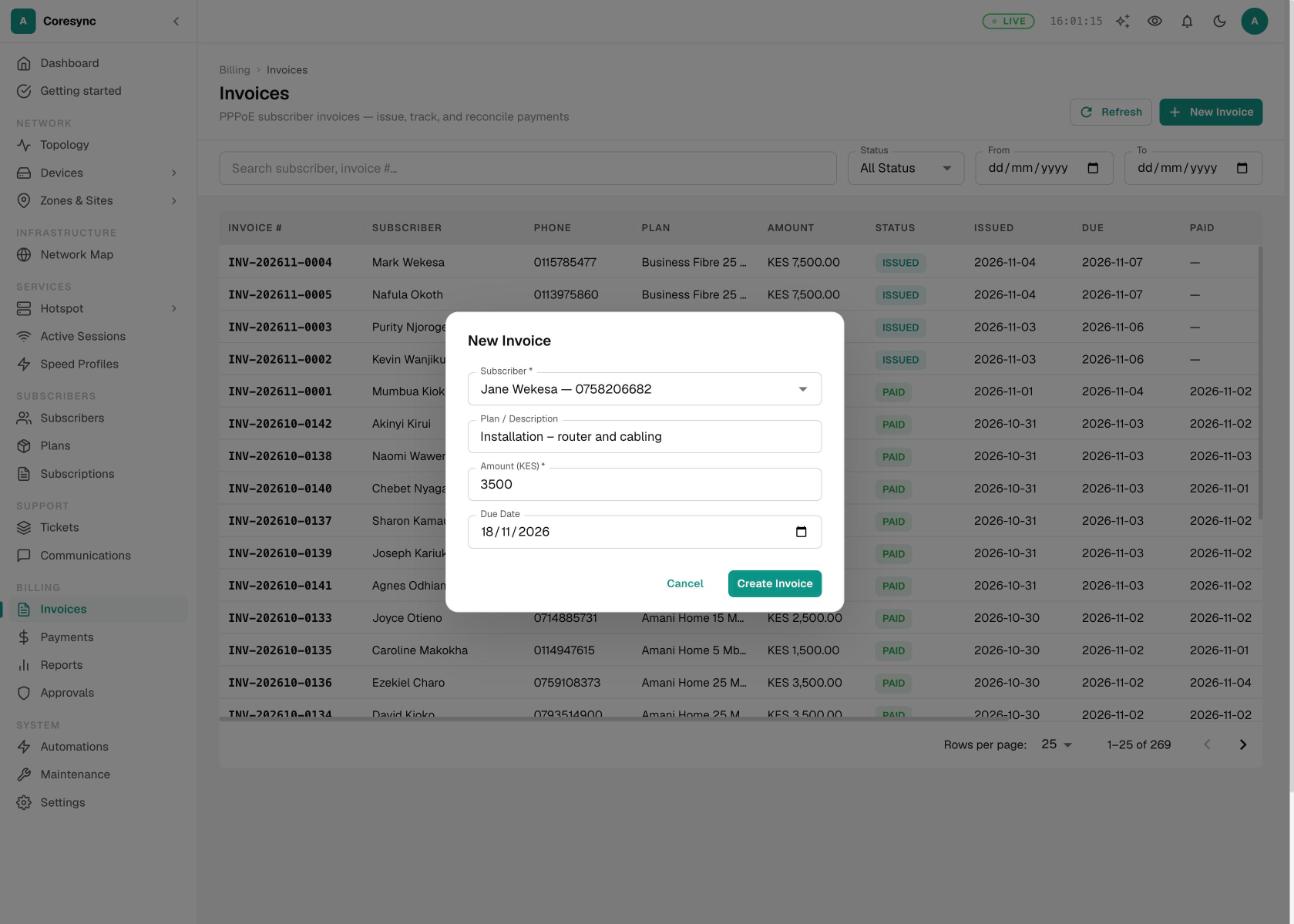
- Fill in Plan / Description, Amount (KES) and, if you want, the Due Date. With no due date, CoreSync sets it 30 days from today.
- Press Create Invoice. It appears in the list as ISSUED.
Mark an invoice paid, or void it#
An invoice stays ISSUED until someone closes it. When the customer pays, payments don't close the invoice on their own. Close it yourself once the money is in.
- First record the money, or check it arrived, on the Payments page. That's what credits the customer and renews them. See Payments.
- On the invoice's row, press Paid.
- Type the M-Pesa code or receipt number in Payment Reference (optional), for example
TK4AB12CDE, then press Confirm Paid.
To cancel an invoice that was issued by mistake, press Void on its row, then Void Invoice.
Send an invoice with the bill-due reminder#
CoreSync can issue an invoice for each customer who is due to renew, and put its number, amount and due date in the reminder SMS or email. It's off until you turn it on. You can turn it on for everyone and then switch it off for some customers, or the other way round.
- Open System → Settings → Notifications, on the Rules tab.
- Switch on Issue invoice with bill-due reminders.
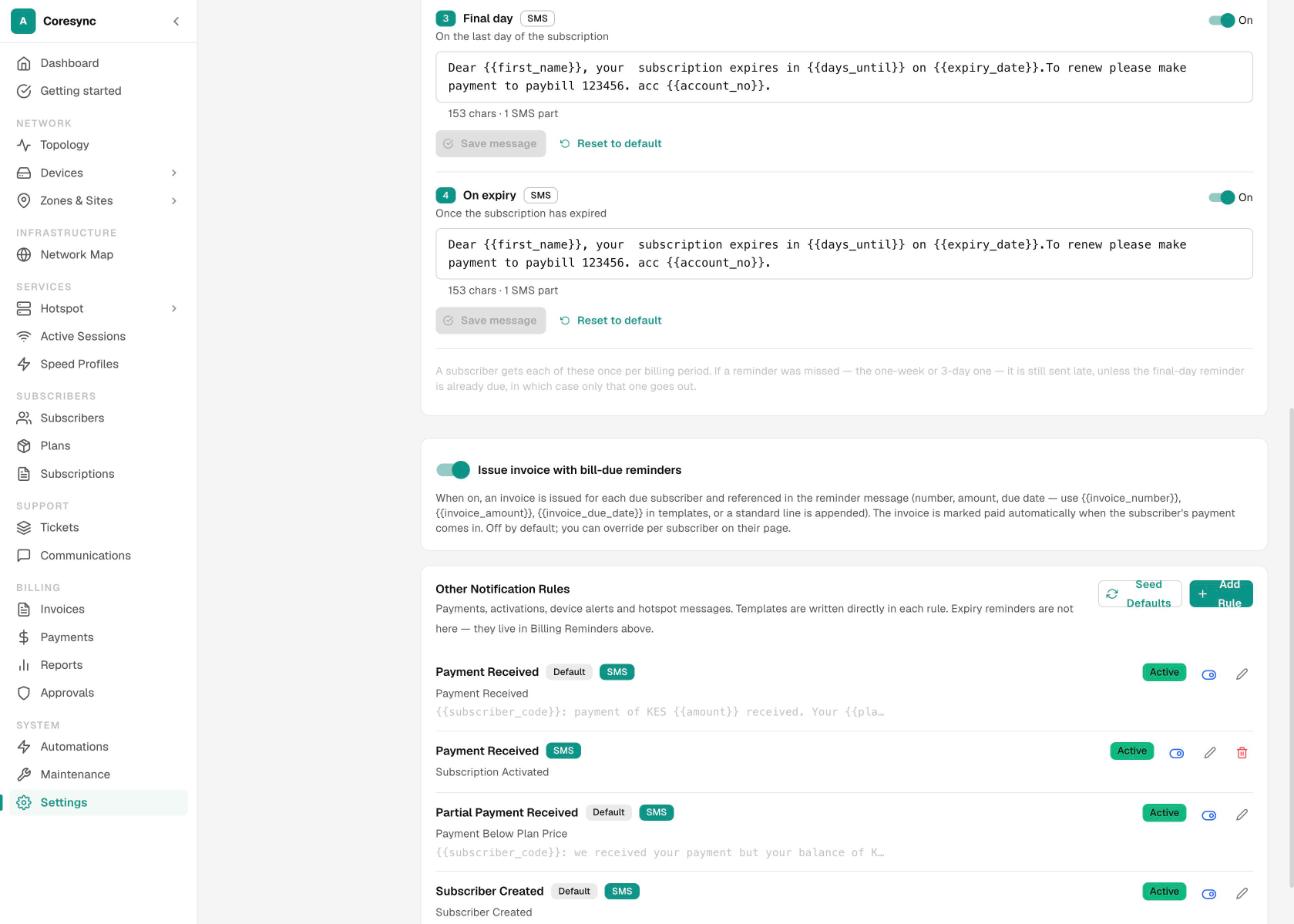
- If you want the invoice details in a set place in the message, add
{{invoice_number}},{{invoice_amount}}and{{invoice_due_date}}to your reminder templates. If you don't, CoreSync adds a line at the end, like "Invoice INV-202611-0007: KES 2500 due 30 Nov 2026."
To change it for one customer:
- Open the subscriber, on the Overview tab.
- In Invoicing, choose Default (follow settings), Invoice with due reminder or Message only, no invoice. It saves straight away.
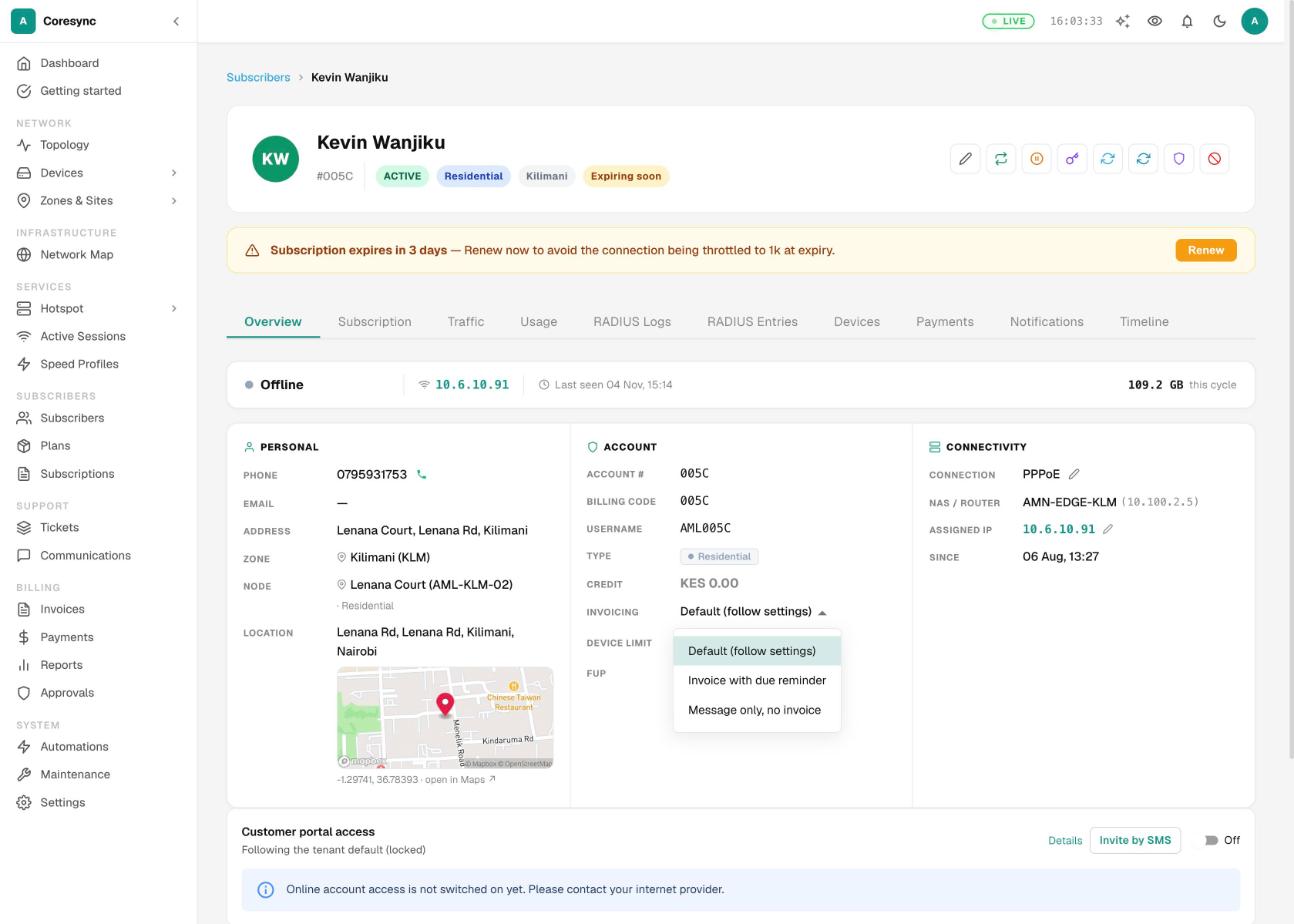
How it behaves:
- The invoice is issued with the first reminder that goes out. The amount is the customer's price, including a negotiated price if they have one. The due date is their expiry date.
- A customer only ever has one open invoice. Later reminders quote the same invoice instead of issuing another.
- Terminated, draft and archived customers never get reminders, so they never get these invoices either.
- A reminder only goes out if that reminder is switched on and the customer has a phone number or email CoreSync can use.
Reminder timing and templates are explained in Communications.
Open the reports#
Open Billing → Reports. The tabs you see depend on your role. If you have none of the report permissions, the page says Your account does not have access to any reports.
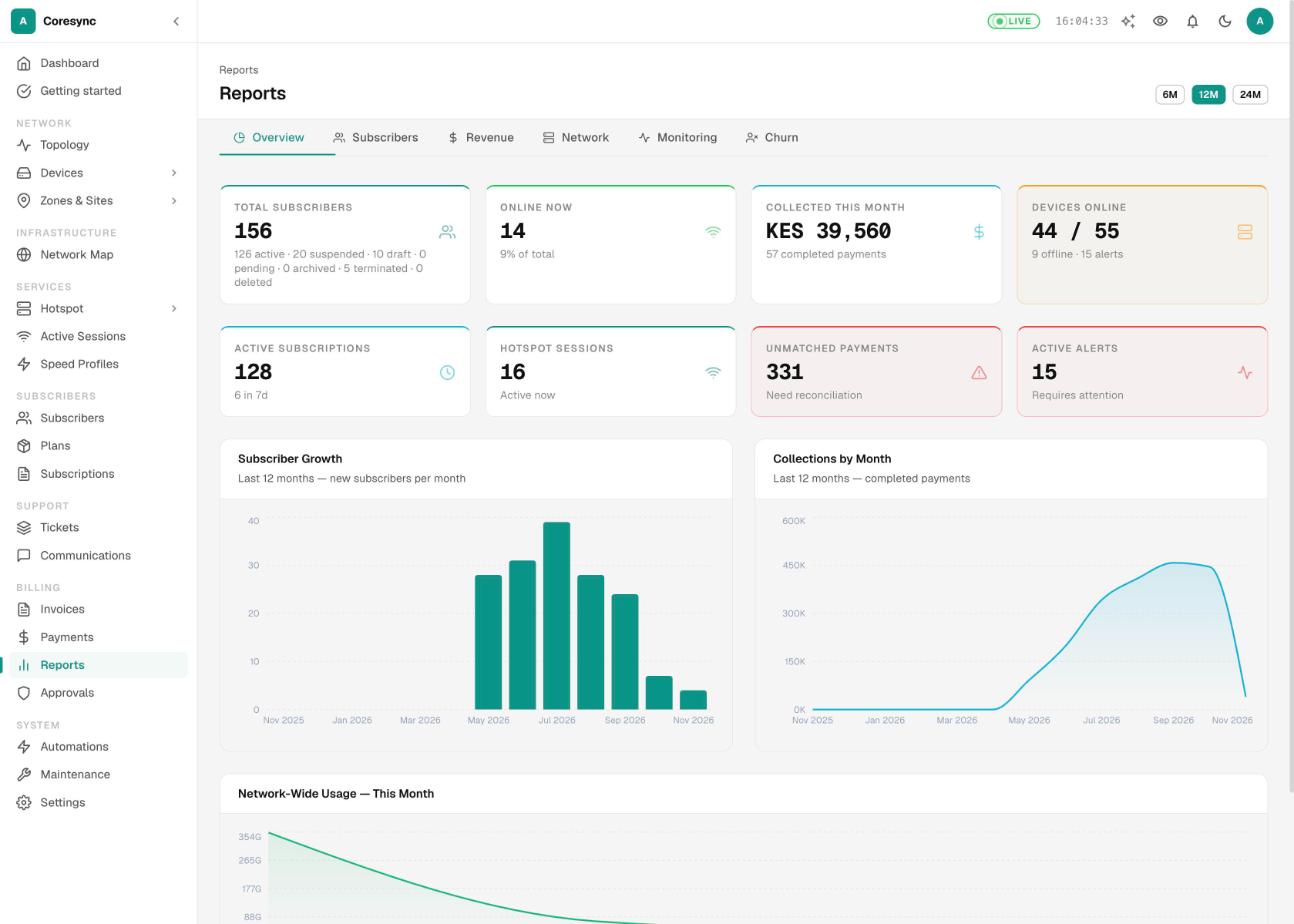
| Tab | What it shows | Permission needed |
|---|---|---|
| Overview | Subscribers, who is online now, money collected this month, devices online, active subscriptions, hotspot sessions, unmatched payments and alerts. | View Usage Reports |
| Subscribers | Who connected today, this week and this month, new subscribers per month, and the split of active, suspended and terminated. | View Usage Reports and View Subscriber Reports |
| Revenue | Money collected per month, payment methods, invoice statuses, and where the money comes from. | View Revenue Reports |
| Network | Devices online and offline, device types, link health and network traffic this month. | View Usage Reports |
| Monitoring | Alerts, unreachable devices, device roles and a health summary. | View Usage Reports |
| Churn | Customers you lost in a date range, and what they were paying. | View Subscriber Reports |
The 6M, 12M and 24M buttons at the top right set how many months the trend charts cover.
Read the Revenue tab#
The Revenue tab answers "how much came in, and from where".
- Payment Collections: money collected and payments made this month, the number of invoices and how many are overdue, and unmatched payments waiting for someone to sort them out.
- Collections by Month and Monthly Collections: what came in each month.
- Payment Methods: how much came by M-Pesa, cash, bank and so on.
- Invoice Status Distribution: how many invoices are issued, paid, overdue or void.
Revenue Breakdown, at the bottom, splits what you collected by one thing at a time.
- In Group by, choose Zone, Node, Router, Plan, Payment channel, Gateway, Service type or Recorded by (the staff member who recorded the payment).
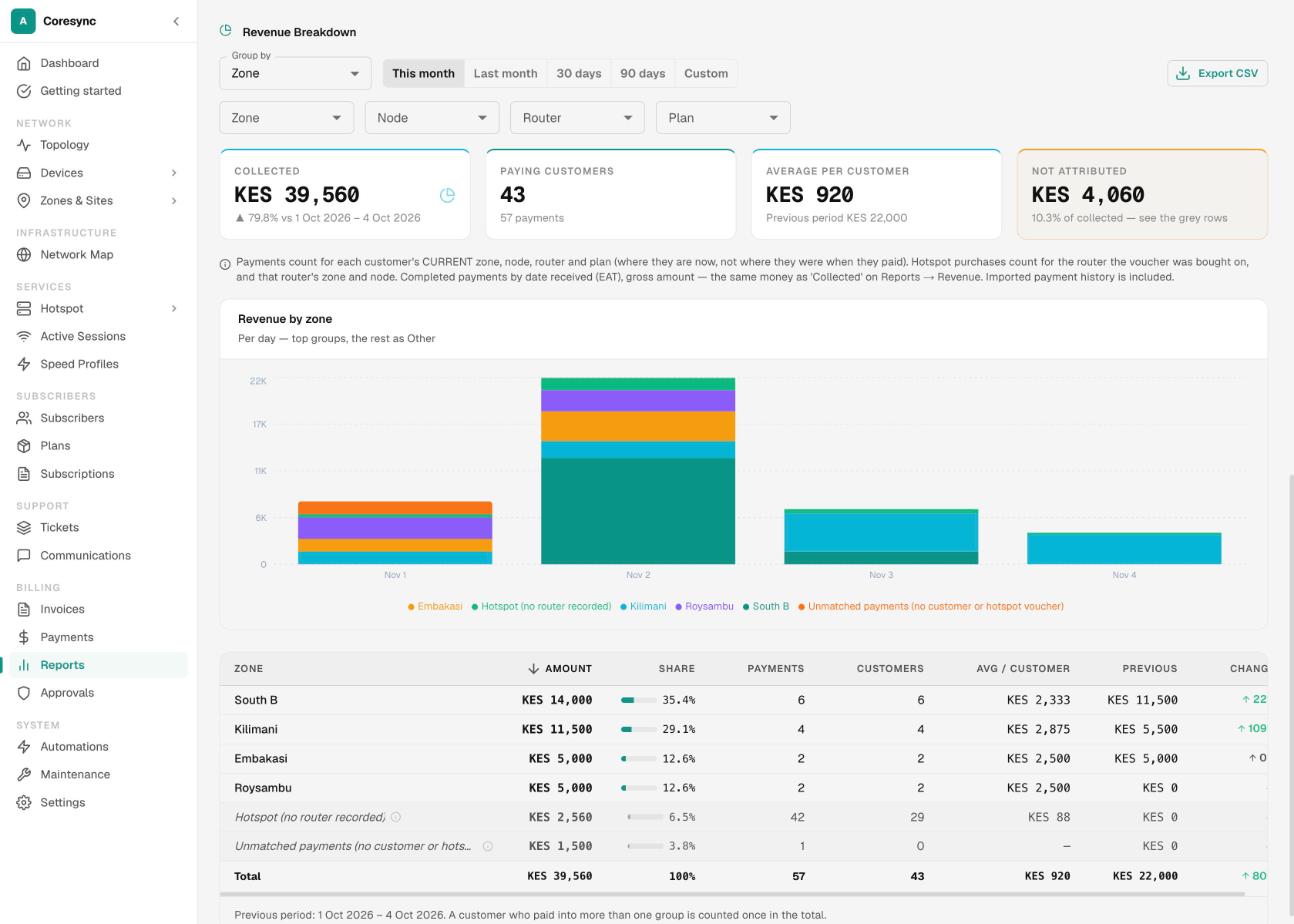
- Pick the period: This month, Last month, 30 days, 90 days or Custom.
- To look at one area only, set the Zone, Node, Router or Plan filters.
- Read the table: each group's amount, its share, the number of payments and paying customers, and the change from the period before.
Not Attributed is money that can't be placed in a group, for example a payment from a customer with no zone when you group by zone. It's still counted, so the total matches what you collected.
See who you lost (Churn)#
In CoreSync, a churned customer is one whose account was terminated in the dates you pick. A customer who simply expired and never paid again isn't counted until someone terminates them.
- Open the Churn tab. With no dates set, it shows this month.
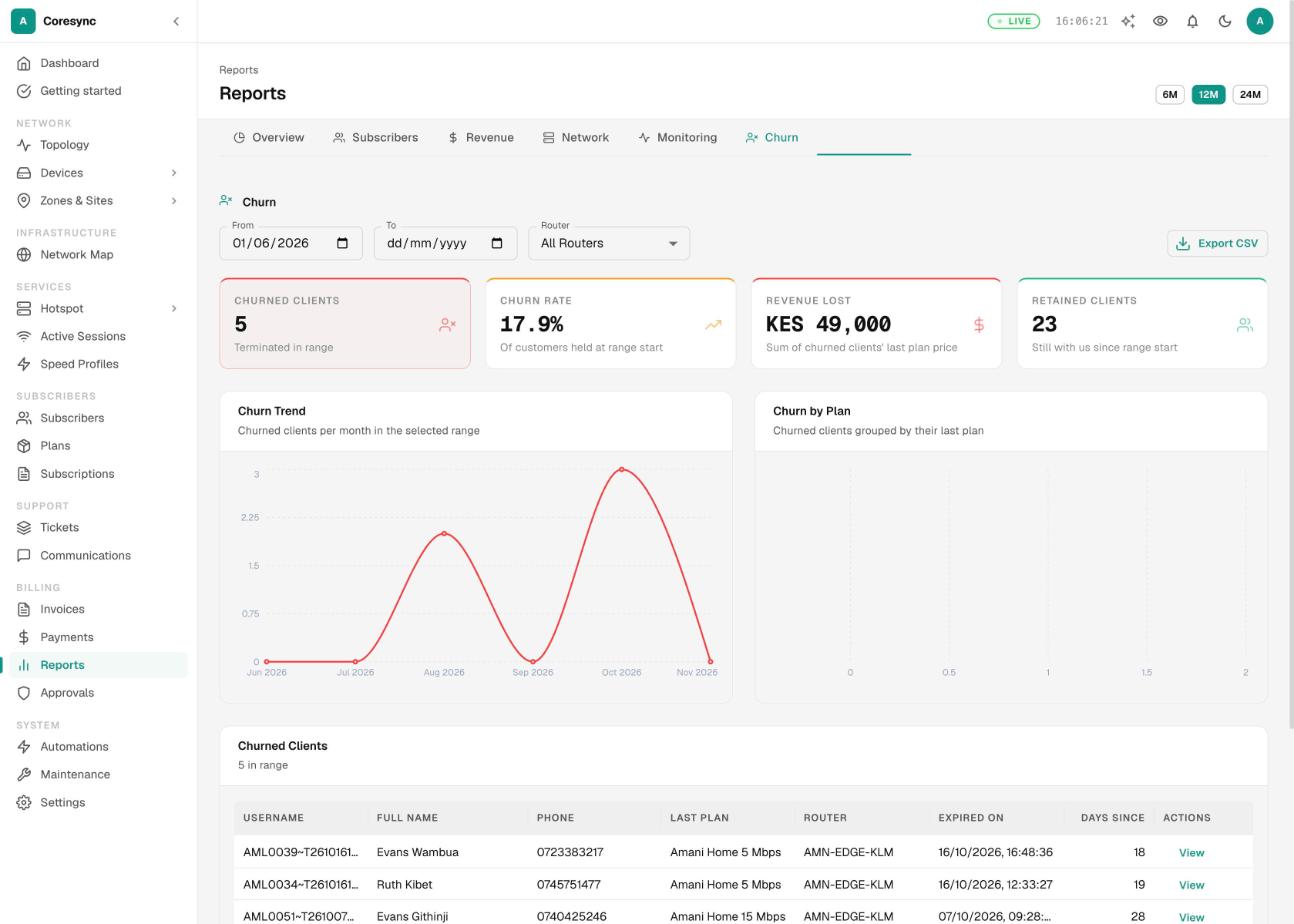
- Set From and To. To look at one site, pick it in Router.
- Read the cards: Churned Clients, Churn Rate (out of the customers you had at the start of the range), Revenue Lost and Retained Clients.
- Scroll to Churned Clients for the list. Press View on a row to open that customer.
- Revenue Lost adds up each lost customer's last plan price. It shows zero for people without View Revenue Reports.
- In the list, the Expired On column shows the date the account was terminated.
- Churn by Plan shows which plans lose the most customers.
Exports#
Bulk exports of customer data are switched off for ISP staff. This covers the subscribers, subscriptions, payments, tickets, hotspot sessions and churned clients exports. The Export CSV buttons still show on those pages, but nothing downloads.
If you need a copy of your data, ask Avitech in writing, for example by email from the owner's address. Avitech exports it for you.
These still download:
- Export CSV in Revenue Breakdown. It saves the table you're looking at.
- Hotspot voucher exports, so you can print vouchers to sell.
- Print / Save PDF on a single invoice.
Who can see money figures#
Money is shown or hidden piece by piece, by permission. Give each role only what the job needs.
| What | Who sees it |
|---|---|
| The amount of each payment, on the Payments page and a subscriber's Payments tab | People with View Money Figures. Others see the payment and its time, with the amount shown as •••. |
| Totals: collections on the dashboard and Payments page, the Revenue tab, unmatched payment counts, Revenue Lost on Churn | People with View Revenue Reports. Others see the cards missing or at zero. |
| Subscriber totals on the Reports page | People with View Subscriber Reports. Others see •••. |
| Invoice amounts | Everyone who can open the Invoices page. Invoice amounts aren't hidden. |
Roles are set in Settings → Users. See Staff and roles.
Common mistakes#
- Pressing Paid instead of recording the payment. Paid only closes the invoice. Record the money in Payments, or the customer still expires.
- Leaving invoices open after customers pay. Payments don't close them, and the next reminder quotes the old open invoice.
- Reading collections as revenue owed. The Revenue tab counts money that arrived, not what your plans are worth.
- Expecting expired customers in Churn. Churn only counts terminated accounts.
- Pressing Export CSV again and again. Bulk exports are off. Ask Avitech in writing instead.
- Giving finance the revenue permissions without View Usage Reports. Without it, Reports doesn't show in their menu.
If it doesn't work#
| What you see | What to do |
|---|---|
| Reports is missing from the menu | Your role needs View Usage Reports. Ask your admin. |
| A Reports tab is missing, or money cards are blank | Check the permission table in Open the reports above. Each tab has its own. |
| Export CSV does nothing | Bulk exports are switched off. Ask Avitech for the data in writing. |
| The invoice says "Company" instead of your name | Add your logo and company name in Settings → Organization. |
| Reminders don't mention an invoice | Check the switch in Settings → Notifications → Rules, and the customer's Invoicing choice on their Overview tab. |