All guides
Start here
Customers and billing
Hotspot
Network
- Devices, OLTs and ONUs
- Routers, RADIUS and sessions
- TR-069 and remote ONU setup
- Zones, nodes, topology and the map
Support and messaging
Your team and settings
For your subscribers
Troubleshooting
On this page
Open Settings#
Open System → Settings in the menu on the left. If you can change settings, it's also in the account menu at the top right. The tabs run down the left side of the page. Click one to open it.
Each tab has its own address, such as /admin/settings?tab=payment, so you can bookmark a tab or send the link to a colleague.
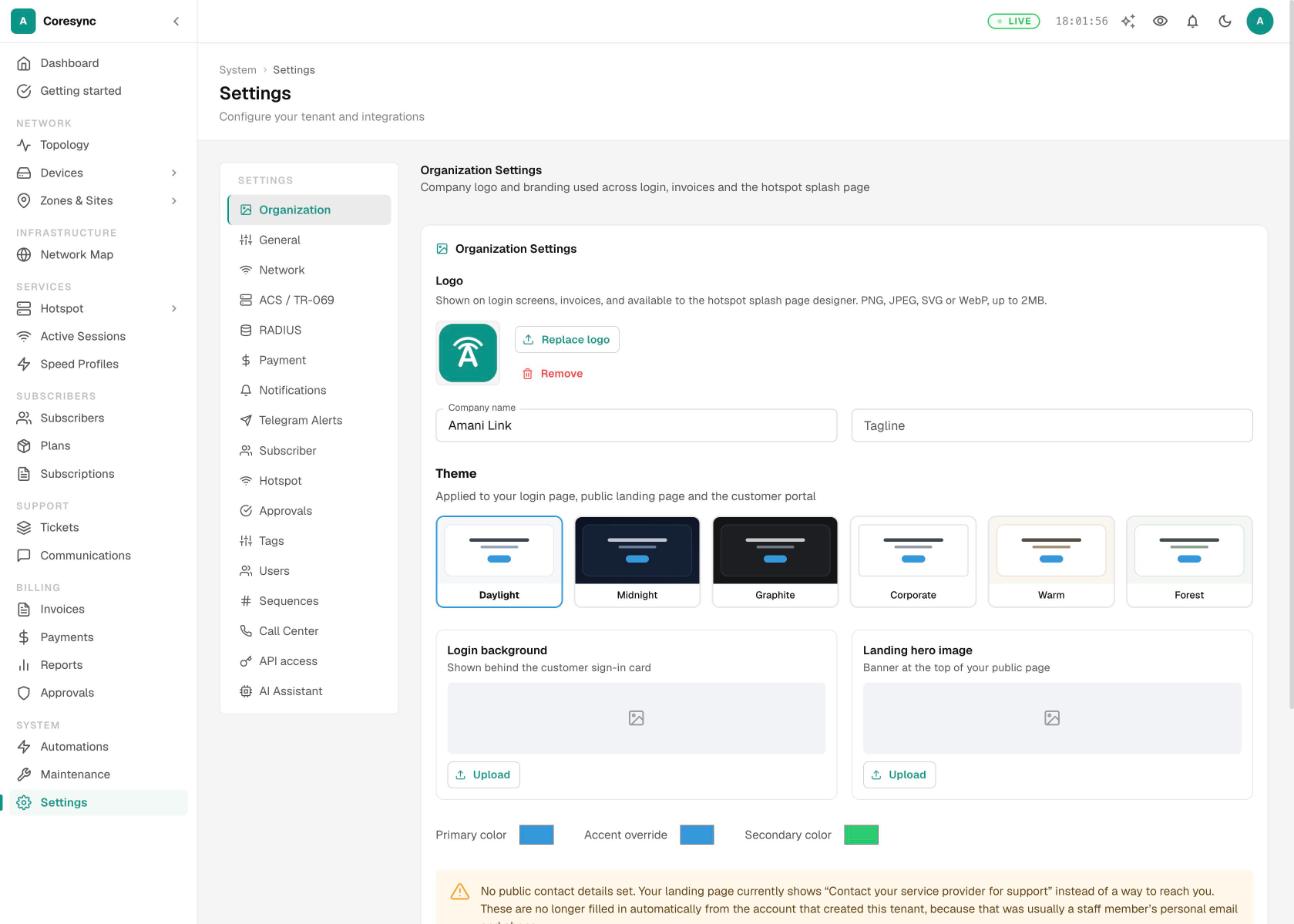
Some tabs only appear when your ISP has that part of CoreSync. ACS / TR-069 and Telegram Alerts need the network module. RADIUS, Payment, Subscriber, Hotspot and Approvals need billing. AI Assistant needs the AI module.
Organization#
Your brand. What you set here shows on your login page, your public landing page, the customer portal, invoices and the hotspot splash page designer.
- Logo: PNG, JPEG, SVG or WebP, up to 2MB. Use Upload logo, Replace logo or Remove.
- Company name and Tagline.
- Theme: pick one of the ready-made themes, then set an Accent override if you want your own colour. Primary color and Secondary color set your two brand colours.
- Login background and Landing hero image.
- Contact email, Contact phone, Support URL, Facebook URL and Twitter / X URL.
Press Save changes when you're done. The company name can't be empty.
General#
Defaults for new subscribers and for your routers.
- Default Connection Type: PPPoE or Static IP. This is what the Add subscriber form starts with.
- PPPoE Pool Assignment: turn it on to make staff pick a router (NAS) for every new PPPoE subscriber, so each one gets an IP pool.
- Queue Prefix: the start of the queue names CoreSync makes on your MikroTik routers. Leave it blank to use your ISP code.
Press Save Preferences.
Network#
- Winbox Access: who may open your MikroTik routers in Winbox through CoreSync. Leave Allow connections from any IP address on, or turn it off and list the addresses allowed.
- ONU Web Access: how the ONU web page opens from a device page. Via Server (Proxy) works from anywhere. Management IP (Direct) only works when you're on the same network as the ONU. This choice is saved in your own browser only.
See Devices and ONUs.
ACS / TR-069#
The ACS is the server your ONUs and routers report to over TR-069, so CoreSync can read them and push settings such as PPPoE and Wi-Fi.
- Profiles: set up your ACS. Platform Managed means CoreSync runs one for you (Provision ACS). Self Hosted means you run your own and type its NBI URL (Connect ACS).
- Firmware: firmware files for your CPEs.
- Devices: everything the ACS has seen, with the last time each one reported. Sync Now pulls the latest list.
The full setup is in TR-069 and the ACS.
RADIUS#
How RADIUS treats logins across your whole ISP.
- Auto-assign a subscriber's NAS on first login: when a subscriber was saved against no router or the wrong one, CoreSync fixes it from the router they actually log in through. Leave it on unless each customer must only ever connect through one router.
- Lock accounts to known device MAC(s): when on, a customer's login only works from the router or ONU it has been seen on. You can change this for one subscriber on their page.
- Default concurrent-device limit: how many devices can log in at the same time on one account. Leave it at 1 for most homes.
- RADIUS authentication timeout: how long a router waits for an answer from RADIUS. The default is
3s. It's used when CoreSync sets up RADIUS on a router.
See Routers and RADIUS.
Payment#
Where your customers' money comes in, and what CoreSync does with it. The tab has four parts: Gateways, Charges, Policies and Discounts.
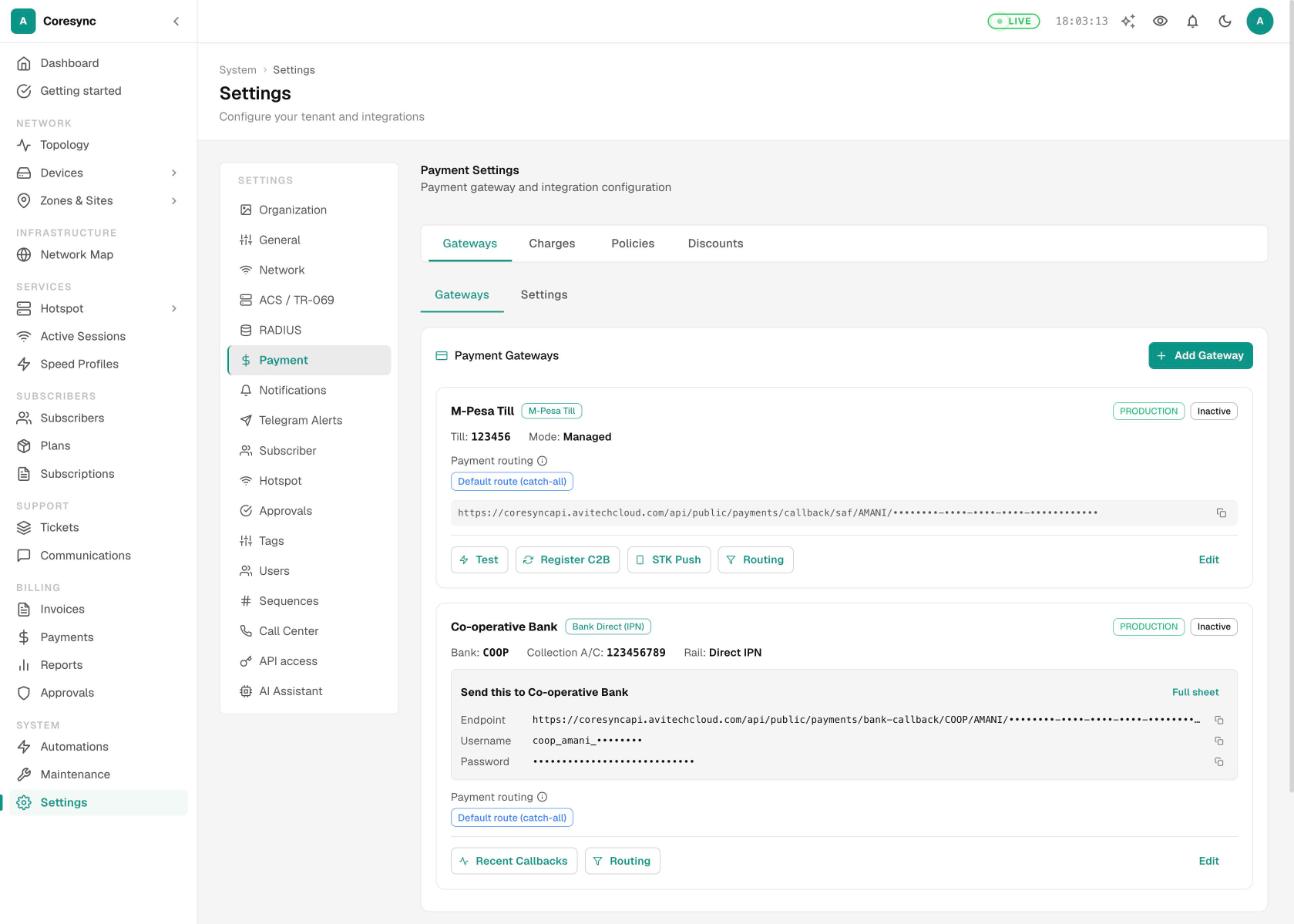
Gateways lists your paybills, tills and bank collections. The types you can add are M-Pesa Paybill, M-Pesa Till, KopoKopo Till, Bank Transfer (via bank paybill), Bank Direct (IPN), and three Ugandan mobile money options.
Inside Gateways, a second row of tabs has Gateways (the list) and Settings. Settings decides When a payment is below the plan price: Prorate — grant partial days, or Hold as credit — full cycle only until the rest arrives.
To add an M-Pesa paybill:
- Press Add Gateway and choose M-Pesa Paybill as the Gateway Type.
- Type your Shortcode (for example
123456), and the Consumer Key, Consumer Secret and Passkey from your Safaricom Daraja account. Keep Environment on Production. - Save. Then press Test on the gateway card to check the keys.
- Press Register C2B. This tells Safaricom to send your paybill payments to CoreSync. Without it, payments made straight to the paybill never arrive. For KopoKopo, the button is Register Webhook.
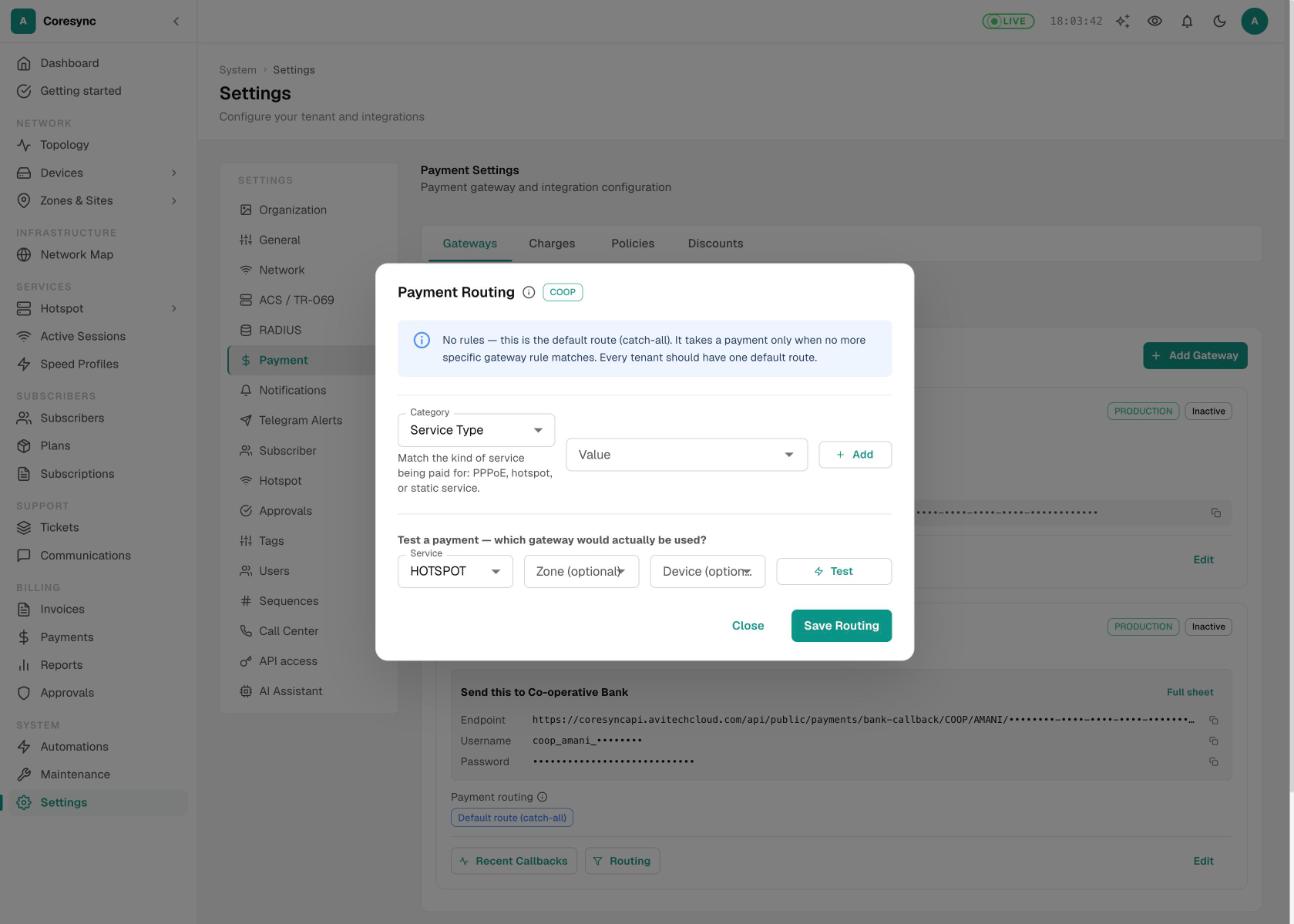
Routing decides which gateway a customer pays through, when you have more than one. A gateway with no rules is the Default route (catch-all): it takes any payment no other gateway claims. Add rules by Service Type, Zone, Plan, Device / Router or Hotspot NAS. A gateway with rules only takes payments that match all its categories. You can try a customer out in the dialog before you press Save Routing.
Charges holds the Default installation charge (KES) that the Add subscriber form fills in, and two switches. Settle pending charges before topping up the wallet pays off unpaid charges (installation, router replacement and others) from the next payment first. Guess installation fee from a new subscriber's first payment treats the extra in a new customer's first payment as an installation fee.
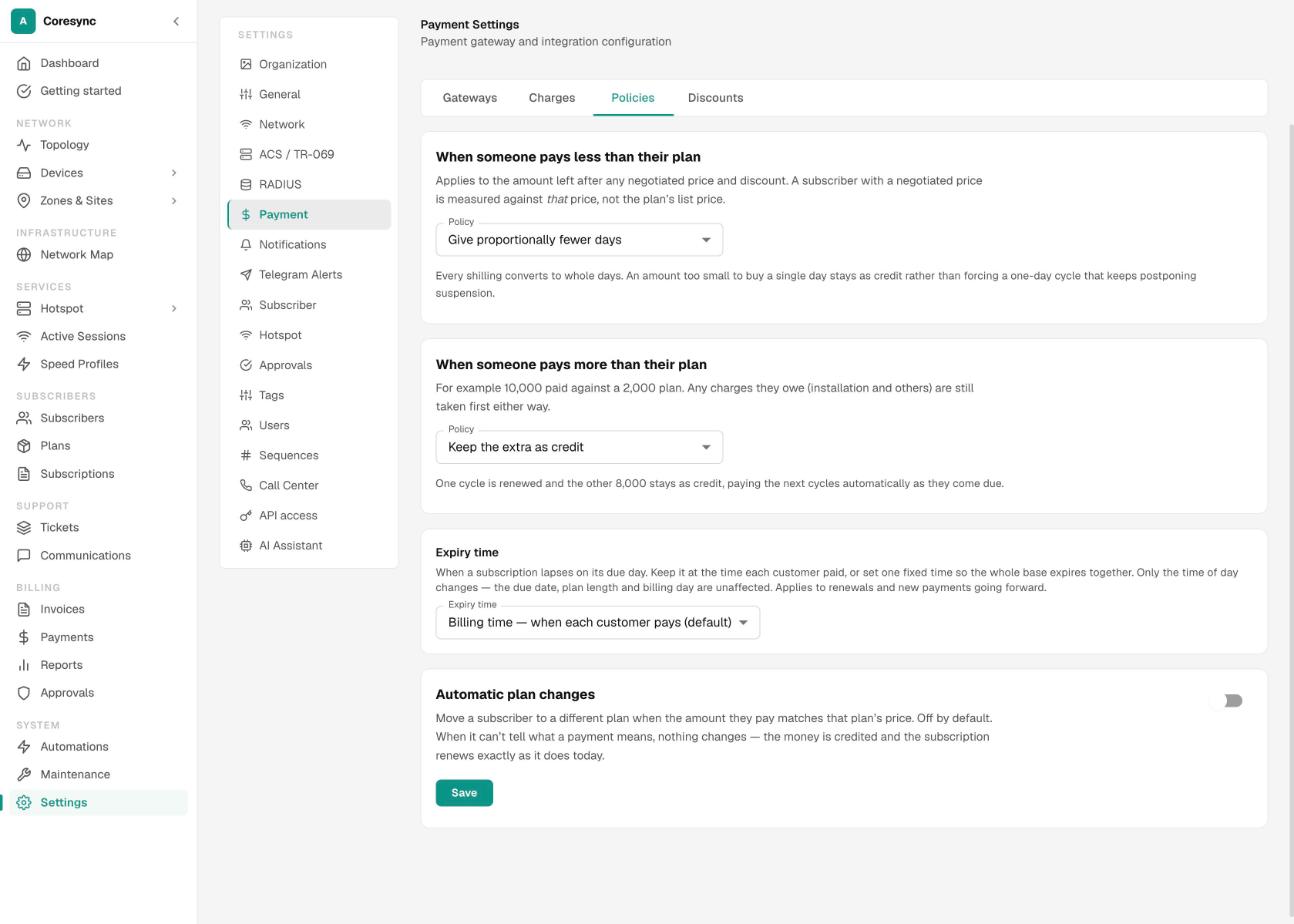
Policies decides what happens to money once it arrives:
- When someone pays less than their plan: give proportionally fewer days, or hold the money as credit until it covers a full cycle.
- When someone pays more than their plan: keep the extra as credit, or take only the plan price.
- Expiry time: expire each customer at the time they paid (the default), or at one fixed time such as End of day — 23:59.
- Automatic plan changes: move a customer to another plan when they pay that plan's price. Off by default.
Discounts holds discounts for one plan or for every subscriber. Press New and choose a percentage or a fixed amount, every cycle or once per subscriber. A subscriber's own discount always wins over these, and only one discount applies at a time.
The day-to-day side of money is in Payments.
Notifications#
The messages CoreSync sends by itself, and the SMS account it sends them from. It has six parts:
| Part | What's in it |
|---|---|
| Rules | Billing Reminders (one week before expiry, 3 days before, the final day and on expiry), the switch Issue invoice with bill-due reminders, and Other Notification Rules for payments, activations and device alerts. |
| Queue | Messages waiting to go out. |
| Library | Ready-made templates you can subscribe to or copy and change. |
| Quick SMS | Short messages staff can pick from on a subscriber's page. |
| Integrations | Your SMS provider and sender ID. Press Test Credentials to check it. |
| Outgoing | Every message sent, with filters for channel, status and category. |
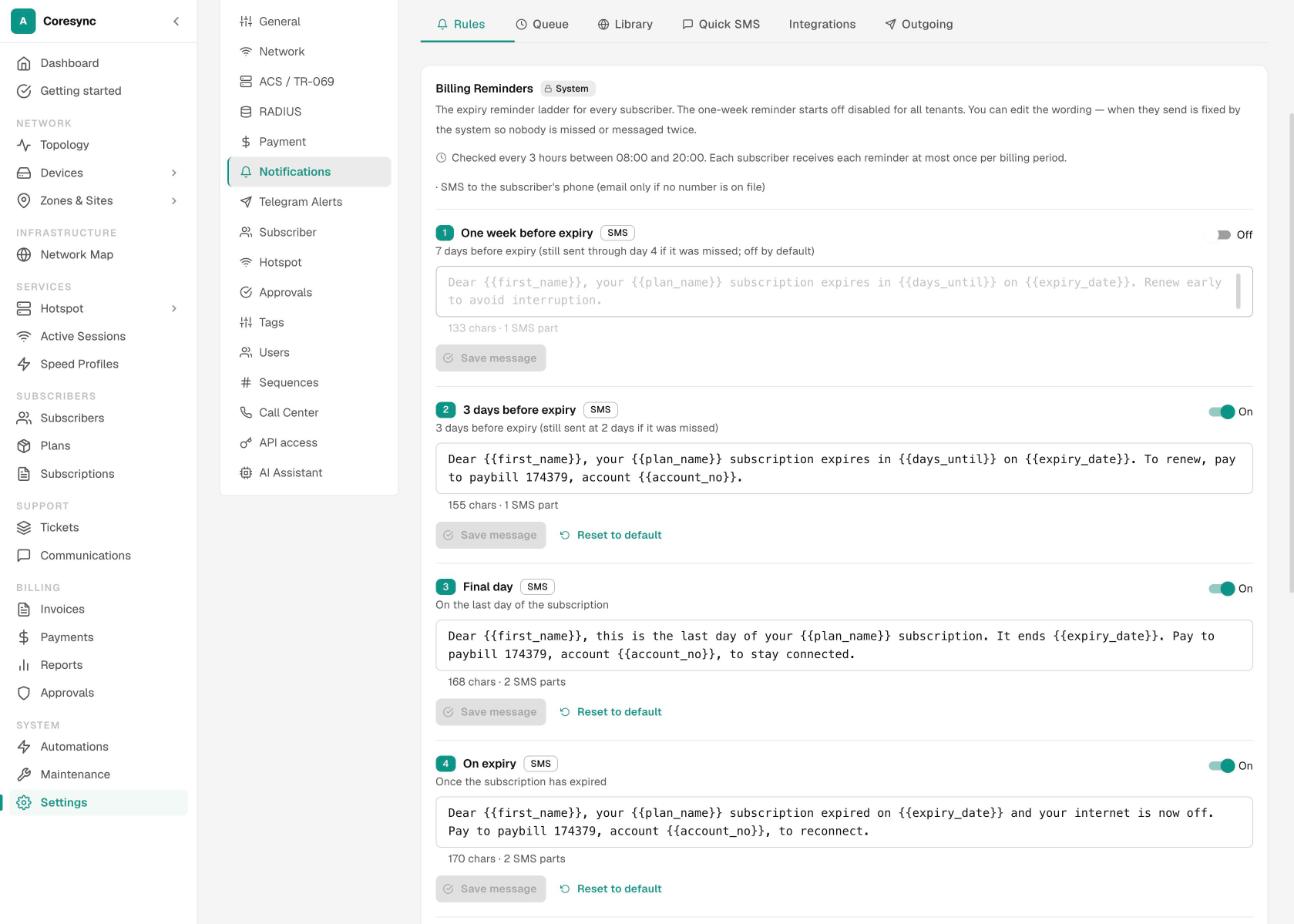
You can change the wording of each billing reminder and switch it on or off. When they send is fixed, so nobody is missed or messaged twice. The one-week reminder starts off. Use the variables shown under the message, such as {{first_name}} and {{expiry_date}}.
SMS campaigns and the message log are covered in SMS and email campaigns. Rules that do more than send a message are in Automations.
Telegram Alerts#
Network alerts sent to your team's Telegram groups: devices going down and coming back, fibre cuts and power cuts on a PON.
- In Telegram, open @BotFather, send
/newbotand follow the steps. Copy the token it gives you. - Paste it into Bot token and press Connect.
- Add the bot to your Telegram group and send a message there. Then add the group under Alert groups. Find chats lists the groups the bot can see.
- Choose the alerts the group gets and, if you like, Min. ONUs affected, Flap delay (minutes) and quiet hours. Press Send a test message (the paper-plane button on the group) to check it works.
Subscriber#
Two parts: Defaults and Customer Portal.
Defaults covers:
- Access for New Subscribers: how long a new customer can browse before paying. When it runs out, they're suspended until they pay.
- Auto-archive long-lapsed accounts: moves accounts lapsed for 60 days or more out of the working list. Nothing is deleted or disconnected, and they come back the moment they pay.
- Billing Code Policy, Username Policy and Password Policy for new subscribers: where each one comes from (a sequence, the phone number, the account number and so on).
Customer Portal is where you turn on Subscriber portal, the page where your customers sign in with their phone number to check their plan and pay. It's off until you switch it on.
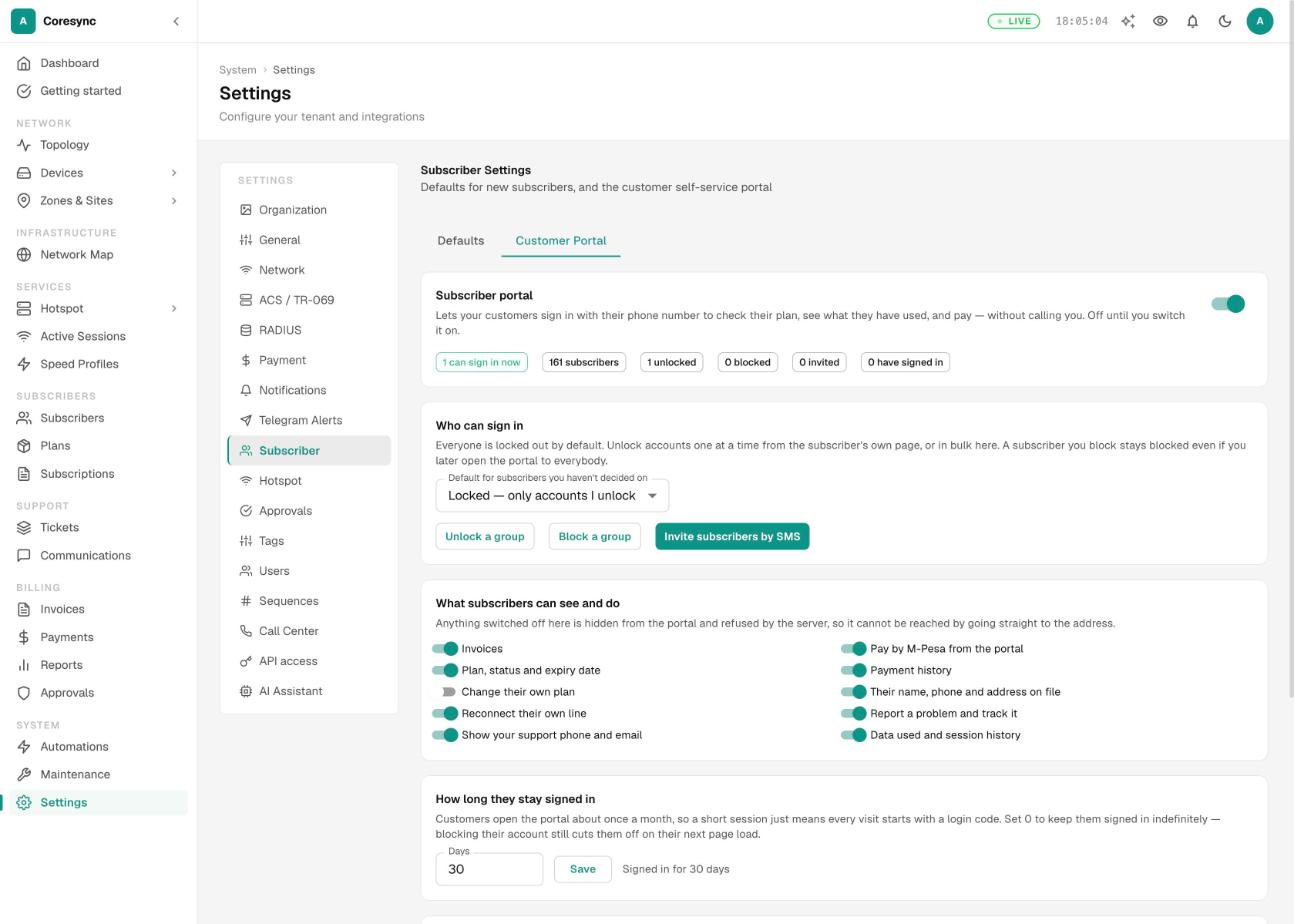
- Who can sign in: Locked — only accounts I unlock or Open — everyone except those I block. Use Unlock a group, Block a group or Invite subscribers by SMS for many at once.
- What subscribers can see and do: switches for plan and expiry, usage, payments, invoices, paying by M-Pesa, changing plan, reconnecting their line, reporting a problem and more.
- How long they stay signed in, the login and invitation SMS wording, and the support phone and email shown in the portal.
What your customers see is in The customer portal.
Hotspot#
- Customer tracking: keep a record of paid hotspot buyers, and how many purchases make a “repeat” customer.
- Retention and cleanup: archive occasional buyers after a number of inactive days.
- Customer accounts (My WiFi): let buyers sign in to see their bundles and devices, sign in with an SMS code, buy a bundle for another phone number, and get a home internet offer after enough purchases. Each SMS sign-in uses one of your SMS credits.
- The SMS sent when a bundle is bought while still online, and the SMS to someone a bundle was bought for. Type
-to send nothing.
Press Save hotspot settings. Vouchers, packages and the splash page are in Hotspot.
Approvals#
Switch on a second person's sign-off for risky actions. When an action is switched on here, doing it creates a request in Billing → Approvals instead of happening straight away.
- Pause Subscription
- Extend Subscription
- Apply Compensation
- Suspend Subscriber (only while the subscription is still running; suspending at expiry is never held)
- Terminate / Delete Subscriber
- Approve Payment Match
- Move Payment
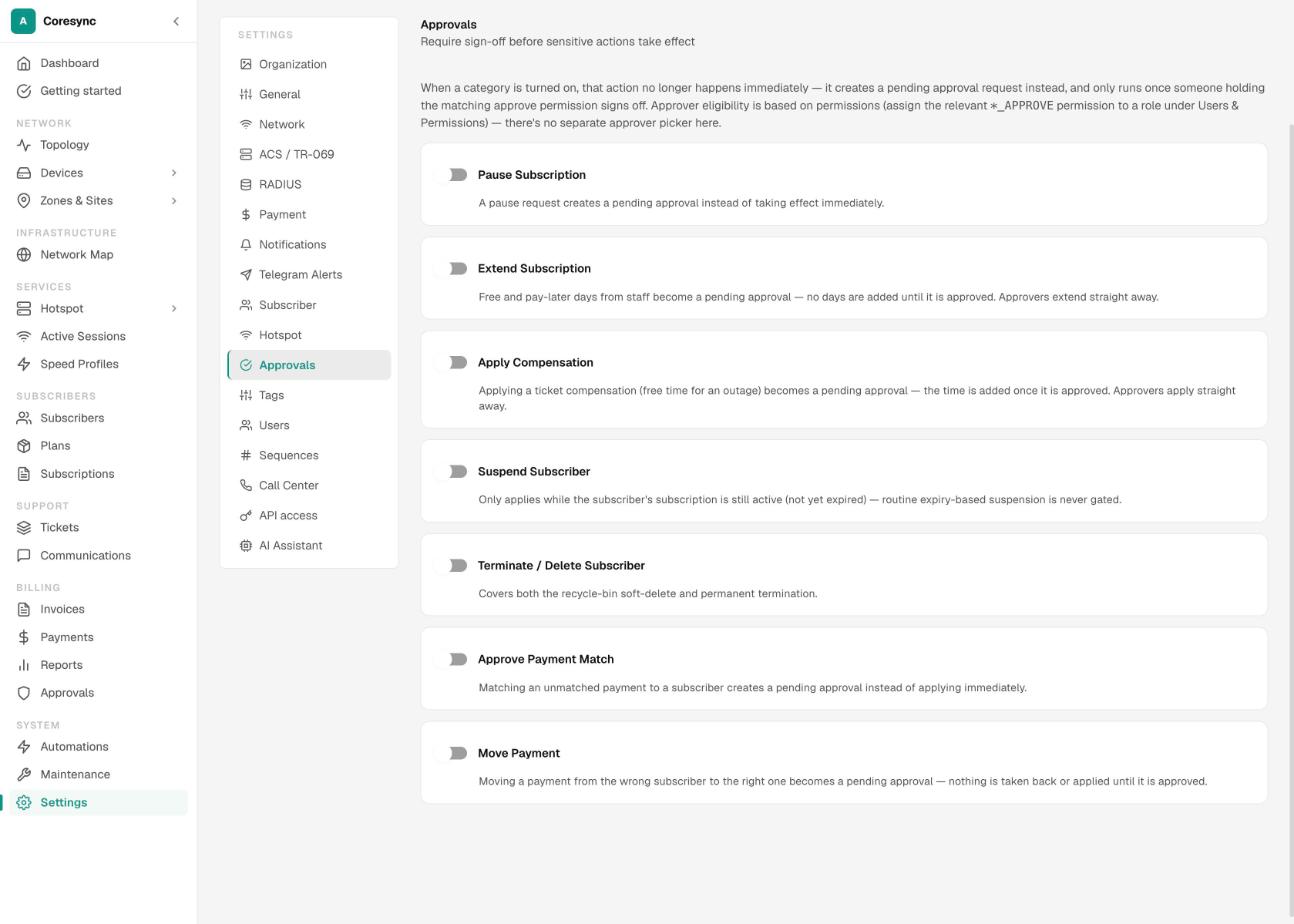
Who can approve is set by roles. See Approvals.
Users#
Your staff accounts and roles, in two lists: Users and Roles. Use Add User and Add Role.
The full guide is Staff, roles and approvals.
Sequences#
How CoreSync numbers things: billing codes, tickets, payments, invoices, purchase orders and leads. Each has a Pattern, such as SUB-{YYYY}-{SEQ:5}, with a live Preview.
- Counter reset: never, yearly, monthly or daily.
- Start value and Increment by.
- For billing codes, Subscriber-specific rules give a different pattern per router, zone, plan or service type. Router rules win, then zone, plan, service type, and last the default.
Call Center#
Connects CoreSync to your SeamlessVoip call center: a softphone in the browser, the customer's page popping up when they call, and contacts kept in sync. Turn on Enable call center integration, type the Call center API URL, then give staff their PBX extension under Softphone Extensions.
API access#
API keys and webhooks, for connecting other software to CoreSync. Make a key with New key and copy it straight away: it's only shown once. Add a webhook with Add endpoint.
AI Assistant#
Credits for the AI assistant. Overview shows what you can use now, Buy credits and your recent credit history. Purchases lists what your company has bought.
People who manage the assistant also see Team, for each person's monthly limit, and Own key, for using your own AI provider and key instead of credits.
See The AI assistant. Credit prices are shown in the app when you buy.
Common mistakes#
- Adding a paybill but not pressing Register C2B. Prompts sent from CoreSync work, but money paid straight to the paybill never arrives.
- No default route. When every gateway has routing rules, a customer who matches none has nowhere to pay. Leave one gateway with no rules.
- Pressing STK Push on a gateway card with a customer's number. It's a real prompt. Test with your own phone.
- Setting Expiry time to Midnight — 00:00. Midnight is the start of the day, so customers lose their last day. Use End of day — 23:59.
- Changing the billing code pattern after customers are paying. Old codes keep working, but new ones look different. Set it up first.
- Giving everyone Edit Settings. Settings change how money and logins work for every customer. Keep it to one or two people.
- Opening the customer portal to everyone without checking what it shows. Look at What subscribers can see and do first.