All guides
Start here
Customers and billing
Hotspot
Network
- Devices, OLTs and ONUs
- Routers, RADIUS and sessions
- TR-069 and remote ONU setup
- Zones, nodes, topology and the map
Support and messaging
Your team and settings
For your subscribers
Troubleshooting
On this page
What it's for#
The CoreSync API lets another system work with your ISP's data: a call-centre tool, an accounting package or a bot such as crew.bot. It can read subscribers, plans, sessions, invoices and payments. With the right key, it can also record payments, suspend, reactivate or change plans.
Everything is in Settings → API access. The top card shows your Base URL and the link to the full specification.
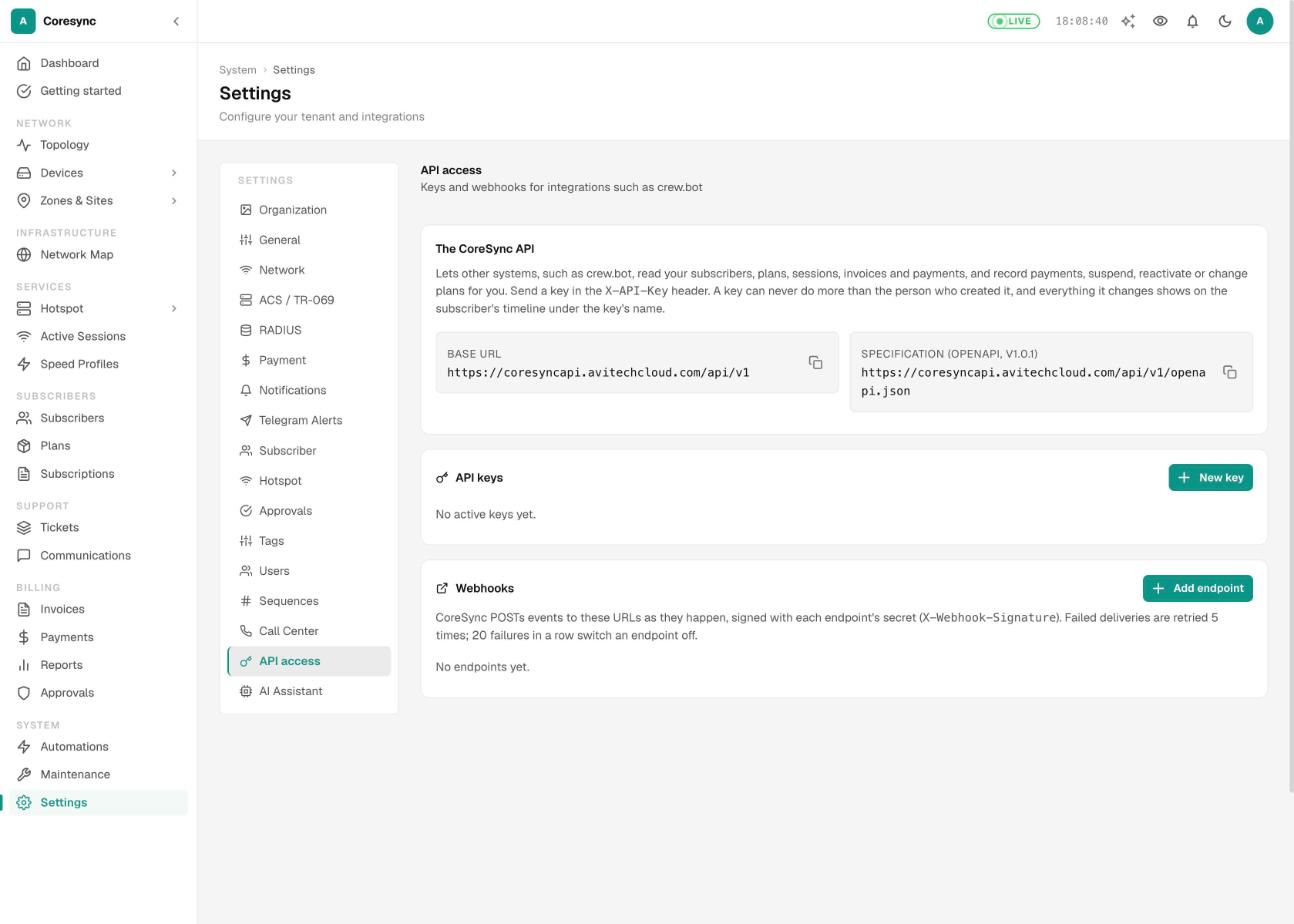
Create a key#
- Press New key.
- Give it a Name, such as the system that will use it. The name shows as the actor on everything the key does, for example on a subscriber's timeline.
- Under What it may do, tick only the scopes it needs.
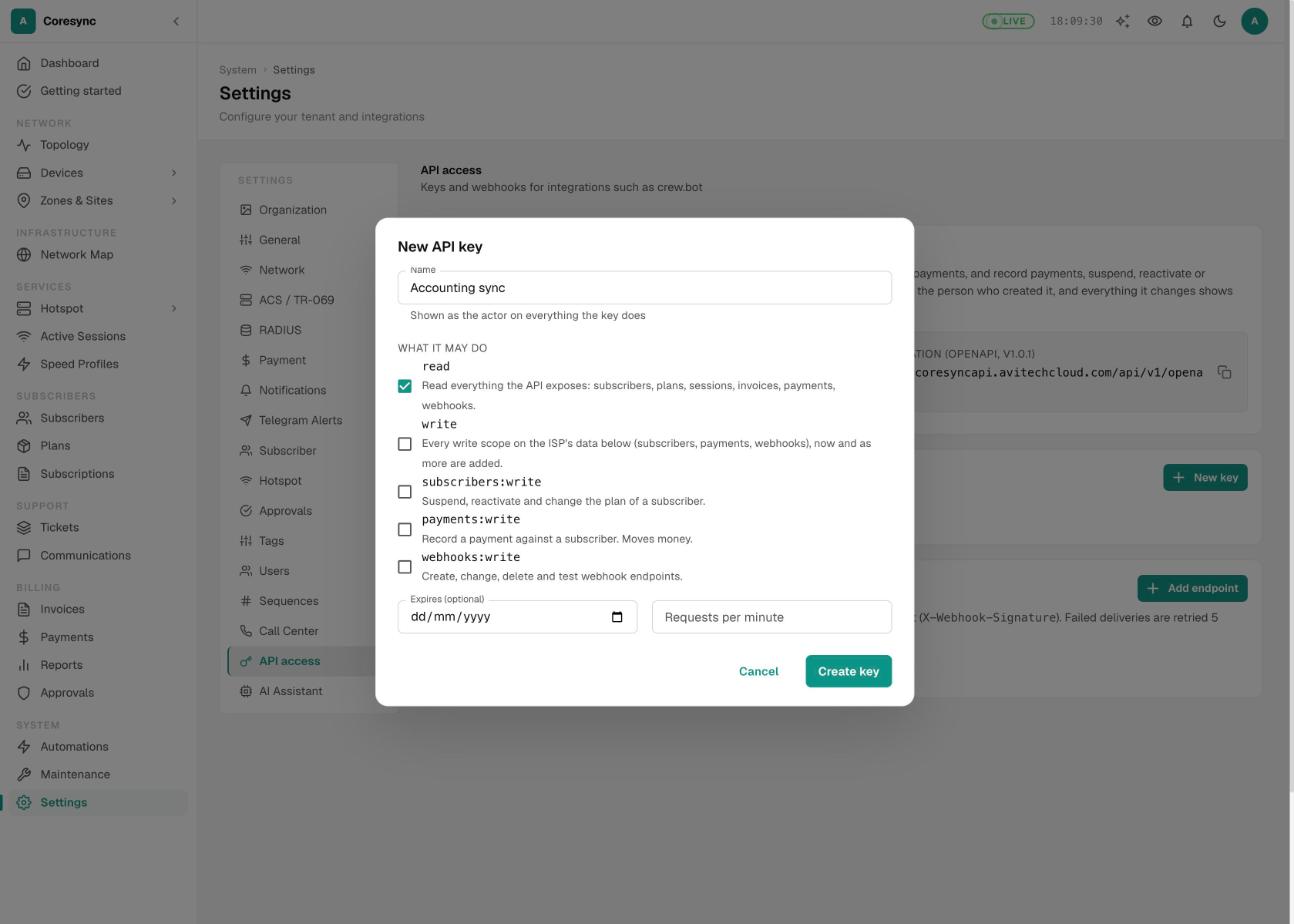
- If you need them, set Expires (optional) and Requests per minute.
- Press Create key. Copy the key from Copy your key now and store it safely, then press I have copied it.
| Scope | Lets the key |
|---|---|
read | Read subscribers, plans, sessions, invoices, payments and webhooks. |
subscribers:write | Suspend, reactivate and change a subscriber's plan. |
payments:write | Record a payment against a subscriber. This moves money. |
webhooks:write | Create, change, delete and test webhook endpoints. |
write | All the write scopes above, and any added later. |
A key never does more than you#
A key acts with the permissions of the person who made it, as they are right now. So:
- You can only tick scopes your own role allows. The others say You do not have the permission behind this scope.
- If your role loses a permission later, your keys lose it too.
- If you're deactivated, your keys stop working.
Make keys for long-running integrations from an account that will stay, such as the owner's.
Revoke a key#
Press Revoke on the key, then Revoke again to confirm. Anything using it stops working at once. This can't be undone. Revoked and expired keys move to the list below, with who revoked them and when.
Revoke a key as soon as you stop using an integration, or if you think someone else has seen it.
Add a webhook#
A webhook makes CoreSync tell your system when something happens, instead of your system asking all the time.
- Under Webhooks, press Add endpoint.
- Type the URL. It must be HTTPS and reachable from the internet.
- Tick the Events you want:
payment.received,subscriber.suspended,subscriber.reactivatedorsession.down. - Press Save. Copy the signing secret from Copy the signing secret now. Your system uses it to check each event really came from CoreSync.
- Press Send a test event, then Deliveries to see whether it arrived.
Failed deliveries are retried 5 times. After 20 failures in a row, CoreSync switches the endpoint off. Fix the problem, then press Edit, turn Active back on and press Save.
For your developer#
Everything else, including endpoints, examples, signatures and error codes, is in the developer documentation at /developers.
Common mistakes#
- Ticking every scope. A key that only reads should only have
read. - Making the key from a staff account that will leave. When that person is deactivated, the key stops.
- Pasting the key into chat or email. Anyone with the key can act as you. Store it like a password.
- Ignoring a switched-off endpoint. Check Deliveries to see why it failed.