All guides
Start here
Customers and billing
Hotspot
Network
- Devices, OLTs and ONUs
- Routers, RADIUS and sessions
- TR-069 and remote ONU setup
- Zones, nodes, topology and the map
Support and messaging
Your team and settings
For your subscribers
Troubleshooting
On this page
- Start with the subscriber page
- A customer paid but is still offline
- A payment didn't match anyone
- A customer can't connect
- A customer is connected but has no internet
- A router shows offline
- An ONU isn't showing
- SMS isn't sending
- An email isn't arriving
- A menu item or button is missing
- A customer can't sign in to the portal
- You pressed a button and nothing happened
- An import shows errors
- Questions ISPs ask
Start with the subscriber page#
Most customer problems can be solved from one page. Search for the customer under Subscribers and open them. Then look at these places, in this order:
- The banner under their name. It says if the account is a draft, expiring, expired or suspended.
- Payments. Did their money arrive, and did it reach this account? Pending charges show here too.
- RADIUS Logs. Every login attempt from their router, with the reason when one was refused.
- Devices. Whether the account is locked to certain routers (MAC lock).
- Timeline. What happened to the account and who did it: renewals, suspensions, redials, password changes.
If your ISP has the AI assistant, you can also ask it, for example “why has Wanjiru Kamau got no internet?”. It checks the account, payments, logins, MAC lock, router and ONU for you, and suggests a fix you approve. See The AI assistant.
A customer paid but is still offline#
First open their Payments tab. Then match what you see to a row below.
| What you see | Why | What to do |
|---|---|---|
| The payment isn't on their Payments tab. | It arrived but didn't reach their account. Usually they typed a wrong account number. | Find it in Payments → Unredeemed and redeem it to them. See the next section. |
| The payment isn't anywhere on the Payments page, even when you search its M-Pesa code. | It never reached CoreSync. Either it went to another paybill or till, or this paybill isn't registered to send payments to CoreSync. | Check the number they paid to. If it's yours, press Register C2B on that gateway in Settings → Payment → Gateways. See Settings. |
| The payment is there, but the expiry didn't move. | They paid less than the plan price. With the policy Hold as credit until it covers a full cycle, the money waits as credit until it reaches the full price. | Ask them to pay the rest. You can change the policy in Settings → Payment → Policies. |
| The payment went to a pending charge. | With Settle pending charges before topping up the wallet on, money pays unpaid charges first (installation, router replacement) and only the rest renews the plan. | Explain this to the customer, or waive the charge if it shouldn't be there. |
| The expiry moved, but they show No internet or are very slow. | Their router is still on the old, blocked session. | Press Resync RADIUS on their page. If they still don't come back, press Force Redial. |
| You redeemed the payment, but nothing changed. | Your ISP needs approval for payment matches. The request is waiting. | An approver opens Approvals and approves it. See Approvals. |
Resync RADIUS needs Create Subscribers. Force Redial and Reset MAC need Edit Subscribers. More in Payments.
A payment didn't match anyone#
When an M-Pesa payment comes in, CoreSync looks at the account number the customer typed. It tries it as a subscriber code, then an account number, then a username. If none fit, it tries the phone number the money came from. If nothing matches, the payment waits under Payments → Unredeemed.
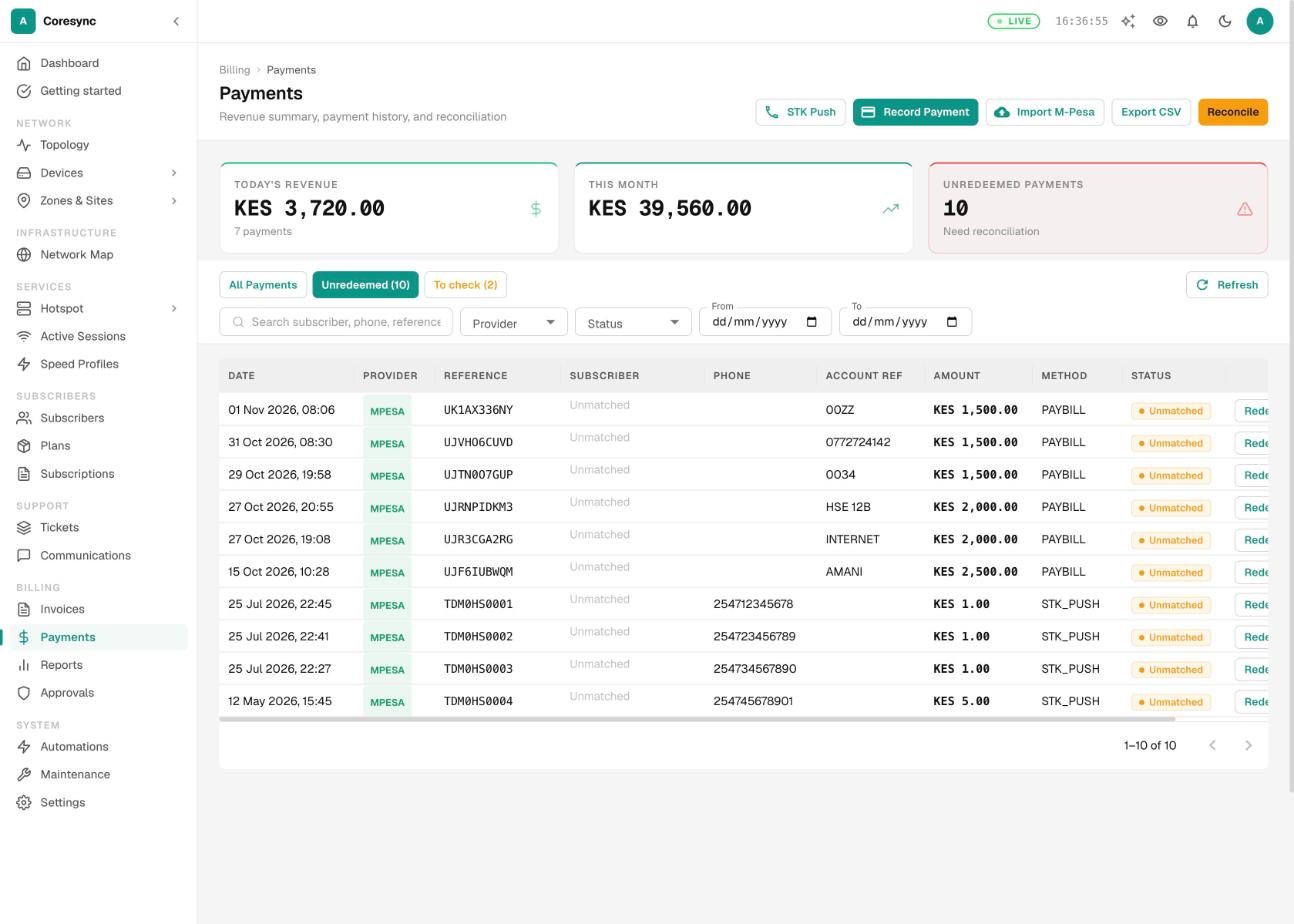
- Open Payments and press Unredeemed. The number in brackets is how many are waiting.
- Use the Phone and Account Ref columns to work out who paid. A customer who calls in can give you their M-Pesa code: type it in the search box.
- Press Redeem on the payment. Search for the subscriber by name or code, then press Redeem Payment. CoreSync applies it just like an M-Pesa payment: it renews them and reconnects them.
The To check tab lists payments that matched an account but were paid from another customer's phone. That is often a mistyped account number. If a payment went to the wrong person, press Review or Move on it to move it to the right one.
A customer can't connect#
When a router asks CoreSync to let a customer in and CoreSync says no, the reason is written down. Open the customer's RADIUS Logs tab and read the Detail / Reason column. To see every customer at once, use Maintenance → RADIUS Logs.
| Reason | What it means | What to do |
|---|---|---|
| User not found | The username their router sent isn't one of your subscribers. | Check the PPPoE username on their router. Press RADIUS Credentials on their page to see the right one. If they aren't in CoreSync yet, add or import them. |
| Password mismatch | The username is right, the password isn't. | Open RADIUS Credentials and set the same password on their router. |
| Device MAC not allowed (MAC lock) | The account is locked to certain routers, and they are using a new one. | Press Reset MAC on their page. Their next login records the new router. Or bind the new MAC on the Devices tab. |
| Subscription expired | Their plan ran out on the date shown. | Record their payment or renew them. |
| Account suspended | Someone suspended them, or they were cut off for not paying. | If they've paid, record the payment. Otherwise press Reactivate. |
| Subscription paused | Their subscription is on hold. | Press Unpause Subscription on the Subscription tab when they're back. |
| RADIUS expired | The expiry stored for logins is older than the account's real expiry. | Press Resync RADIUS. |
| Account terminated | The account was closed. | Use Restore account only if closing it was a mistake. |
| Blocked — flagged as rogue/abuse | A router kept trying a username that wasn't one of your subscribers, so CoreSync blocked it. | Once that username belongs to a subscriber, the block lifts by itself within about five minutes. |
No login attempts at all? Then their router isn't reaching yours, or your router isn't reaching CoreSync. Check the fibre or radio link to the customer, then check that their router is up (see A router shows offline).
Moved to another area? A customer can only log in through the router they're assigned to. If they now connect through a different one, edit the subscriber and pick the new router.
Maintenance → RADIUS Logs needs View Settings to open Maintenance, and View Usage Reports for the logs. More in Routers and RADIUS.
A customer is connected but has no internet#
On the Subscribers page, the No Internet card counts customers whose router is still connected while CoreSync has blocked the account. These customers can only reach the payment page. Press the card to list them.
| What you see | Why | What to do |
|---|---|---|
| The banner says Account suspended. | They're suspended, so they're held on the payment page. | If they've paid, record or redeem the payment. Otherwise press Reactivate. |
| An Expired (throttled) chip. | Their plan ran out. They stay online, but at 1k, which is too slow to use. | Renew them, or record their payment. |
| The account is active and paid, but still crawling. | Their session is still on the blocked settings from before they paid. | Press Resync RADIUS, then Force Redial if needed. |
| Paused. | A paused subscription runs at a very low speed until it resumes. | Press Unpause Subscription on the Subscription tab. |
A router shows offline#
CoreSync checks your routers every minute over a private management tunnel. A router shows offline when that check fails. While its tunnel is down, customers on that router can't log in.
| Why | How to tell | What to do |
|---|---|---|
| The router is off, or its internet link is down. | Its customers are offline too. | Check power and the uplink on site. |
| The management tunnel dropped. | In Maintenance → VPN, its Last Handshake is more than a few minutes old. | Check the router can reach the internet. Then follow the steps CoreSync shows on its device page. |
| Someone changed the router's login. | The device page says Verify credentials. | Edit the device in CoreSync and type the new username and password. |
Many customers on one router refused at once? If the router's log says the RADIUS server is not responding, its RADIUS timeout may be too short. Routers moved over from another system often still have 300 ms. Set it to the time in Settings → RADIUS → RADIUS authentication timeout (3s by default).
More in Routers and RADIUS.
An ONU isn't showing#
| What you see | Why | What to do |
|---|---|---|
| A new ONU is plugged in but not in the list. | New ONUs wait on the OLT until someone authorizes them. | Open ONUs → Unconfigured. Open the ONU's menu and choose Authorize ONU. |
| The Unconfigured tab is empty too. | CoreSync can't read the OLT, or the ONU isn't reaching it. | Check the OLT is online in Devices. Then check the fibre and splitter to the ONU. |
| The ONU is listed, but not on the customer's page. | It isn't linked to that subscriber. | Open the ONU's menu on the ONUs page and choose Link to Subscriber. |
| Status LOS. | The ONU has lost the light. The fibre is cut, bent or unplugged. | Send a technician. Many ONUs going LOS together on one PON points to a cut further up. |
| Status Power Fail. | The ONU was switched off or lost power. | Ask the customer to check the power. |
| Status Signal Degraded. | The light is weak (by default, below -27 dBm), which causes drops and slowness. | Clean or fix the connectors and drop cable. |
Authorizing needs Edit Network Devices. If the ONU's TR-069 tab stays empty, see TR-069 and the ACS. More in Devices, OLTs and ONUs.
SMS isn't sending#
Start in Communications → Message Log. Every SMS CoreSync tried to send is there, with its status. To see why one failed, open Settings → Notifications → Outgoing: failed messages show the reason.
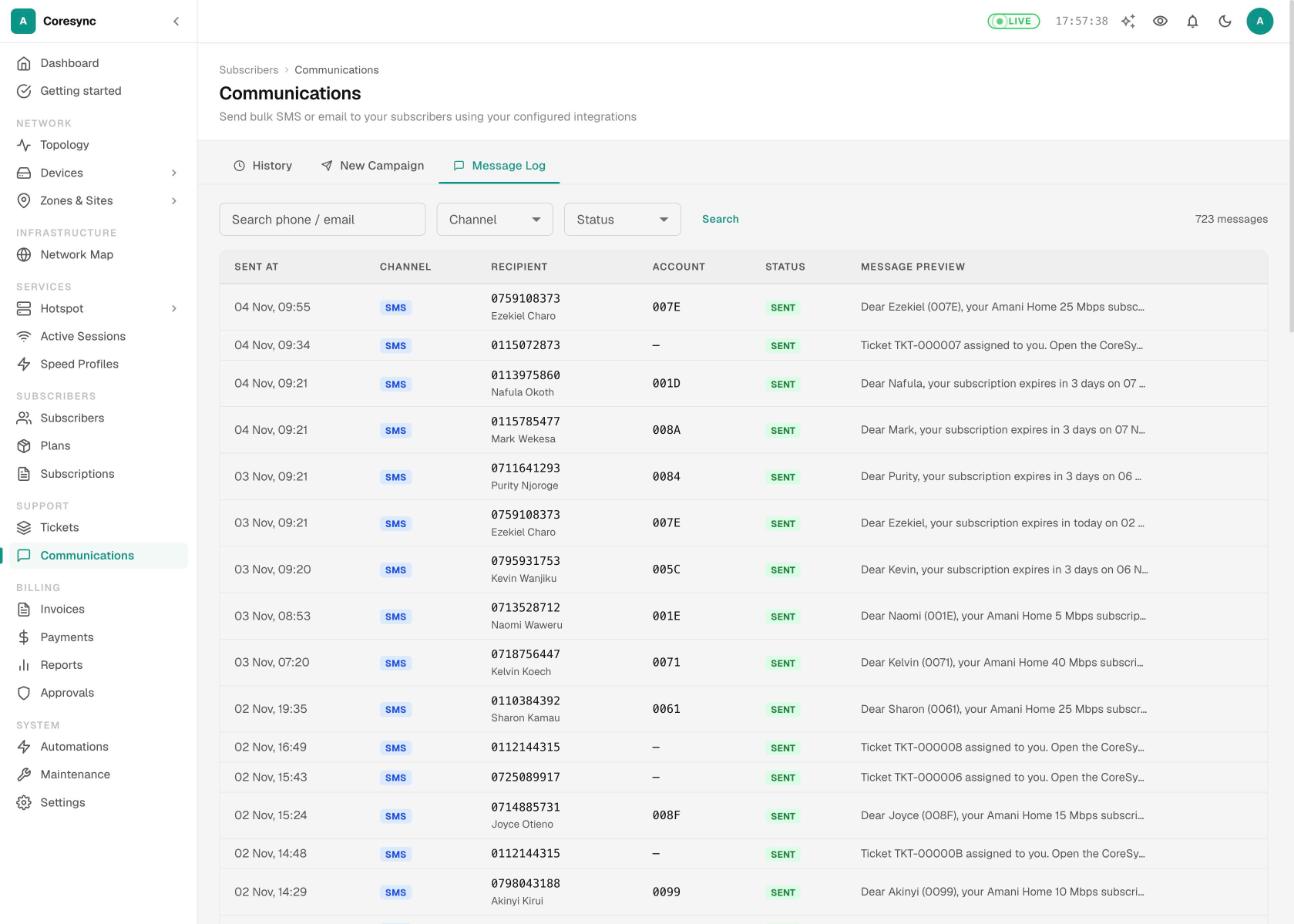
| Why | How to tell | What to do |
|---|---|---|
| No SMS provider is set up, or it's switched off. | Nothing is in the Message Log at all. Settings → Notifications → Integrations shows Disabled. | Set up your provider and press Test Credentials. |
| Your SMS balance has run out. | Messages fail. The SMS: balance on the Communications page is low. Your admins get one email when it happens. | Top up with your SMS provider. |
| That message is switched off. | Its rule is off in Settings → Notifications → Rules, or the automation that sends it is off. Seeded automations start switched off. | Switch the rule or automation on if you want it sent. See Automations. |
| Quiet hours or a cooldown. | The message waits in the Queue tab, or was skipped because the same message went out recently. | Nothing to fix. Quiet hours and cooldowns are set on each rule. |
| The customer was imported. | No welcome or new-account SMS went out. | That's on purpose. Importing never texts customers. |
| Wrong phone number. | The log shows it was sent, but the customer didn't get it. | Fix the phone number on their page. |
The Communications page needs View Subscribers, and Settings needs View Settings. Changing the SMS provider or rules needs Edit Settings. More in SMS and email campaigns and Automations.
An email isn't arriving#
CoreSync never sends email to an address that can't receive it. That protects your sending reputation. It skips an address when:
- It isn't a real email address, for example a phone number or notes typed into the email box.
- It's a placeholder, such as test@example.com or noemail@gmail.com.
- The domain is misspelt, such as gmial.com, or it can't receive mail at all.
- Email to it bounced before. A bounced address is never emailed again.
- Open the customer's page. An amber warning sign next to their email means CoreSync won't send to it. Point at it to see why.
- Check Settings → Notifications → Outgoing with the channel set to Email. A skipped email shows Not sent: and the reason.
- Fix the address on their page, then send again. If the address is right and the email still doesn't arrive, ask them to check their spam folder.
A customer can't sign in to the portal#
| Why | What to do |
|---|---|
| The portal is switched off. | Turn on Subscriber portal in Settings → Subscriber → Customer Portal. |
| The portal is on, but set to Locked — only accounts I unlock, and this customer isn't unlocked. | Unlock them, use Unlock a group, or switch to Open — everyone except those I block. |
| They typed the wrong account number. | Give them their subscriber code. Their account number or PPPoE username also works. |
| The sign-in code never arrives. | The code comes by SMS. Check SMS is working (see SMS isn't sending) and that their phone number is right. |
See The customer portal.
You pressed a button and nothing happened#
Your ISP may need a second person to approve some actions: suspending, terminating, pausing, giving free days, compensation, and matching or moving payments. CoreSync then says the request was sent to an approver, and nothing changes until it's approved.
Ask an approver to open Approvals. See Approvals.
An import shows errors#
When an import finishes, CoreSync says how many rows imported and lists the ones that didn't, with a Reason for each. Rows that imported are kept. Only the failed rows need fixing.
- Press Download failed rows (CSV). The file holds only the failed rows, with their original columns and the reason.
- Fix each row in a spreadsheet.
- Import that file on its own. Don't import the whole file again, or you'll try to add everyone twice.
| Reason | What to do |
|---|---|
| Username … already exists on NAS … | That customer is already in CoreSync, or two rows share a username. Remove the duplicate. |
| No service plan specified and no active plans available to assign as default | Create your plans first, then map the plan column in the import. |
| Hotspot activity cannot be imported as subscribers | Leave hotspot users out of the file. Hotspot customers are tracked from what they buy. |
| Empty row | Delete blank lines from the file. |
More in Moving from another system.
Questions ISPs ask#
| Question | Answer |
|---|---|
| Can I reverse or refund a payment? | No. CoreSync has no reverse button. If money went to the wrong customer, move it with Move on the Payments page. Refunds are made through M-Pesa or your bank, outside CoreSync. |
| What's the difference between expired and suspended? | An expired customer stays connected, but at 1k, so nothing loads. A suspended customer can't connect until they're reactivated. |
| How long does a new customer get internet before paying? | Six hours, unless you change it in Settings → Subscriber → Access for New Subscribers. After that they're suspended until they pay. Choose None if they must pay first. |
| Why do all my customers expire at the same time? | Your ISP has set one fixed time in Settings → Payment → Policies → Expiry time. Choose the time each customer paid instead, if you prefer. |
| A customer paid less than their plan. What happens? | It depends on When someone pays less than their plan in Settings → Payment → Policies. Either they get fewer days, or the money waits as credit until it covers a full cycle. |
| Do imported customers get an SMS? | No. Importing never texts anyone. After the import, they get the normal messages, such as payment confirmations. |
| A customer changed their router and now can't connect. | Their account is probably locked to the old router. Press Reset MAC on their page. |
| The customer says they paid, but I can't find it. | Ask for the M-Pesa code and search for it on the Payments page. If it isn't there, see A customer paid but is still offline. |