All guides
Start here
Customers and billing
Hotspot
Network
- Devices, OLTs and ONUs
- Routers, RADIUS and sessions
- TR-069 and remote ONU setup
- Zones, nodes, topology and the map
Support and messaging
Your team and settings
For your subscribers
Troubleshooting
On this page
How automations work#
An automation is a rule: when something happens, do something. Open Automations under System in the menu.
| Part | What it is | Example |
|---|---|---|
| Trigger | The event that starts the rule. | PAYMENT_RECEIVED, DEVICE_DOWN, TICKET_CREATED |
| Conditions | Optional limits on when it fires. | Only New Subscriber tickets. Only payments over KES 500. |
| Actions | What CoreSync does, in order. | Send an SMS. Open a ticket. Suspend the subscriber. |
The page has three tabs:
- Rules: your rules. A green dot means on, grey means off.
- Execution Log: every time a rule ran, or was held back, and why.
- Library: ready-made rules you can copy and adjust.
The rules CoreSync gives you#
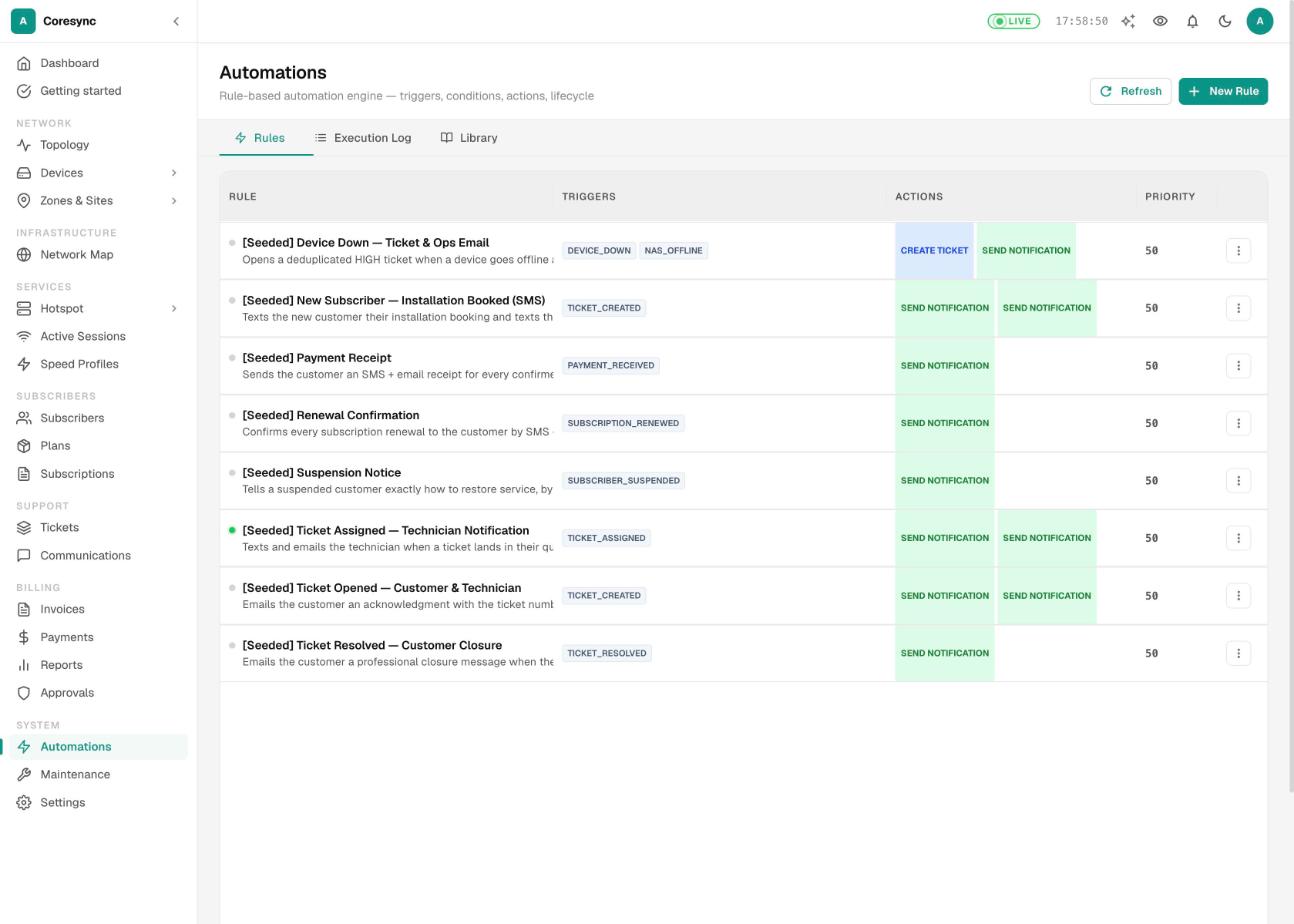
Every ISP starts with a set of rules named [Seeded] …. They're all switched off, because some of them use SMS credit. Turn on the ones you want.
| Rule | What it does | Sends by |
|---|---|---|
| [Seeded] Payment Receipt | Sends the customer a receipt for every confirmed payment. | SMS and email |
| [Seeded] Renewal Confirmation | Confirms each renewal with the new expiry date. | SMS and email |
| [Seeded] Suspension Notice | Tells a suspended customer how to pay and get back online. | SMS and email |
| [Seeded] Ticket Opened — Customer & Technician | Acknowledges a new ticket to the customer and sends the job to the technician. | |
| [Seeded] Ticket Assigned — Technician Notification | Tells the technician when a ticket lands in their queue. | SMS and email |
| [Seeded] New Subscriber — Installation Booked (SMS) | Texts the new customer their installation booking, and the technician the job. Only New Subscriber tickets. | SMS |
| [Seeded] Ticket Resolved — Customer Closure | Emails the customer when their ticket is resolved. | |
| [Seeded] Device Down — Ticket & Ops Email | Opens a HIGH ticket when a router or device goes offline, emails managers, raises it to CRITICAL after an hour, and marks it resolved when the device comes back. |
- On the Rules tab, open the menu at the end of the rule's row.
- Press Enable, read what it will do, and press Enable again to confirm.
Press Disable the same way to turn a rule off. It stops firing until you turn it back on.
Make your own rule#
- On the Rules tab, press New Rule. Or start from the Library (below).
- Give it a Rule name and a Description. Priority decides the order when several rules fire at once: lower runs first. Leave Active switched on so it runs.
- Under Trigger, pick one or more Trigger types. Set a Trigger delay (minutes) to wait before acting, or leave it blank to act at once.
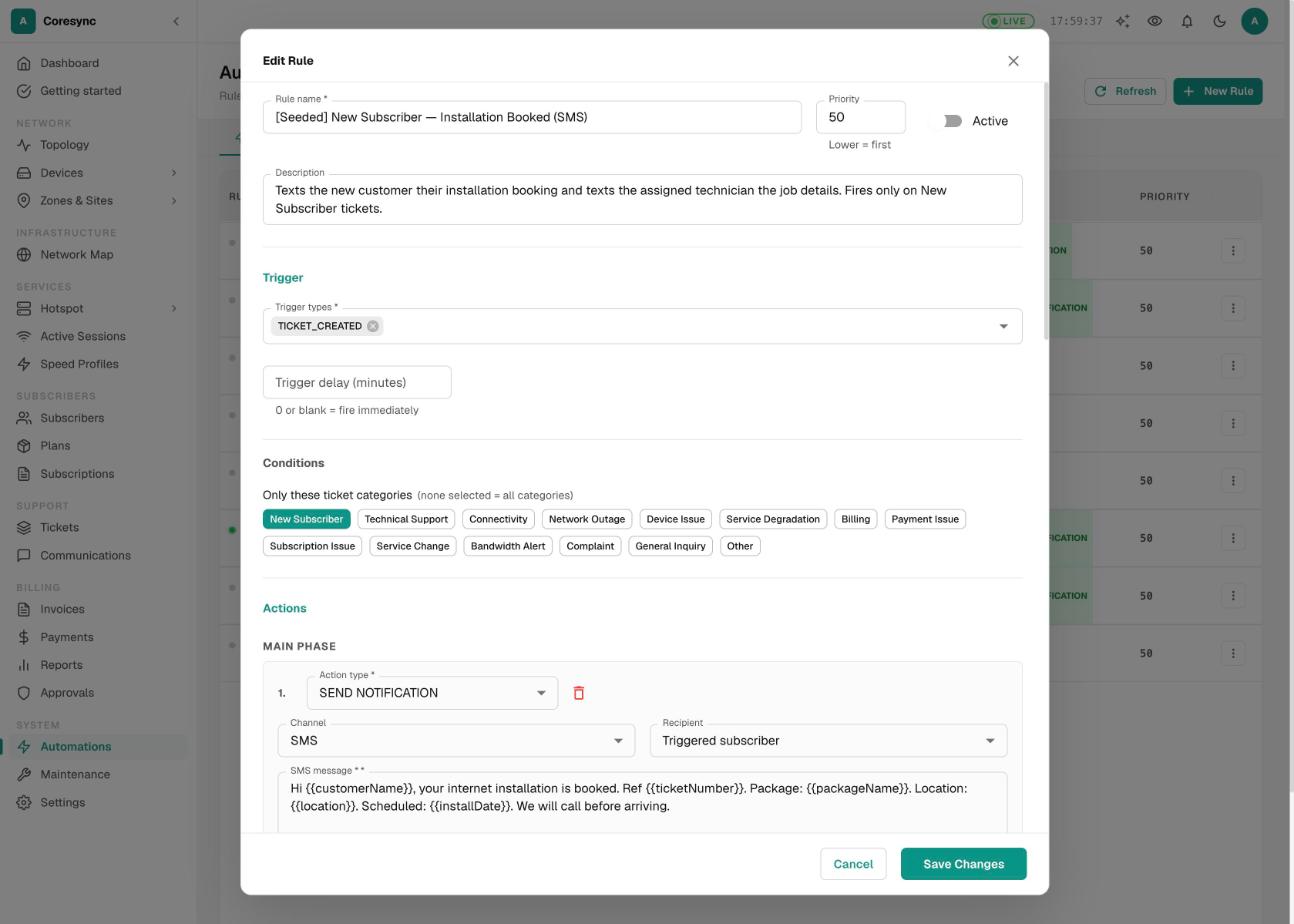
- Fill in any Conditions that appear for your trigger, for example Only these ticket categories or Minimum payment amount (KES).
- Under Actions, choose an Action type and fill in its fields. Press Add main action for another step. Actions run in the order listed.
- Set the limits under Rate Limiting & Dedup (see below), then press Create Rule.
The trigger groups and the actions you can choose:
| Trigger group | Triggers |
|---|---|
| Device / Network | DEVICE_DOWN, DEVICE_UP, DEVICE_DEGRADED, ONU_LOS, ONU_POWER_FAIL, ONU_RESTORED, NAS_OFFLINE, NAS_ONLINE |
| Subscriber / RADIUS | RADIUS_LOST_CARRIER, RADIUS_AUTH_SUCCESS, RADIUS_AUTH_FAILURE, SUBSCRIBER_CREATED, SUBSCRIBER_SUSPENDED, SUBSCRIBER_REACTIVATED, DATA_CAP_REACHED |
| Billing | PAYMENT_RECEIVED, PAYMENT_UNMATCHED, SUBSCRIPTION_EXPIRING, SUBSCRIPTION_EXPIRED, SUBSCRIPTION_RENEWED, CREDIT_LOW |
| Hotspot | HOTSPOT_SESSION_EXPIRED, HOTSPOT_DATA_EXHAUSTED, HOTSPOT_VOUCHER_ISSUED |
| Tickets | TICKET_CREATED, TICKET_UPDATED, TICKET_ASSIGNED, TICKET_OPEN_TOO_LONG, TICKET_ESCALATED, TICKET_RESOLVED, TICKET_CLOSED |
| System | SCHEDULED_DAILY, SCHEDULED_HOURLY, MANUAL |
| Action | What it does |
|---|---|
| SEND NOTIFICATION | Sends an SMS or email to the subscriber, the ticket's technician, a manager, or numbers and addresses you type. |
| CREATE TICKET | Opens a ticket, and can assign it to a person or to staff in the device's or subscriber's zone. |
| CLOSE TICKET | Marks every open ticket on that device or subscriber as resolved, with your resolution message. A supervisor still verifies and closes them. |
| ADD TICKET NOTE | Adds a note to the ticket. |
| SUSPEND SUBSCRIBER | Cuts the subscriber off. |
| REACTIVATE SUBSCRIBER | Lifts a suspension. |
| REDUCE SPEED | Slows the subscriber to a share of their plan speed, or to a fixed cap. |
| RESTORE SPEED | Puts their plan speed back. |
| EXTEND SUBSCRIPTION | Adds (or takes away) hours, days or months. |
| WEBHOOK | Sends the event to another system's web address. |
In a message, click a variable chip to add details like the customer's name or the amount paid. The chips change with the trigger you picked, so you only see what that event can fill in.
Start from the Library#
The Library has ready-made rules for common jobs, grouped into Complete Flows, Network Monitoring, Subscription Management, Data Cap & Speed, Billing & Payments, Subscriber Lifecycle, Ticket Management, Hotspot and Provisioning.
- Open the Library tab. Search, or pick a group to narrow the list.
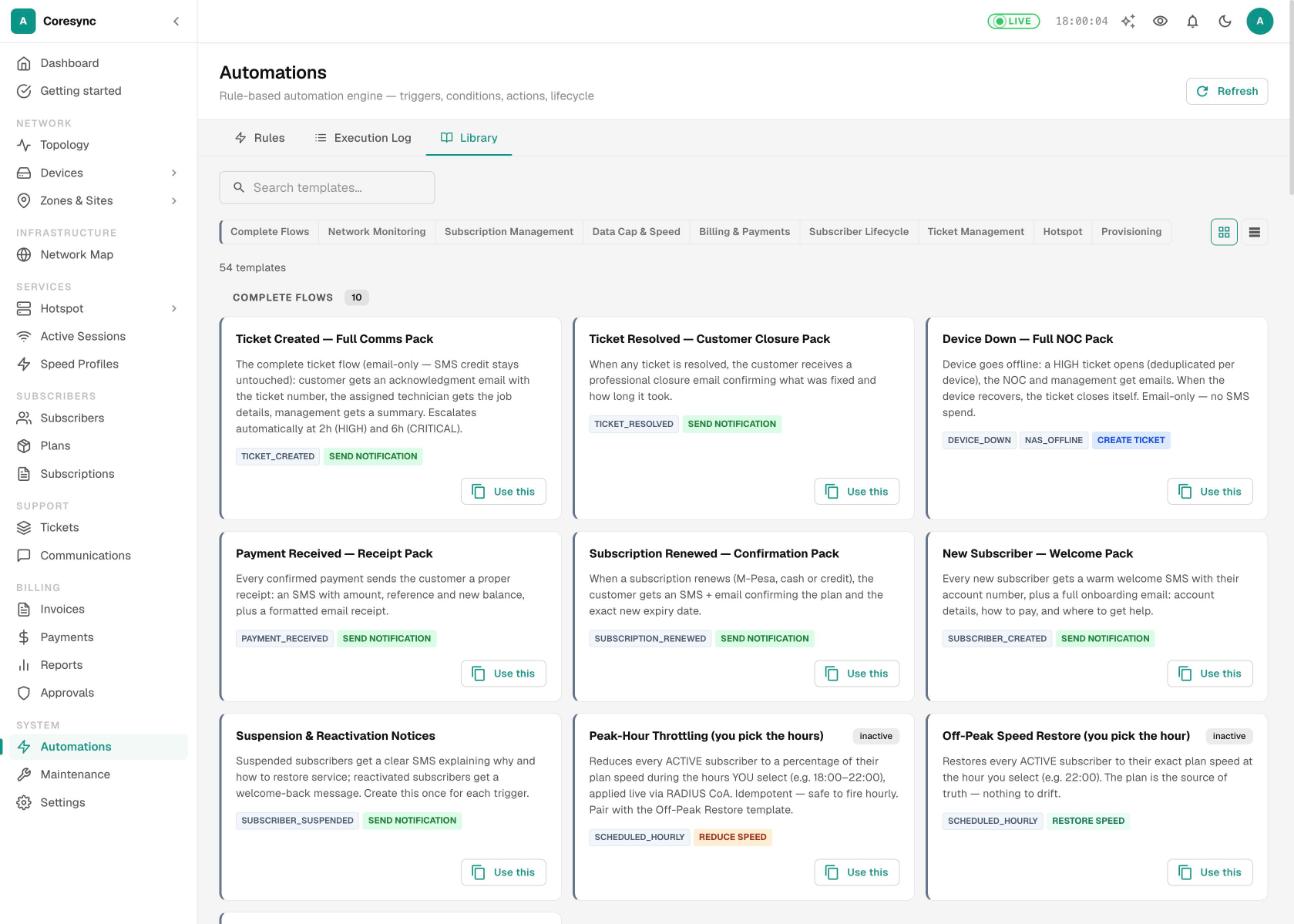
- Press Use this on a template. The rule editor opens, already filled in.
- Change the wording and limits to suit you, then press Create Rule. Nothing is saved until you do.
Templates you've already used show Used.
Stop a rule firing too often#
These fields under Rate Limiting & Dedup keep a rule from flooding customers or staff:
| Field | What it does |
|---|---|
| Dedup window (min) | Skips the rule if it already fired for the same thing (the same subscriber, device or ticket) within this many minutes. |
| Cooldown (min) | The shortest gap between any two runs of this rule, for anyone. Use it for alerts to staff. |
| Max per day | The most times the rule runs in a day. Blank means no limit. |
A CREATE TICKET action also has a Dedup key. If an open ticket already has the same key, If ticket already open decides what happens: Add a note, Escalate priority or Ignore. That's how a router that keeps dropping gets one ticket, not twenty.
Some rules also have Finalization (finish the job when the opposite event happens, like resolving the outage ticket when the device comes back up) and Escalation (timed steps such as raising the priority after an hour).
Check what ran: the Execution Log#
Use the Execution Log when you expected a message or ticket and nothing happened.
- Open the Execution Log tab.
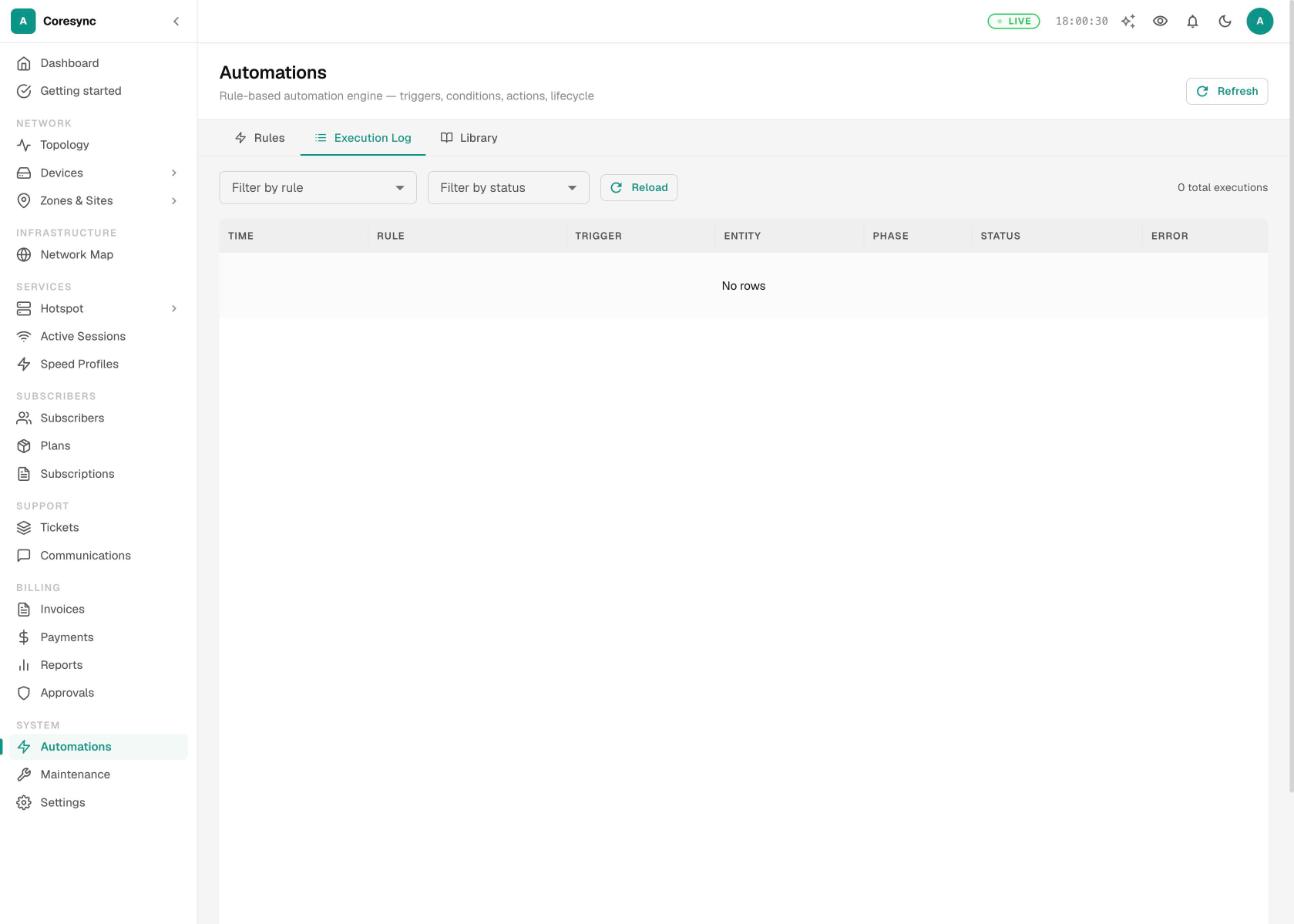
- Narrow it with Filter by rule and Filter by status.
- Read the Status and the Error column.
| Status | Meaning |
|---|---|
| COMPLETED | Every action ran. |
| COMPLETED WITH ERRORS | Some actions ran, some failed. See the Error column. |
| FAILED | The rule ran but its actions failed. |
| PENDING FINALIZATION | Ran, and waiting for the opposite event (for example the device coming back). |
| FINALIZED | The follow-up has happened. |
| SKIPPED DEDUP | Held back: it already fired for the same thing within the dedup window. |
| SKIPPED COOLDOWN | Held back: the cooldown hadn't passed. |
| SKIPPED RATE LIMIT | Held back: it hit Max per day. |
| SKIPPED STORM | Held back because too many fired at once, for example a whole site going down. |
| CANCELLED | Stopped before it ran. |
Run now in a rule's menu runs its actions straight away as a test, ignoring its triggers, conditions and limits. Check the Execution Log for the result.
Billing reminders (Settings → Notifications)#
Expiry reminders aren't automations. They're a fixed ladder CoreSync runs for every subscriber, so nobody is missed or texted twice. Find them in Settings → Notifications, under Billing Reminders.
| Reminder | When it goes out | Starts |
|---|---|---|
| One week before expiry | 7 days before expiry. Still sent up to day 4 if it was missed. | Off |
| 3 days before expiry | 3 days before expiry. Still sent at 2 days if it was missed. | On |
| Final day | On the last day of the subscription. | On |
| On expiry | Once the subscription has expired. | On |
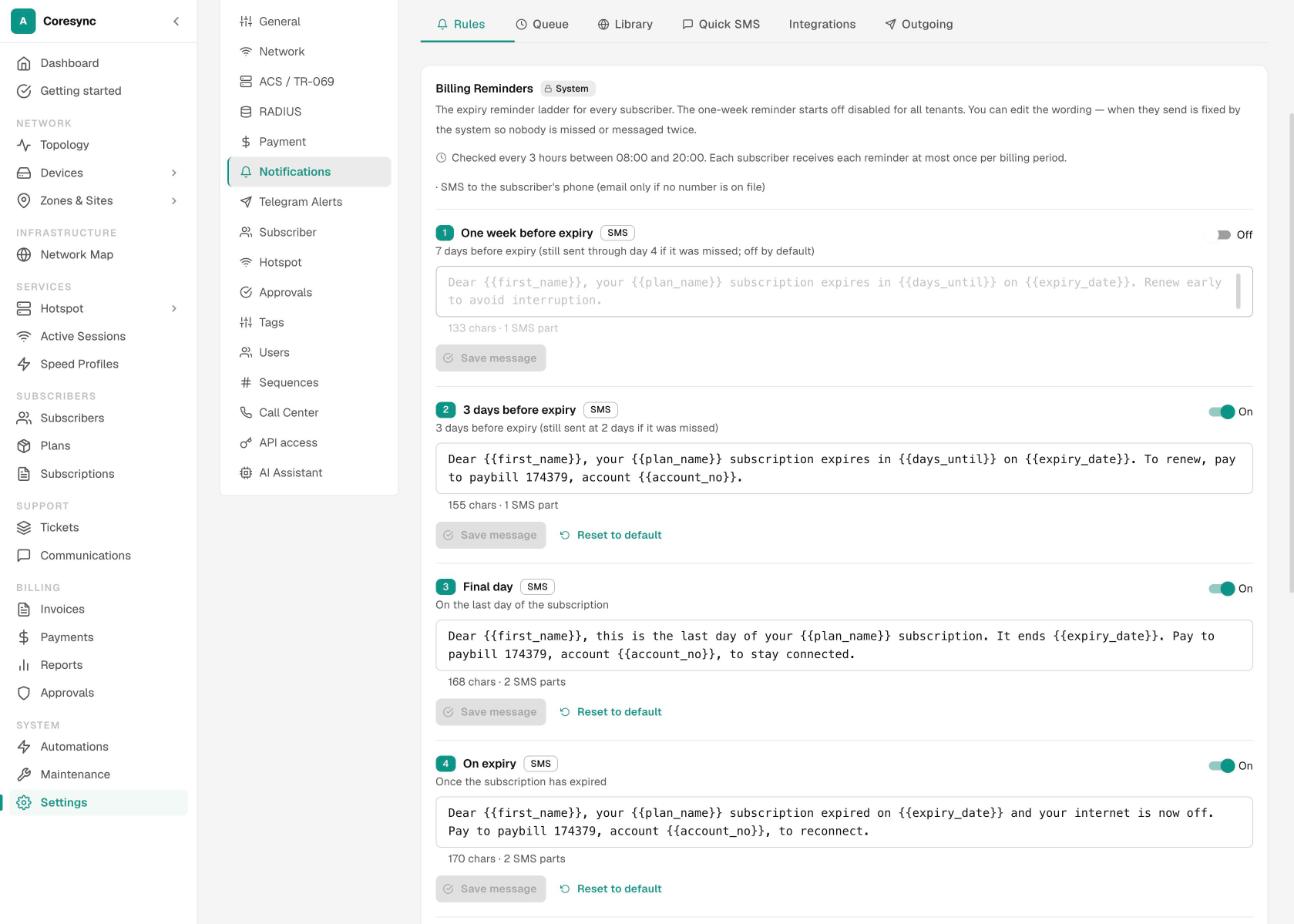
CoreSync checks every 3 hours between 08:00 and 20:00. Each subscriber gets each reminder at most once per billing period. They go by SMS to the subscriber's phone, or by email if there's no number on file.
- Go to Settings → Notifications. The Billing Reminders card is on the first tab.
- Use the switch on a reminder to turn it On or Off. The others still send.
- To change the wording, click in the message box. Click a variable chip, such as
{{first_name}}or{{expiry_date}}, to add details. - Press Save message. Reset to default puts back the standard wording.
You can change the words and switch a reminder on or off. You can't change when they go out.
Common mistakes#
- Thinking the seeded rules are on. They all start off. Turn on the ones you want.
- Ticket rules firing on every ticket. Under Only these ticket categories, pick the categories it's for. None selected means all.
- No dedup or cooldown on alerts. A flapping router can send dozens of SMS. Set a dedup window.
- Duplicate expiry reminders. Billing reminders already cover expiry. Don't add an expiry automation too.
- Expecting imports to trigger welcome messages. Customers loaded by an import never fire SUBSCRIBER_CREATED rules, so nobody is texted during a migration.
- Testing with Run now on a live rule. It really sends, suspends or calls out.