All guides
Start here
Customers and billing
Hotspot
Network
- Devices, OLTs and ONUs
- Routers, RADIUS and sessions
- TR-069 and remote ONU setup
- Zones, nodes, topology and the map
Support and messaging
Your team and settings
For your subscribers
Troubleshooting
On this page
What Communications is for#
Communications, under Support in the menu, sends a message to many subscribers at once: an outage notice, a price change, or a reminder to people who haven't paid. It uses the SMS and email provider you set up in Settings → Notifications.
| Tab | What it's for |
|---|---|
| History | Every campaign you've sent, with how many went out. |
| New Campaign | Choose who gets the message, write it and send it. |
| Message Log | Every single SMS and email CoreSync sent, from campaigns, receipts, reminders and alerts. |
The SMS: figure at the top right is your SMS credit with your provider. Press the small arrow next to it to check again. It only shows if your provider reports a balance and your role can edit settings.
Send a campaign#
Build the audience on the left, write the message on the right, check the count, then send.
- Open the New Campaign tab.
- Under Audience, choose who gets it. Account status starts at ACTIVE. Add more filters to narrow it down (see the table below). Filters work together: a subscriber must match all of them.
- Press Preview audience. CoreSync shows how many subscribers matched, how many have a phone and an email, and a sample of names.
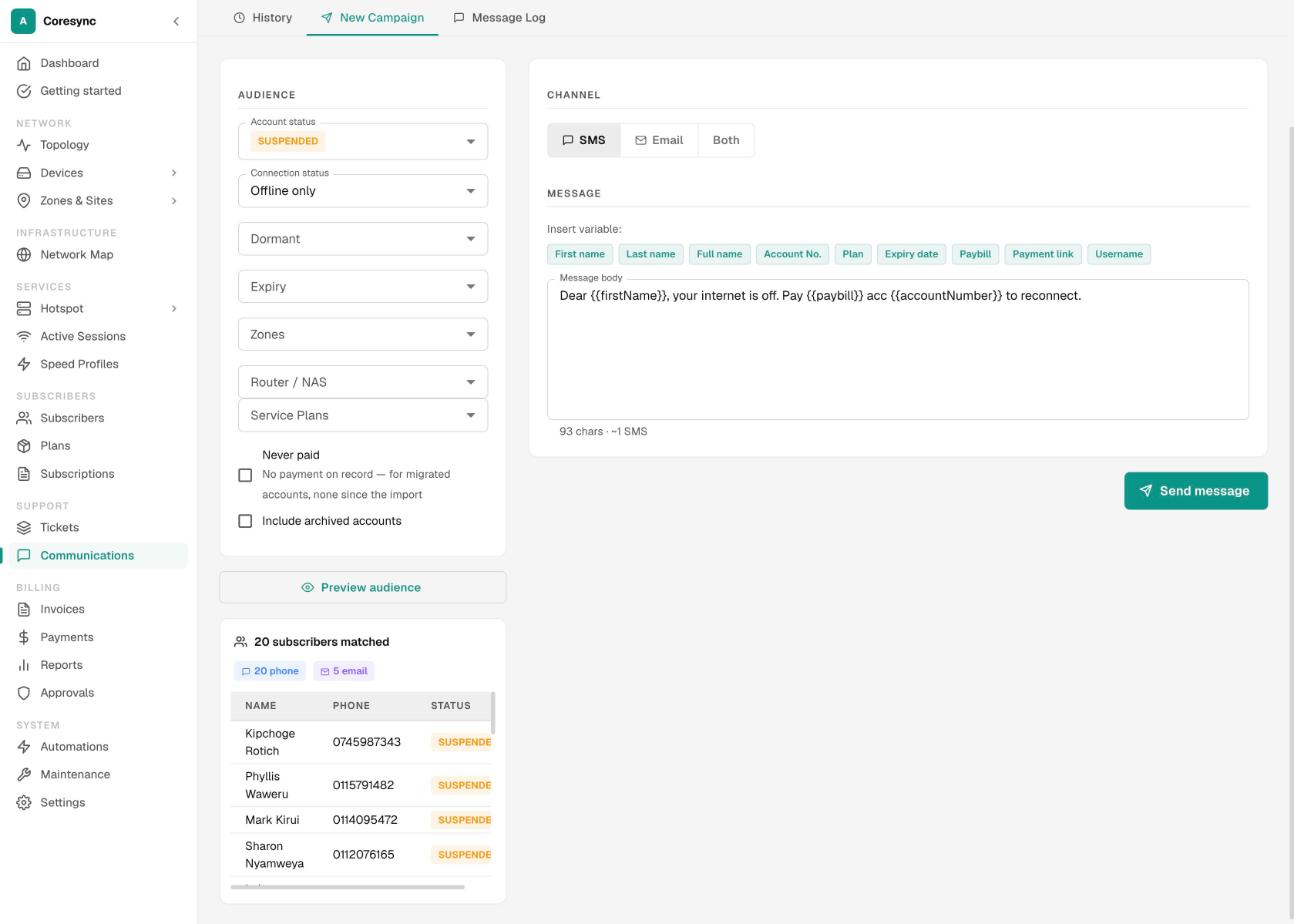
- Under Channel, choose SMS, Email or Both. For email, also type a Subject line.
- Write the Message body. Click a name under Insert variable: to drop in each person's own details. Under the box you see the length and how many SMS each message uses.
- Press Send message. Check the number in Confirm bulk send, then press Send now.
When it finishes, CoreSync tells you how many were sent, failed and skipped. A subscriber without a phone number is skipped for SMS. One without an email is skipped for email.
Choosing the audience#
Each filter narrows the list. Leave a filter empty to include everyone for that filter.
| Filter | What it picks |
|---|---|
| Account status | Active, Suspended, Pending, Paused, Draft or Terminated accounts. You can pick several. |
| Connection status | Online only, Offline only, or No internet (suspended but connected): people whose router is connected but who are cut off for not paying. |
| Dormant | People with no internet session for 30, 60 or 90 days or more. A new account that hasn't connected yet doesn't count until it's that old. |
| Expiry | Already expired, Recently lapsed (last 30 days), or expiring today, in 3, 7 or 30 days. |
| Zones | Only subscribers in the zones you pick. |
| Router / NAS | Only subscribers on the routers you pick. Handy for an outage on one site. |
| Service Plans | Only subscribers on the plans you pick. |
| Never paid | No payment on record. For customers you moved over from another system, no payment since the import. |
| Include archived accounts | Also include accounts you've archived. Off by default. |
Some useful mixes:
- Win back lapsed customers: Account status Active and Suspended, Expiry Recently lapsed (last 30 days).
- Remind people who are cut off: Connection status No internet (suspended but connected). They're still on your network and can pay straight away.
- Outage on one site: Router / NAS set to that router, Account status Active.
- Check on quiet accounts: Dormant Dormant 30+ days.
Personal details in the message#
Variables are replaced with each subscriber's own details when the message goes out. For example, Dear {{firstName}}, your {{plan}} expires on {{expiryDate}}. becomes "Dear Wanjiru, your Home 10 Mbps expires on 12 Nov 2026."
| Chip | Variable | Becomes |
|---|---|---|
| First name | {{firstName}} | Their first name. |
| Last name | {{lastName}} | Their last name. |
| Full name | {{fullName}} | Their full name. |
| Account No. | {{accountNumber}} | Their subscriber code, the account number they pay with. |
| Plan | {{plan}} | Their plan. For lapsed accounts, the plan they last had. |
| Expiry date | {{expiryDate}} | When their subscription ends or ended. |
| Paybill | {{paybill}} | The paybill or till number that customer should pay to. |
| Payment link | {{payment_link}} | A personal link to pay online, valid for 7 days. |
| Username | {{username}} | Their internet login name. |
{{paybill}} follows your gateway routing, so a customer in a zone with its own till gets that till. See Payments.
See past campaigns#
The History tab lists every campaign: Sent at, Channel, Message, Total, Sent, Failed, Skipped and Sent by.
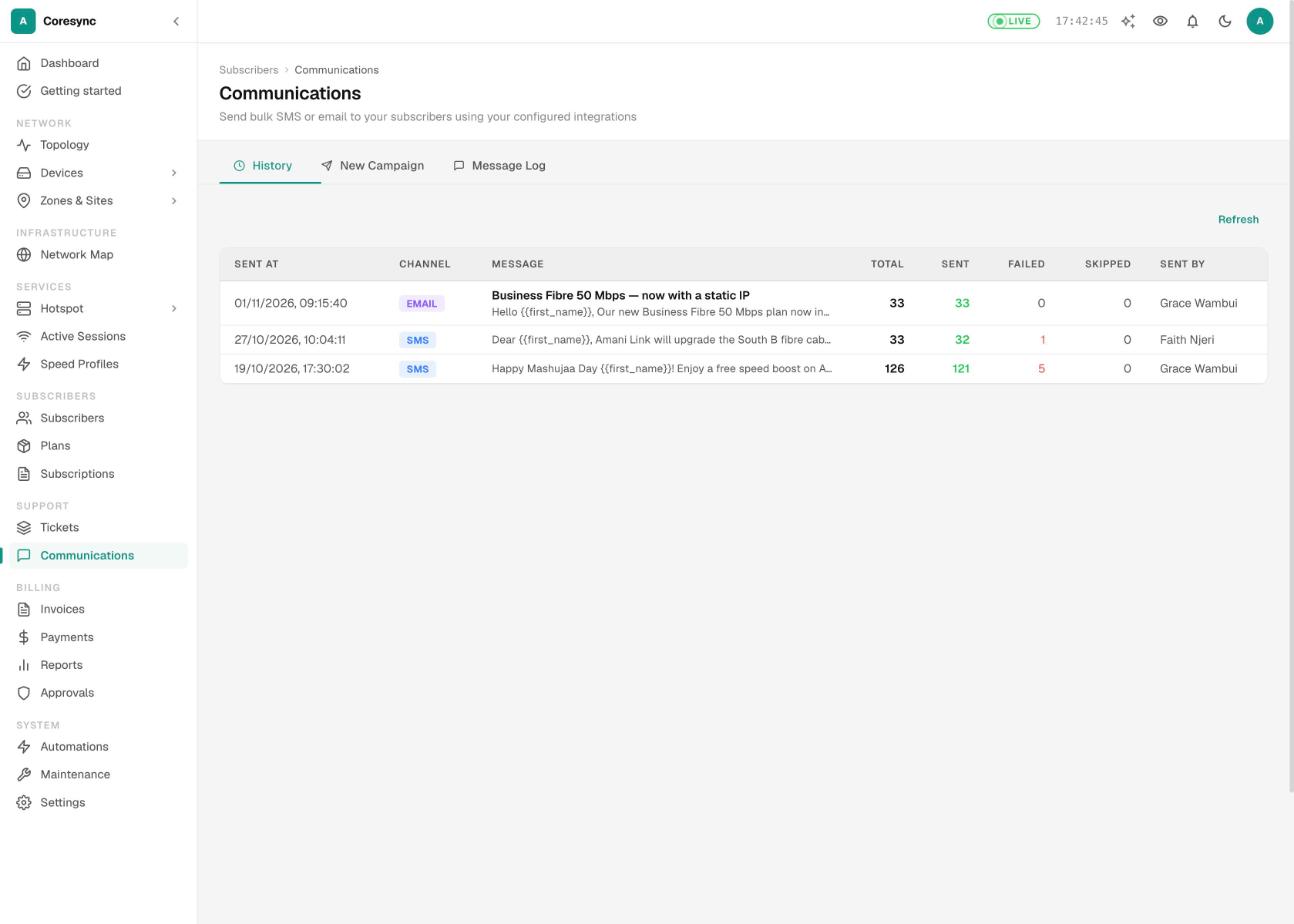
Click a campaign to open Campaign detail. It lists every person it went to and the exact message they got. Search by phone, email or message to find one person.
Check every message sent#
The Message Log tab shows every SMS and email CoreSync sent for your ISP: campaigns, payment receipts, reminders, ticket updates and staff alerts. Use it when a customer says "I never got the message".
- Open Message Log.
- Type the customer's number or email in Search phone / email and press Search.
- Narrow it with Channel and Status (Sent, Delivered or Failed).
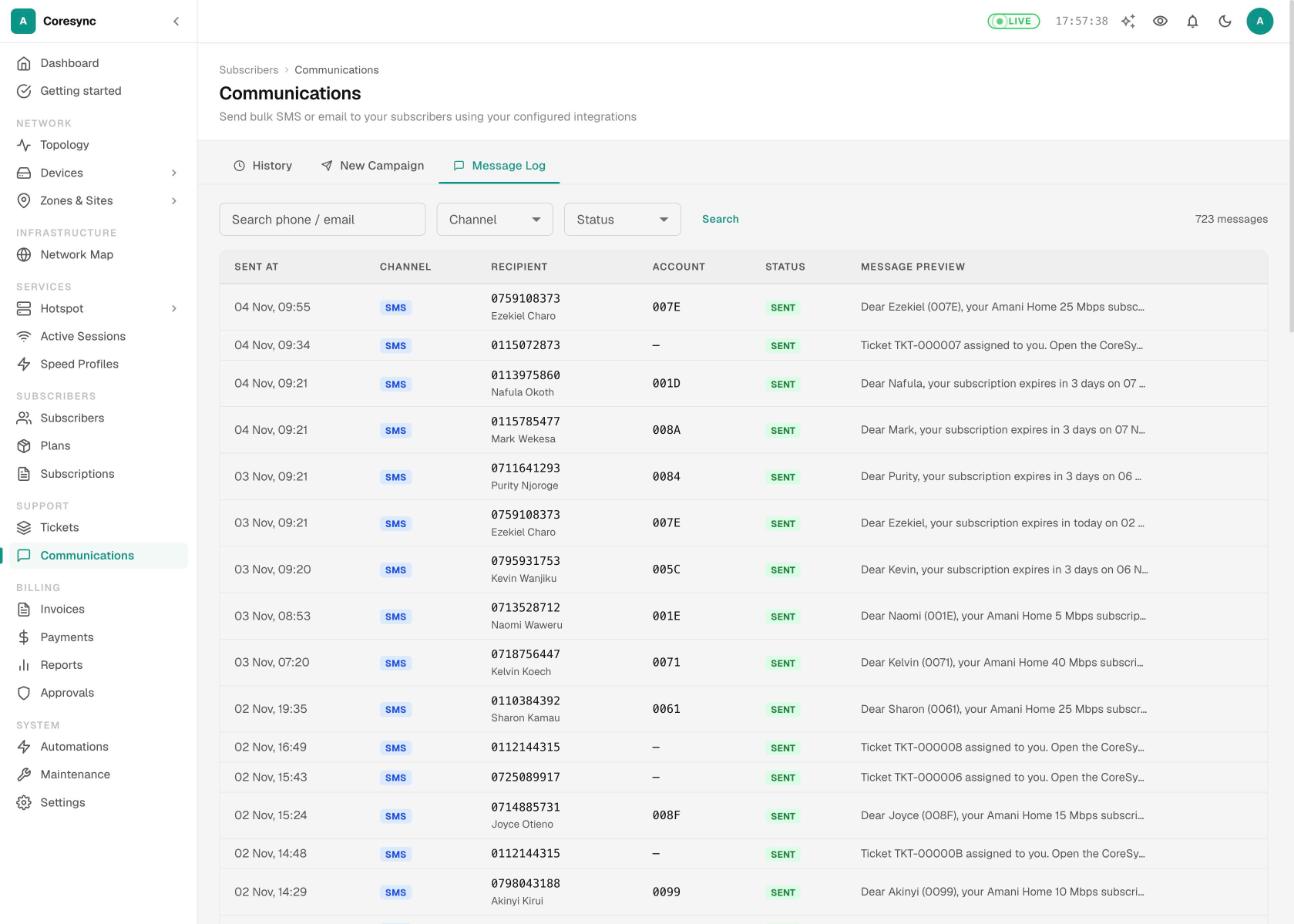
- Click a row to see the full message, who it went to, and the error if it failed.
test@example.com, mistyped ones like @gmial.com, phone numbers typed in the email box, addresses with no mail server, and addresses that bounced before. They show in the log as not sent, with the reason. Fix the address on the subscriber to reach them.Quick SMS templates#
Quick SMS templates are ready-made messages your staff pick when they text one customer from their account page. They save typing the same thing over and over.
- Go to Settings → Notifications and open the Quick SMS tab.
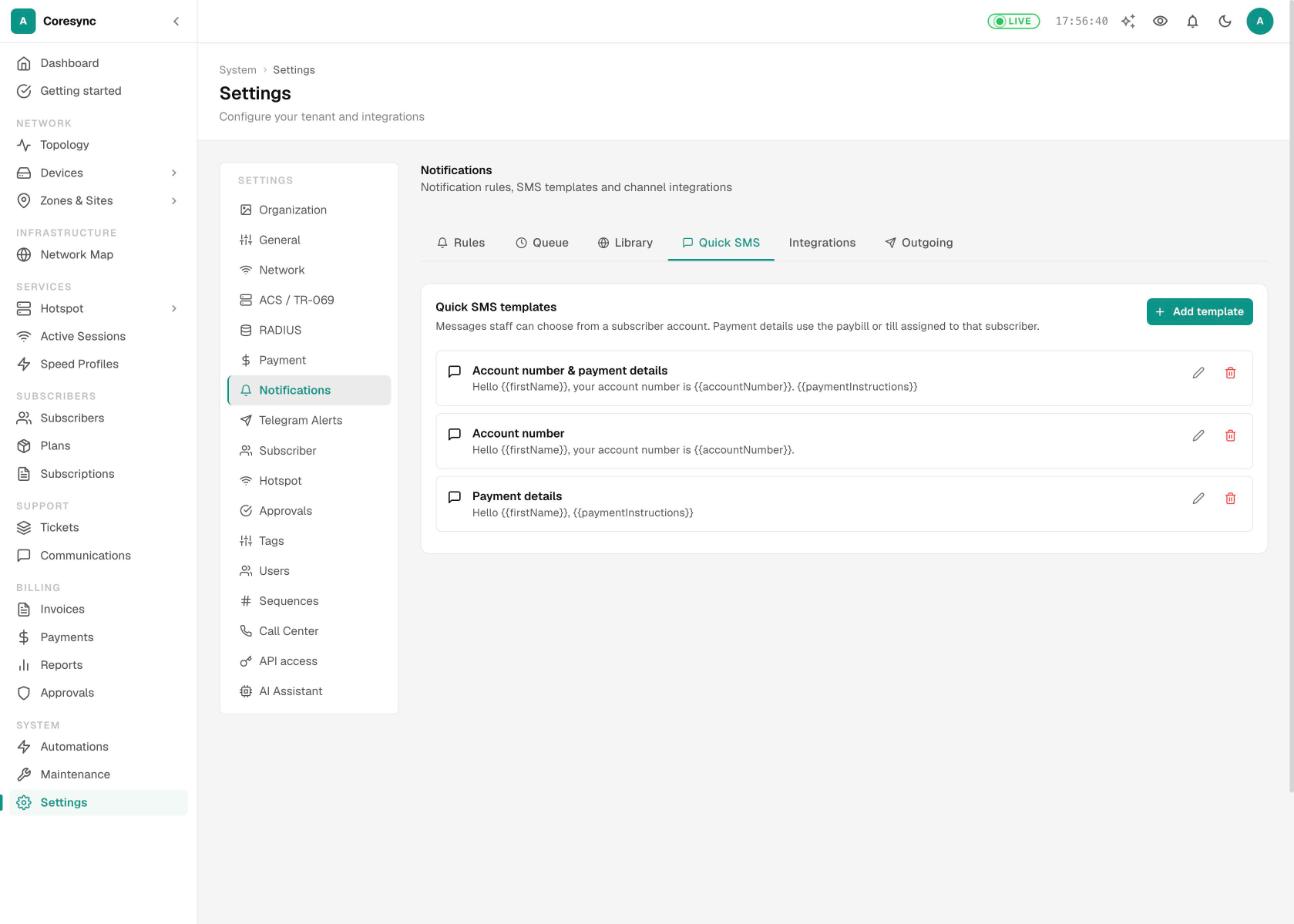
- Press Add template, or the pencil to change one.
- Type a Template name and the SMS message. Click the chips under Insert subscriber details: to add variables.
- Press Save template. It appears for every staff member straight away.
CoreSync starts you with three: Account number & payment details, Account number and Payment details. They use {{paymentInstructions}}, which writes out how that customer should pay, with the paybill or till assigned to them.
To use one, open a subscriber, go to their Notifications tab, press Send SMS, and pick from Choose a quick SMS…. See Subscribers.
Common mistakes#
- Sending without previewing. A campaign with loose filters can reach every customer. Preview, read the count, then send.
- Texting a reminder to everyone. CoreSync already sends expiry reminders by itself. See Automations for the billing reminders.
- Long messages. Over 160 characters, one message costs two or more SMS for every person. Keep it short.
- Reading "Sent" as delivered. Check the Message Log for failures.
- Wondering why an email never went. The address may be a placeholder, mistyped or bounced. The Message Log shows why.