All guides
Start here
Customers and billing
Hotspot
Network
- Devices, OLTs and ONUs
- Routers, RADIUS and sessions
- TR-069 and remote ONU setup
- Zones, nodes, topology and the map
Support and messaging
Your team and settings
For your subscribers
Troubleshooting
On this page
What the portal is#
The portal is your own page on your internet provider's website. It works on any phone.
- See when your internet runs out.
- Pay with M-Pesa.
- See how much data you have used.
- See your payments and invoices.
- Report a problem and follow it.
Your provider chooses what the portal shows. If you can't see something on this page, your provider has turned it off.
Sign in#
Open your provider's website and add /login at the end. For example: amanilink.coresyncisp.com/login. Ask your provider if you don't know the address.
- Type your Account Number. It's the same number you use when you pay, for example
AML0042.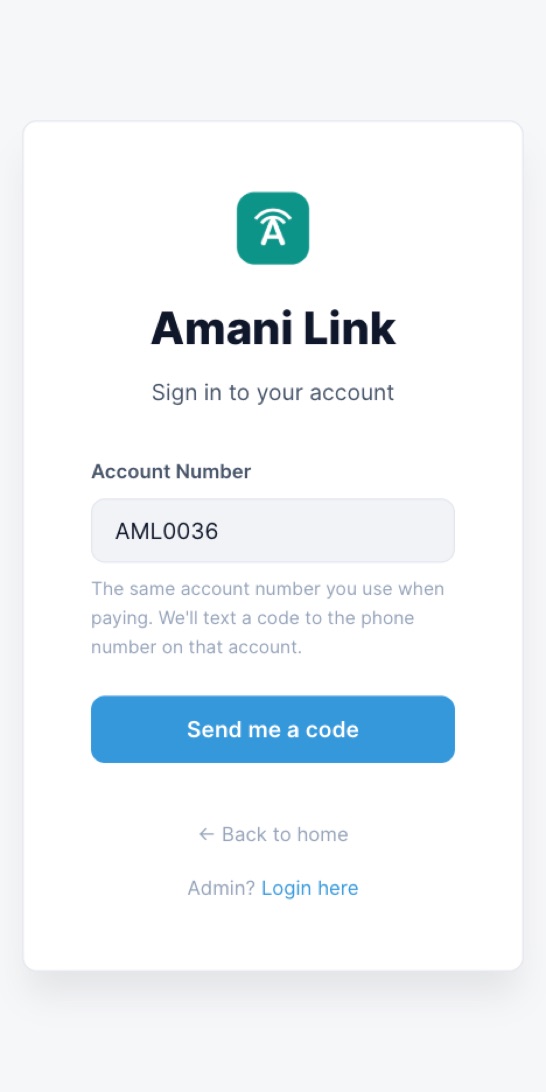
- Press Send me a code. We send a code by SMS to the phone number on your account.
- Type the code under Enter the code and press Sign In. The code works for 10 minutes.
No SMS? Wait for the timer, then press Resend code. Typed the wrong account? Press Use a different account.
You stay signed in on that phone for a while, so you don't need a code every time.
Your home page#
The top box tells you the most important thing: is your internet paid up?
- Active and the days left, for example "12 days left".
- Expiring soon when 3 days or less are left.
- Expired when your time has run out.
Under it you see your plan and the date it renews. The button next to it, Renew or Pay now, shows your price. Press it to pay with M-Pesa.

The small boxes show your speed, your next payment, your last payment and your account status.
On a phone, the tabs at the bottom take you to the other pages: Home, Usage, Payments, Invoices and Help. Everything else is in the menu button at the top. Your provider's phone number and email are in that menu too, under Need help?
Pay from the portal#
- Press Renew or Pay now.
- Check the Phone number and the Amount (KES). You can pay from another M-Pesa number.

- Press Send prompt. Your phone shows an M-Pesa message. Enter your M-Pesa PIN.
Your internet is renewed as soon as the money arrives. More about paying, and what to do if it doesn't show, is in Paying for your internet.
Usage#
My Usage shows this billing period:
- Data used. If your plan has a data limit, a bar shows how much is left.
- Time online in this period.
- Right now: Connected or Not connected.
Below that, Recent sessions lists each time your router connected: when, for how long, and how much it downloaded and uploaded.

Payments and invoices#
Payment History lists every payment on your account, with the date, the M-Pesa or receipt reference, the amount and the status.

My Invoices lists everything your provider has billed you: the invoice number, the date it was issued, the due date, the amount, what you've paid and what is still owed.
Change your plan#
Some providers let you change your plan yourself. If yours does, you'll see Change Plan in the menu.
- Open Change Plan. Your plan is marked Current.
- Tap the plan you want. Each one shows its price and speed.
- Press Confirm Upgrade.
Your new speed starts straight away. Your expiry date stays the same. You pay the new plan's price the next time you renew.
Report a problem#
- Open Help and press Report a problem.
- Under What is this about?, pick the closest one, for example No internet / slow connection or Payment not reflected.
- Give it a Short title, say what is happening, and press Send to support.

You get a reference number. Your report stays on this page, and its status changes as your provider works on it.
Reconnect#
Paid, but the internet is still off? Press Reconnect on your home page. Your router drops the line and connects again with your new settings. Give it a minute or two.
Still nothing after 5 minutes? Switch your router off, wait 10 seconds and switch it on again. Then report the problem.