All guides
Start here
Customers and billing
Hotspot
Network
- Devices, OLTs and ONUs
- Routers, RADIUS and sessions
- TR-069 and remote ONU setup
- Zones, nodes, topology and the map
Support and messaging
Your team and settings
For your subscribers
Troubleshooting
On this page
- How money reaches CoreSync
- How a payment finds its customer
- What a payment does
- Partial payments, overpayments and discounts
- The Payments page
- Record cash or a bank deposit
- Send an M-Pesa prompt (STK push)
- Redeem a payment that found no customer
- Move a payment that went to the wrong customer
- The To check list
- Installation and other charges
- Import M-Pesa payments
- Reconcile: paid but not extended
- Payments are history: no refund button
- Common mistakes
- If it doesn't work
How money reaches CoreSync#
Most payments arrive on their own. Your payment gateway tells CoreSync about each one within seconds, and CoreSync credits the customer and reconnects them. You only step in when a payment can't find its customer, or when money came in by hand.
| Way in | How it reaches CoreSync |
|---|---|
| M-Pesa Paybill | The customer pays your paybill and types their account number. Safaricom tells CoreSync straight away. |
| M-Pesa Till | The customer pays your till. A till payment carries no account number, so CoreSync can only match it by the phone that paid. |
| STK push | A prompt appears on the customer's phone and they enter their M-Pesa PIN. You can send one from the Payments page, and customers can start one from a payment link you text them. CoreSync already knows who it's for. |
| KopoKopo | If your till is on KopoKopo, both till payments and STK pushes come through KopoKopo. |
| Bank Direct (IPN) | If your bank is connected, it tells CoreSync about each deposit. CoreSync reads the account number from the bank's description of the payment. |
| Cash or bank, by hand | Money a technician collected, or a deposit that didn't come through a gateway. You record it with Record Payment. |
Your admin sets up paybills, tills, KopoKopo and banks in Settings → Payment → Gateways. See Settings. If you have more than one gateway, each one can serve certain zones, plans or routers. CoreSync then sends each customer's STK push through the right one.
What your customers see when they pay is in Paying for internet.
How a payment finds its customer#
Every subscriber has a subscriber code, for example AML1042. It's the account number customers type when they pay, and the one on their SMS reminders. Always give customers their subscriber code to pay with.
When a paybill or bank payment arrives, CoreSync looks for the customer in this order, and takes the first match:
- The subscriber code they typed.
- The account number they typed.
- The PPPoE username they typed.
- The phone number that paid.
CoreSync forgives small slips in what was typed. Spaces, dashes and leading zeros are ignored, and capital or small letters don't matter for the subscriber code. So aml 1042 and AML-1042 both find AML1042.
If nothing matches, the payment is saved and waits on the Unredeemed tab for you. Nothing is ever lost: the money is recorded even when CoreSync can't tell whose it is.
Hotspot purchases show with a HOTSPOT status. They paid for a voucher or a session, not a subscriber, so they never appear as unredeemed. See Hotspot.
What a payment does#
Once a payment has found its customer, CoreSync does the same things every time, whether the money came from M-Pesa, a bank, a match or a cash record:
- Pays off charges first. If the customer owes an installation fee or another charge, the payment settles it, oldest first. Your admin can turn this off.
- Puts the rest into the customer's Credit.
- Renews them from that credit. If the credit covers their price, they get one full cycle. The price is their negotiated price if they have one, less any discount.
- Reconnects them at their plan's speed, and sends the usual payment SMS.
A renewal adds the cycle to the current expiry if the customer is still active, or starts it from now if they had expired. The date rules are in Plans and renewals.
Renewals, moves and credit changes are written on the customer's Timeline tab, so you can always see what a payment did.
Partial payments, overpayments and discounts#
Your ISP chooses what happens when someone pays less or more than their price. Your admin sets both in Settings → Payment → Policies.
| When someone pays | Choice | What happens |
|---|---|---|
| Less than their price | Give proportionally fewer days | The usual choice. Half the price buys about half the cycle. An amount too small to buy one day stays as credit. |
| Less than their price | Hold as credit until it covers a full cycle | Nothing is renewed until the credit reaches the full price. The customer gets an SMS saying what they still owe. |
| More than their price | Keep the extra as credit | One cycle is renewed. The rest stays as credit and pays the next cycles as they fall due. |
| More than their price | Take only the plan price | One cycle is renewed. The rest never reaches their credit. The payment shows it as not applied, so you can account for it outside CoreSync, for example as rent. |
Discounts. Plan and company-wide discounts are set in Settings → Payment → Discounts, under Plan & company-wide discounts. A discount comes off at renewal, on top of any negotiated price. Only one discount applies to a customer at a time. A customer's own price is set on their subscription: see Plans and renewals.
Installation from the first payment. New customers often pay setup and the first month together. If your admin turns on Guess installation fee from a new subscriber's first payment (Settings → Payment → Charges), what's left after the first renewal is booked as an installation fee instead of credit. It only looks at a customer's first payment, in their first 30 days, and never when they already have an installation charge.
The Payments page#
Open Payments under Billing in the menu. It lists every payment, newest first, with its date, provider, M-Pesa code or receipt, customer, phone, the account they typed, amount and status.
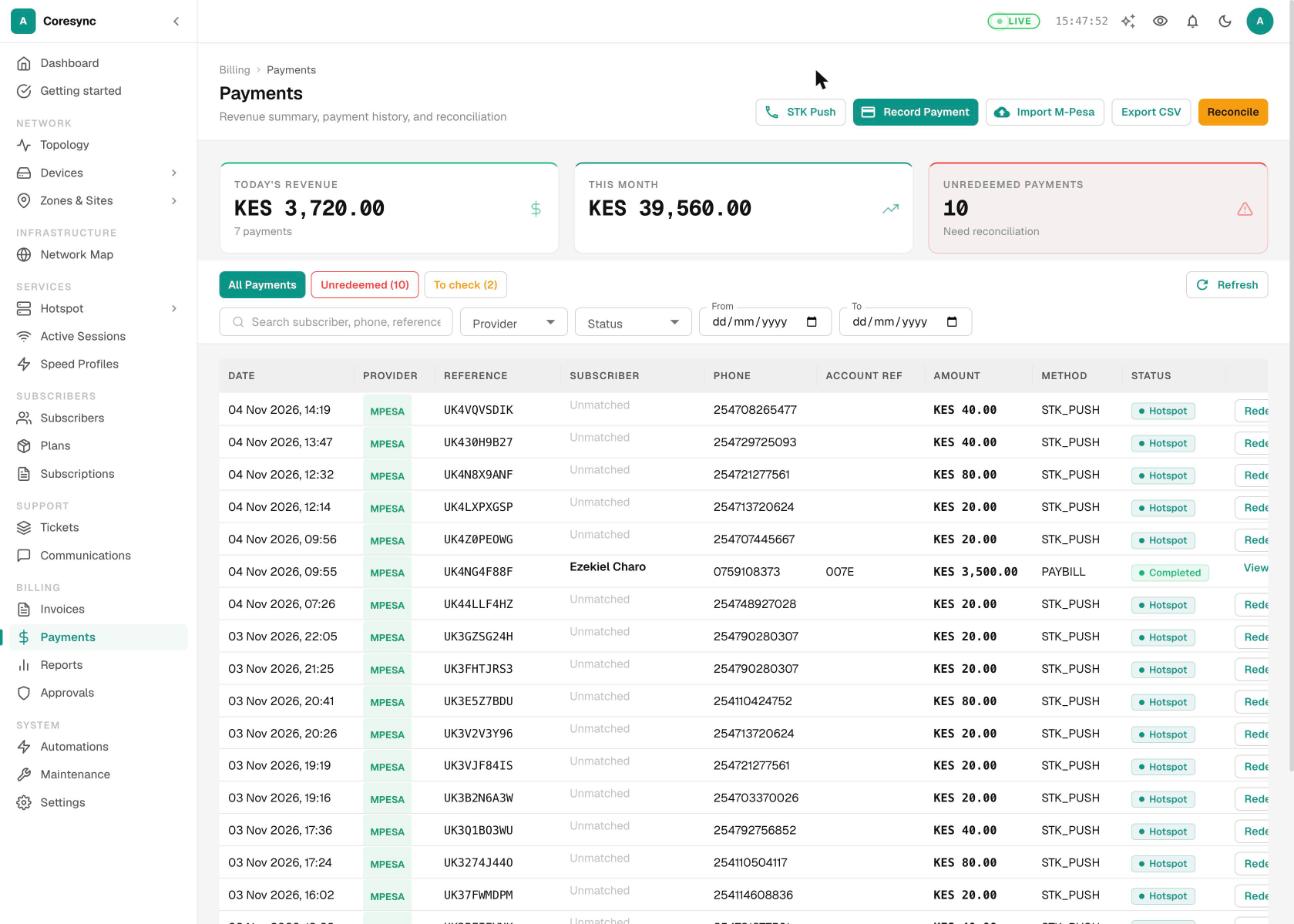
- All Payments shows everything. Unredeemed shows payments that found no customer. To check shows payments that may be on the wrong customer.
- Search by M-Pesa code, phone, the account they typed, or the customer's name or code. For phones, type the last nine digits (
712345678) so both 0712… and 254712… forms match. - Narrow the list with Provider, Status, From and To. Clear filters puts it back.
- View on a row opens that customer.
A customer's own payments are on their page, on the Payments tab, under Payment History.
Record cash or a bank deposit#
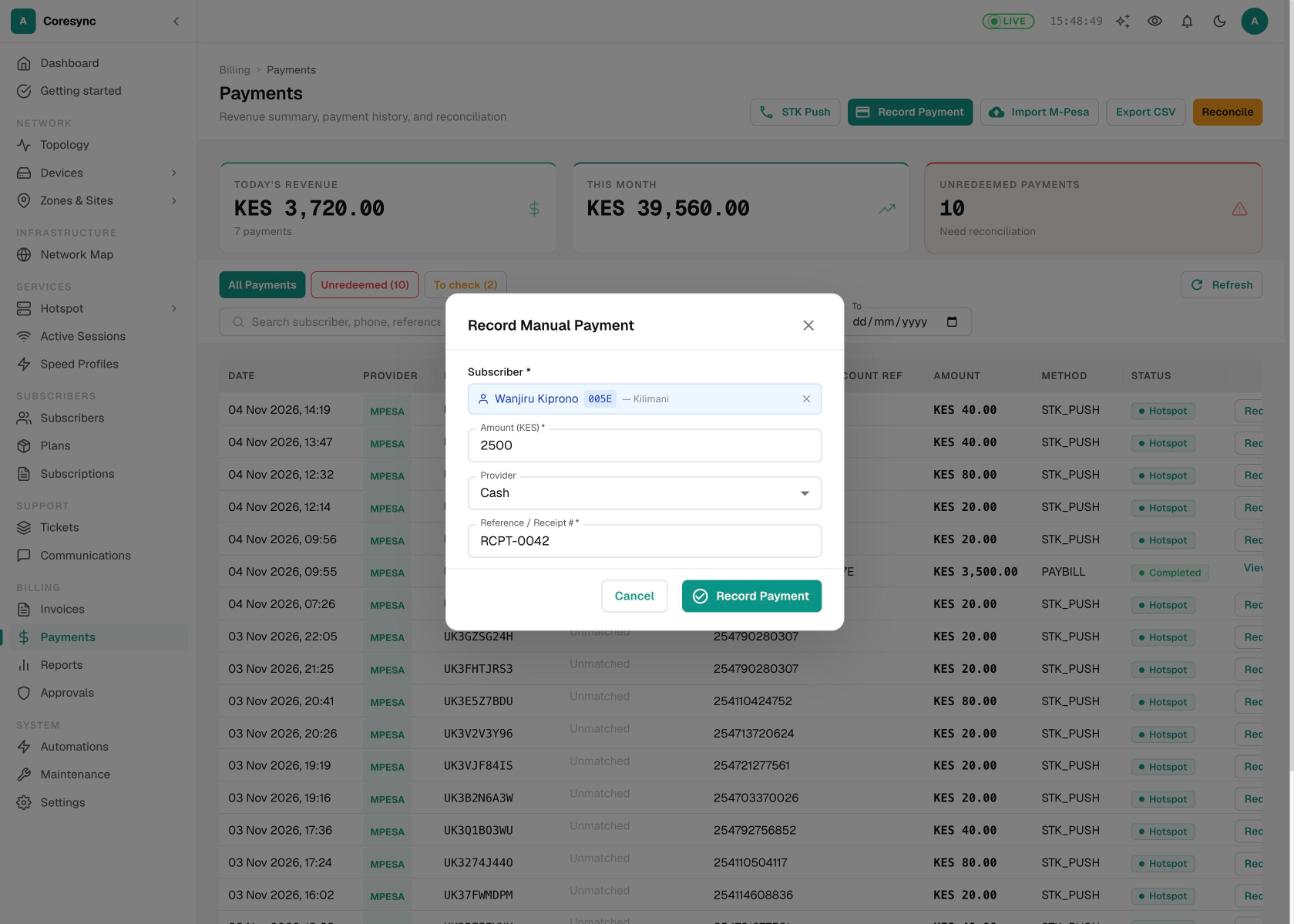
Use this when money reached you outside a gateway: cash paid to a technician, or a deposit your bank didn't report. It applies the money exactly like an M-Pesa payment, so the customer is renewed and reconnected.
- On the Payments page, press Record Payment.
- Under Subscriber, search by name, code, building or zone, and pick the customer.
- Type the Amount (KES) and choose the Provider: Cash, Bank Transfer or M-Pesa (manual).
- Type the Reference / Receipt #: the receipt number you wrote, or the bank reference. Then press Record Payment.
Send an M-Pesa prompt (STK push)#
Use this when a customer is on the phone with you and wants to pay now. They get an M-Pesa prompt, enter their PIN, and are renewed the moment Safaricom confirms it.
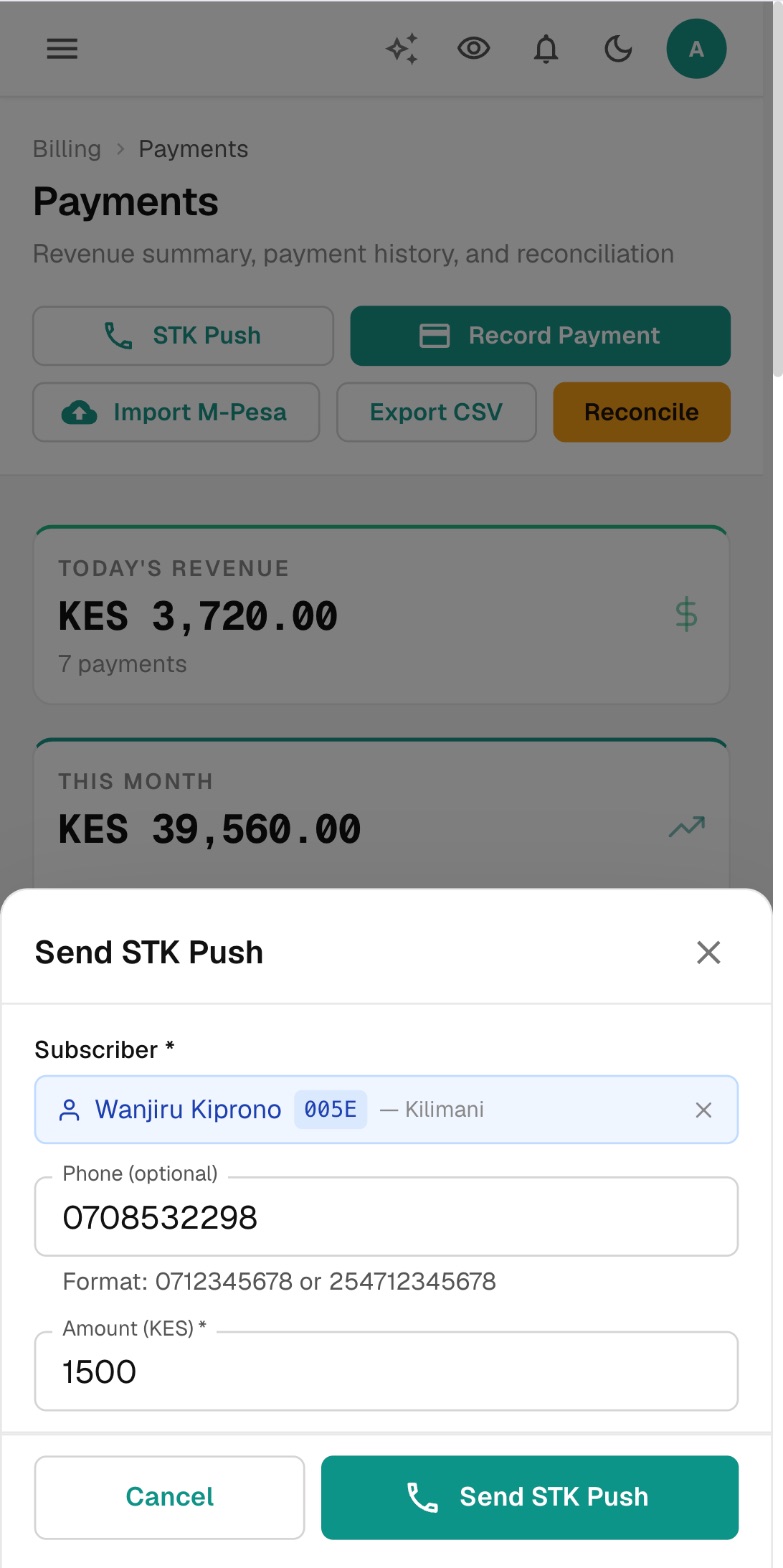
- On the Payments page, press STK Push.
- Under Subscriber, pick the customer. Their phone fills in by itself. To send the prompt to another number, change Phone (optional), for example to 0712 345 678.
- Type the Amount (KES) in whole shillings and press Send STK Push.
- The dialog shows Waiting for payment. Ask the customer to enter their M-Pesa PIN. When it arrives you see Payment Confirmed! Press Done.
If nothing comes back after about a minute and a half, the dialog says No confirmation yet. The payment may still arrive, so check the list a little later before you send another prompt. If the customer cancels, you see Payment was cancelled by customer.
Now and then Safaricom can't confirm a payment straight away. CoreSync holds it and asks Safaricom again later. If Safaricom then says it didn't go through, the payment stays on Unredeemed for you to decide.
Redeem a payment that found no customer#
A payment lands on Unredeemed when the customer typed something CoreSync doesn't know, paid a till from a phone that isn't on any account, or paid for a terminated account. Redeeming gives it to the right customer and applies it in full: charges, credit, renewal, reconnection and SMS.
- On the Payments page, open the Unredeemed tab. The number beside it is how many are waiting.
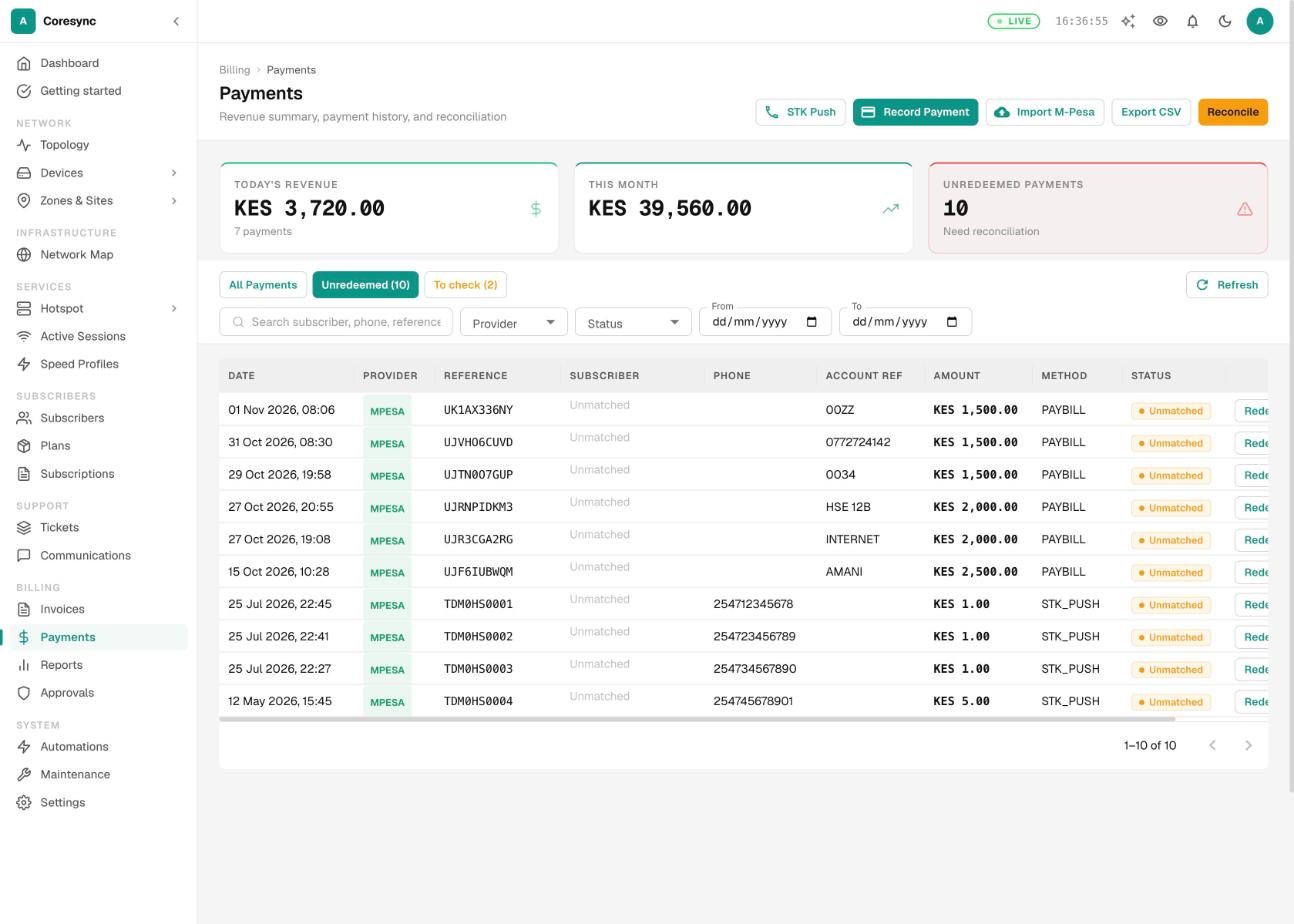
- Look at the Phone and Account Ref columns. They usually tell you whose it is. Call the number if you're not sure.
- Press Redeem on the payment. Under Subscriber, search for the customer and pick them.
- Check the M-Pesa code and amount at the top, then press Redeem Payment.
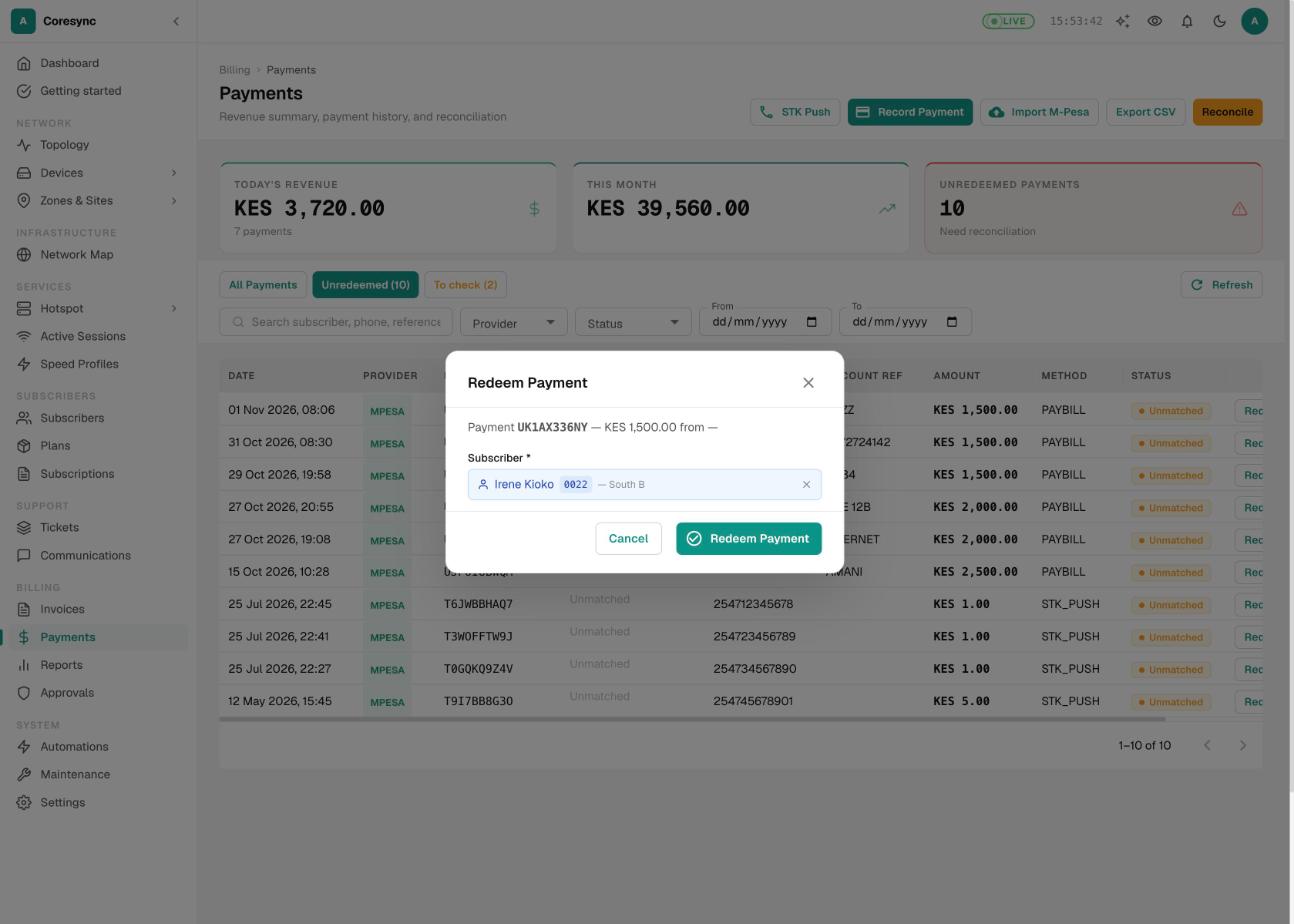
A payment can only be redeemed once. If it's already on a customer and that's the wrong one, move it instead.
Move a payment that went to the wrong customer#
Customers mistype their code: Wanjiru meant AML1042 and typed AML1024, so Otieno got her month. Moving the payment fixes both accounts in one step. CoreSync takes back what the payment gave the wrong customer, then applies it to the right one as if it had just arrived.
- Find the payment on the Payments page and press Move on its row.
- Under Move it to, pick the right customer. Under Why, say what happened, for example Typed AML1024 instead of AML1042.
- Read the preview before you confirm. Taken back from shows the wrong customer's expiry and credit before and after. Applied to shows the right customer as they are now. Notes underneath warn you if the wrong customer will be cut off.
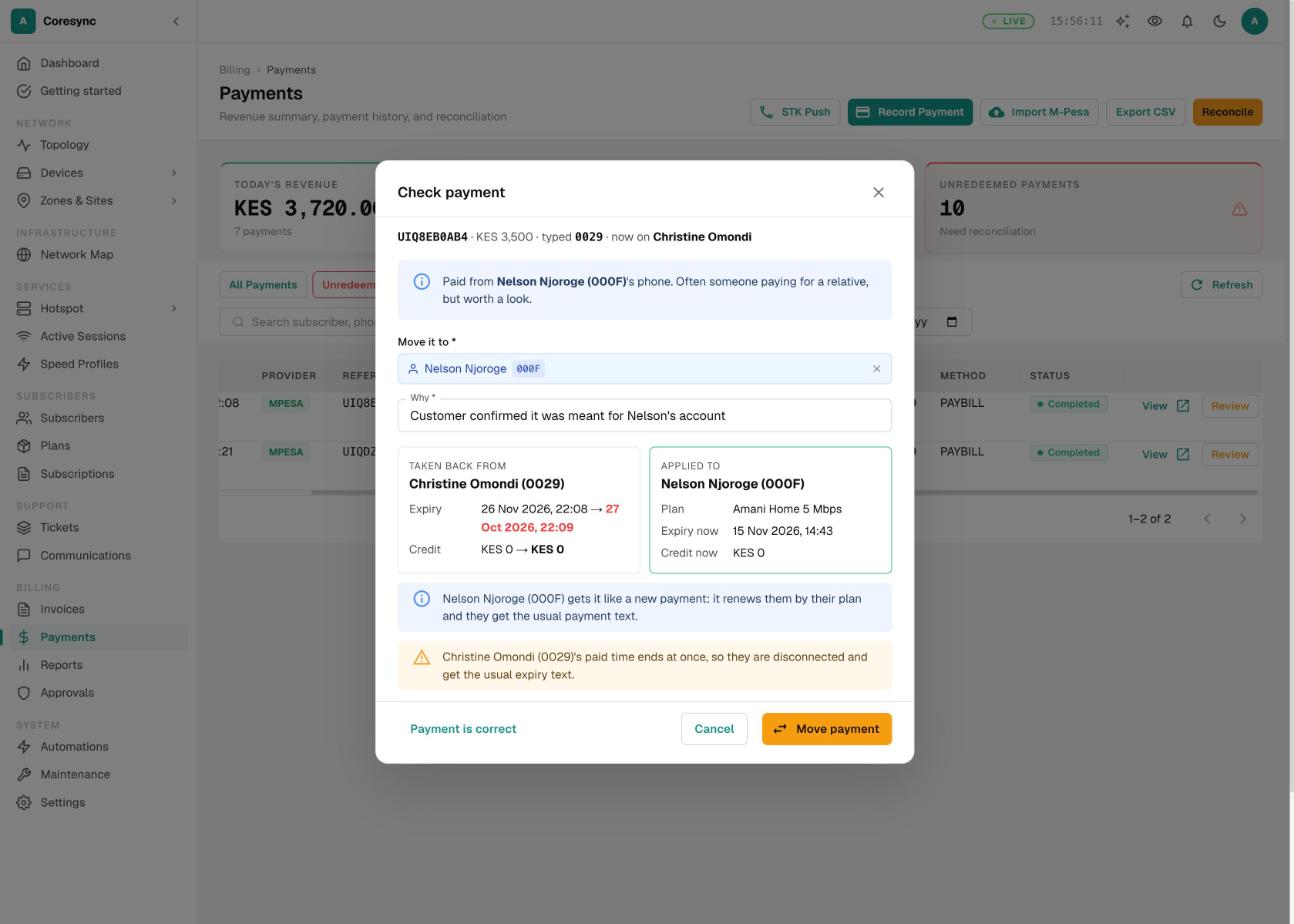
- Press Move payment.
What happens to each side:
- The right customer is credited and renewed by their plan, and gets the usual payment SMS.
- The wrong customer's expiry goes back to where it was before the payment. If that's in the past, they're disconnected and get the usual expiry SMS. They get no message about the move itself.
- If the wrong customer already spent the leftover credit on a later renewal, their credit goes below zero. Their next payment covers that first.
- Charges the payment had paid off become owed again.
- The payment shows Moved from and the wrong customer's name. The move is on both customers' Timeline.
CoreSync refuses a move it can't undo cleanly, and tells you why. For example, when the payment also upgraded the wrong customer's plan, or when it was an installation fee recorded by hand. Fix those by hand. It also refuses to move money onto a terminated customer: restore them first.
The To check list#
CoreSync notices when a payment came from one customer's phone but credited a different customer. That's often a typo. Sometimes it's someone paying for a relative or a tenant. These payments are applied as typed, and listed on the To check tab for 60 days so a person can look.
| Label under the name | What it means |
|---|---|
| Likely typo — paid from Wanjiru Kamau (AML1042)'s phone | What was typed is the payer's own code, or one character off it. It almost certainly belongs to the payer. |
| paid from Wanjiru Kamau (AML1042)'s phone | The payer has their own account, but typed a quite different one. Often a relative. Worth a call. |
- On the Payments page, open the To check tab.
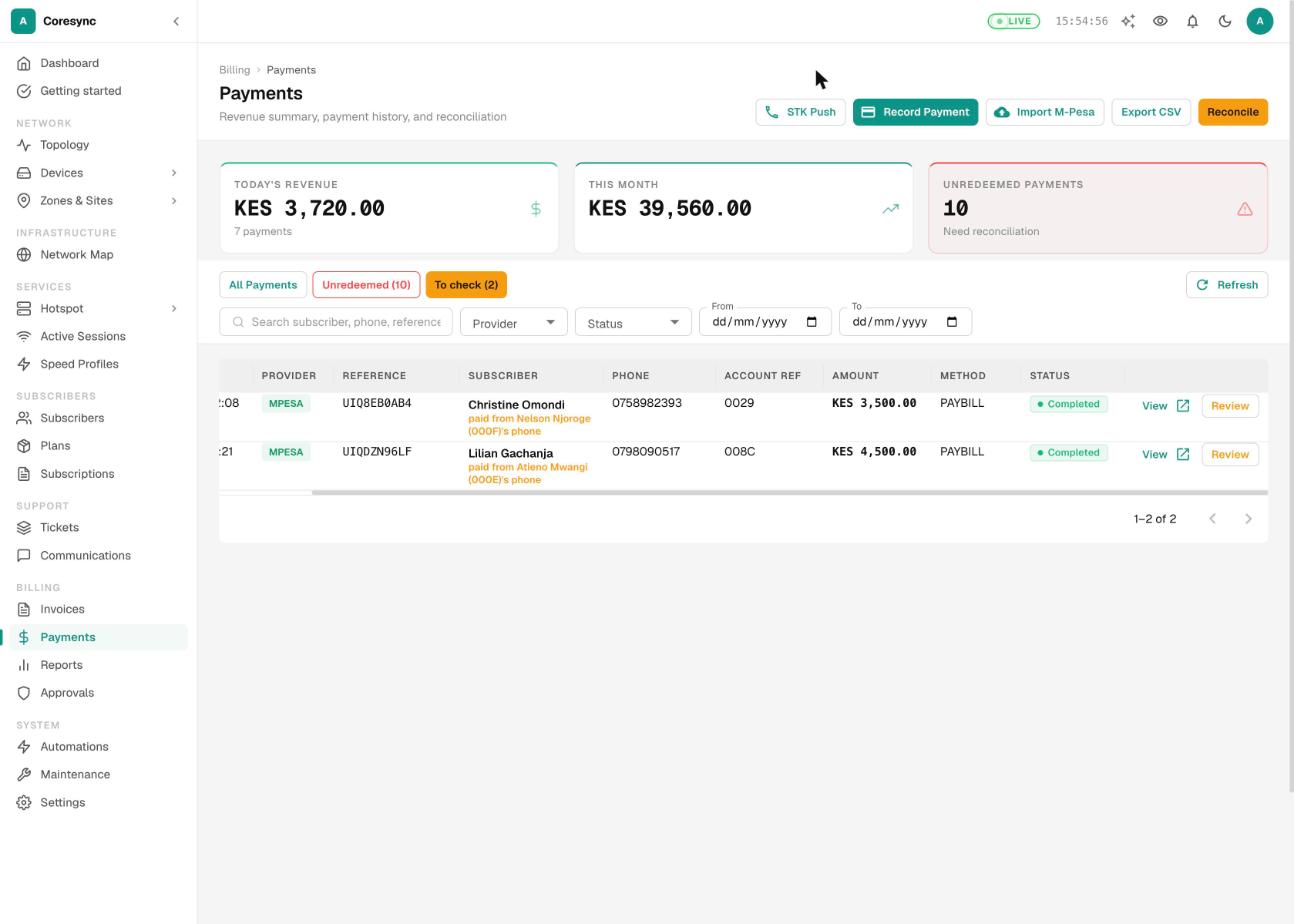
- Press Review on a payment. The Check payment dialog already has the payer chosen under Move it to, and for a likely typo the reason is filled in.
- If it belongs to the payer, press Move payment. If it's right where it is, press Payment is correct. Either way it leaves the list.
With Manage Payments alone you can mark a payment correct, but not move it.
Installation and other charges#
Charges are money a customer owes outside their plan: installation, a router replacement, maintenance or anything else. A charge either records money you already took, or waits to be paid out of the customer's next payment.
- Open the customer, go to the Payments tab and press Charges.
- Press Add Charge. Choose the Category: Installation, Router Replacement, Maintenance or Other. Type the Amount (KES) and, if you like, a description.
- If you already have the money, tick Already collected — record as paid now and choose the Payment Method. Otherwise leave it, and the charge stays pending.
- Press Add Charge.
A pending charge is paid off by the customer's next payment before anything reaches their credit. To forgive one, press the waive button on its row, give a reason and press Waive.
Installation fee collected outside CoreSync? On the customer's Subscription tab, the Installation row says Not paid. Press the pencil beside it to record the fee. This writes a real payment.
A default installation amount for the Add subscriber form is set in Settings → Payment → Charges.
Import M-Pesa payments#
Use this for recent payments that reached your paybill but never reached CoreSync, for example during an outage. Download the statement from M-Pesa, save it as CSV, and import it.
- On the Payments page, press Import M-Pesa, then drop your CSV file on the box.
- On Map Fields, check which column feeds each field. CoreSync guesses from the column names, but it doesn't recognise every M-Pesa statement heading. If it says Missing: Amount, pick Paid In for Amount, Other Party Info for Payer Phone and A/C No. for Account Reference. Receipt / Reference and Amount are required. Payer Phone and Account Reference are what match payments to customers, so map them too.
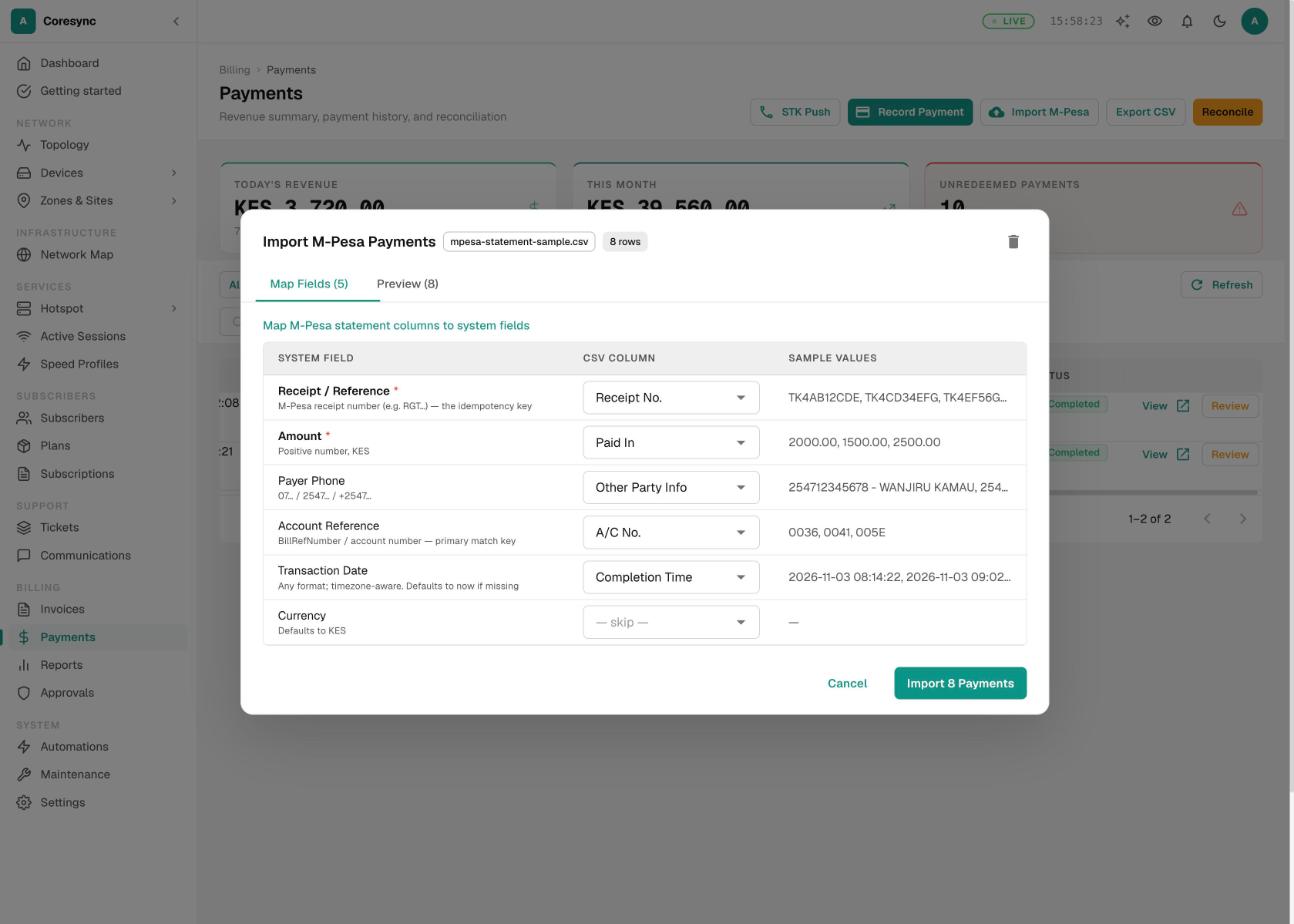
- Open Preview and check the first rows look right.
- Press the import button, which shows the row count, for example Import 42 Payments. Progress shows live. At the end you see how many were applied, how many are awaiting reconciliation (they found no customer and wait on Unredeemed), how many were duplicates and how many failed.
- If any failed, press Download failed rows (CSV), fix them and import that file. Press Done.
Receipts CoreSync already holds are skipped as duplicates, so importing the same file twice is safe.
Reconcile: paid but not extended#
Reconcile looks at completed payments from the last 30 days and lists customers who got less time than they paid for, or whose login expiry doesn't match their subscription.
- On the Payments page, press Reconcile. The button shows Scanning... while it works.
- Read the list. Each row shows the login, when they paid, the plan length and amount, and the expiry they have against the one they should have. If the list is empty you see All payments match — no discrepancies found.
- Tick the rows to fix. To set your own expiry for a row, type it under Custom date.
- Press Fix Selected, or Fix All for every row.
Anyone who can view payments can run the check. Fixing needs Manage Payments. A fix only ever moves an expiry later, unless you typed a custom date.
Payments are history: no refund button#
A payment is a record that money arrived. CoreSync never deletes or reverses one, and there's no refund button. That keeps your books honest: every shilling that came in stays on record. Fix the effect on the customer instead.
| What went wrong | What to do |
|---|---|
| The payment went to the wrong customer | Move it. See Move a payment above. |
| You refunded the customer outside CoreSync (cash back, or an M-Pesa reversal) | On their Subscription tab, press the pencil beside Credit, choose Deduct and the reason Refund issued to customer. If the payment had already renewed them, move their Expiry Date back too. |
| The same money was recorded twice | Deduct the extra credit with the reason Reversing a duplicate payment, and move the Expiry Date back if it renewed them twice. |
| A customer owes a charge you want to forgive | Waive it on the Charges view of their Payments tab. |
- Open the customer and go to the Subscription tab.
- Press the pencil beside Credit. In Adjust credit, choose Deduct, type the Amount (KES) and pick the Reason (required).
- Check the new balance shown, then press Apply. Credit can't go below zero.
- If the payment had already paid for a renewal, there may be no credit left to deduct. Press the pencil beside Expiry Date instead and set it to what it was before. How expiry dates work is in Plans and renewals.
The payment itself stays in the list and on the customer's Payment History. The credit change and the date change are written on their Timeline with your name and reason.
Common mistakes#
- Recording an M-Pesa payment as cash. If the M-Pesa code is already in the list, redeem or move it. A second record counts the money twice.
- Giving free days instead of recording money. If the customer paid, record or redeem the payment. Free days leave no money on record and the books won't add up.
- Pressing STK Push again while the first prompt is open. Each press is a new prompt, and the customer can end up paying twice.
- Importing an old statement. Every row is applied today, renews customers and texts them. Only import recent payments that never arrived.
- Recording a fake receipt number. Use the real one. It's how CoreSync stops the same money being counted twice.
- Telling customers to pay with their phone number or name. Give them their subscriber code. A phone match is the last resort, and fails when someone else's phone pays.
- Redeeming a payment for a terminated account. It's refused on purpose. Restore the account first if the money is really theirs.
If it doesn't work#
| What you see | What to do |
|---|---|
| A customer paid but isn't connected | Search the Payments page for their M-Pesa code. If it's on Unredeemed, redeem it. If it's on them, press Resync RADIUS (the circular arrows) at the top of their page. Still stuck? See Troubleshooting. |
| The payment isn't in CoreSync at all | The gateway didn't report it. Check the gateway in Settings → Payment → Gateways, then import that payment from your M-Pesa statement. |
| Amounts show as ••• | Your role doesn't include View Money Figures. Ask your admin if you need it. |
| The Unredeemed tab shows no number, or the revenue cards are missing | Both need View Revenue Reports. You can still open the tab and redeem payments. |
| Record Payment, STK Push or Redeem gives an error | Your role needs Manage Payments. An STK error can also mean the customer has no phone on file, or no gateway is set up for them. |
| There's no Move button | Your role needs Move Payments. Moves only show on completed payments that are on a customer. |
| You see Match requires approval | That's not an error. It's waiting in Approvals for a second person. |