All guides
Start here
Customers and billing
Hotspot
Network
- Devices, OLTs and ONUs
- Routers, RADIUS and sessions
- TR-069 and remote ONU setup
- Zones, nodes, topology and the map
Support and messaging
Your team and settings
For your subscribers
Troubleshooting
On this page
- How a PPPoE login works
- Add a router as a RADIUS client
- The NAS Setup tab
- The NAS Devices list
- The management tunnel
- IP pools
- Expired, rogue and hotspot pools on a router
- Active Sessions: who's online
- RADIUS logs: accepted and rejected logins
- The RADIUS settings tab
- Static IP customers
- Maintenance tools
- Check a router's tunnel (VPN)
- Recycle Bin
- Common mistakes
- If it doesn't work
How a PPPoE login works#
Your MikroTik routers don't decide who gets internet. They ask CoreSync. The protocol they use to ask is called RADIUS, and a router that asks is called a NAS (network access server), or a RADIUS client.
Here's what happens when a home customer's router (or ONU) connects:
- The customer's router dials PPPoE to your MikroTik with the customer's username and password.
- Your MikroTik sends the login to CoreSync over its management tunnel, signed with the RADIUS secret you both share.
- CoreSync checks the account: does the username exist, is it active, not expired, not paused, is the password right, and is the device allowed.
- If all is well, CoreSync answers Accept, with the plan's speed and the customer's IP address (from a pool, or their fixed IP).
- The session starts. The router keeps reporting usage, and the customer appears in Active Sessions.
When an account expires or is suspended, CoreSync doesn't simply refuse the login. It lets the router connect at a tiny speed, so it stops retrying, and puts the customer in your expired pool. If the router has the expired pool and its firewall, the customer is sent to a page to pay. When they pay, CoreSync drops the session so the router dials again straight away and gets full speed.
| Page | What it's for |
|---|---|
| A router's NAS Setup tab | RADIUS secret, the NAS health check and fixes, and automatic hotspot/PPPoE setup. |
| Devices → IP Pools | The address ranges customers get: PPPoE, static, CGNAT and management. |
| Active Sessions | Who is online now, and disconnecting a session. |
| Maintenance → RADIUS Logs | Every login accepted or rejected, with the reason. |
| Maintenance → VPN | The health of the management tunnels to your routers. |
| Settings → RADIUS | Login rules for all customers: NAS auto-assign, MAC lock, device limit, timeout. |
Add a router as a RADIUS client#
Every router that logs customers in must be known to CoreSync as a NAS, with a shared RADIUS secret. You don't do this separately: it happens when you add the router.
- In Devices → All Devices, add the router with the role Hotspot / PPPoE Router. Under Services this device handles, pick PPPoE, Hotspot or both. See Devices, OLTs and ONUs.
- Type a RADIUS Secret. It's a shared password between the router and CoreSync; both sides must match.
- Connect the router over the management tunnel. RADIUS travels through the tunnel, so the router must be online in CoreSync.
- Open the router's page and go to the NAS Setup tab to check and finish the setup.
The NAS Setup tab#
The NAS Setup tab appears on routers added as a NAS. It has four parts.
| Card | What it does |
|---|---|
| NAS Settings | The RADIUS Secret, NAS Purpose and Description. Tick Push RADIUS config to router via SSH to send a new secret to the router too, then press Save NAS Settings. |
| NAS Health Check | Press Run Health Check. CoreSync logs into the router and checks it, line by line. |
| Auto Provision Router | Sets up RADIUS, the PPPoE or hotspot server, the walled garden and the login page in one go. Hotspot setup is explained in Hotspot and vouchers. |
| Get Setup Guide | Shows the steps to do the same by hand in Winbox, for routers you prefer to set up yourself. |
The health check looks at:
- NAS Record IP: the address CoreSync expects the router's logins to come from. A mismatch means every login fails.
- SSH Connectivity: whether CoreSync can log into the router.
- RADIUS Config: whether the router points at CoreSync with the right secret.
- PPPoE Server and Hotspot Server: whether they exist and are switched on.
- IP Pools: the pools on the router.
- Active Hotspot Sessions and Active PPPoE Sessions: how many people are on now.
- When a line fails, press Fix next to it.
- Press Get Script first. CoreSync shows the RouterOS commands it would run, without changing anything.
- If the script looks right, press Apply via SSH. Then press Run Health Check again.
The NAS Devices list#
There is also a plain list of every RADIUS client, the NAS Devices page. It isn't in the menu; open it by typing /admin/nas after your CoreSync address. It shows each NAS with its status, users online and CPU, and has Add NAS Device and Refresh Status.
Add routers in All Devices instead whenever you can, so they also get a device page with the NAS Setup tab, monitoring and the management tunnel.
The management tunnel#
Each router connects to CoreSync over a private, encrypted tunnel (WireGuard, or OpenVPN on older RouterOS). CoreSync manages the router through it, and the router's RADIUS logins travel through it.
- If the tunnel is down, the router shows offline in CoreSync, and new logins on that router fail.
- Customers already online usually stay online until they reconnect.
- You set the tunnel up when you add the router. See Devices, OLTs and ONUs.
To see the tunnels, open Maintenance → VPN, explained below.
IP pools#
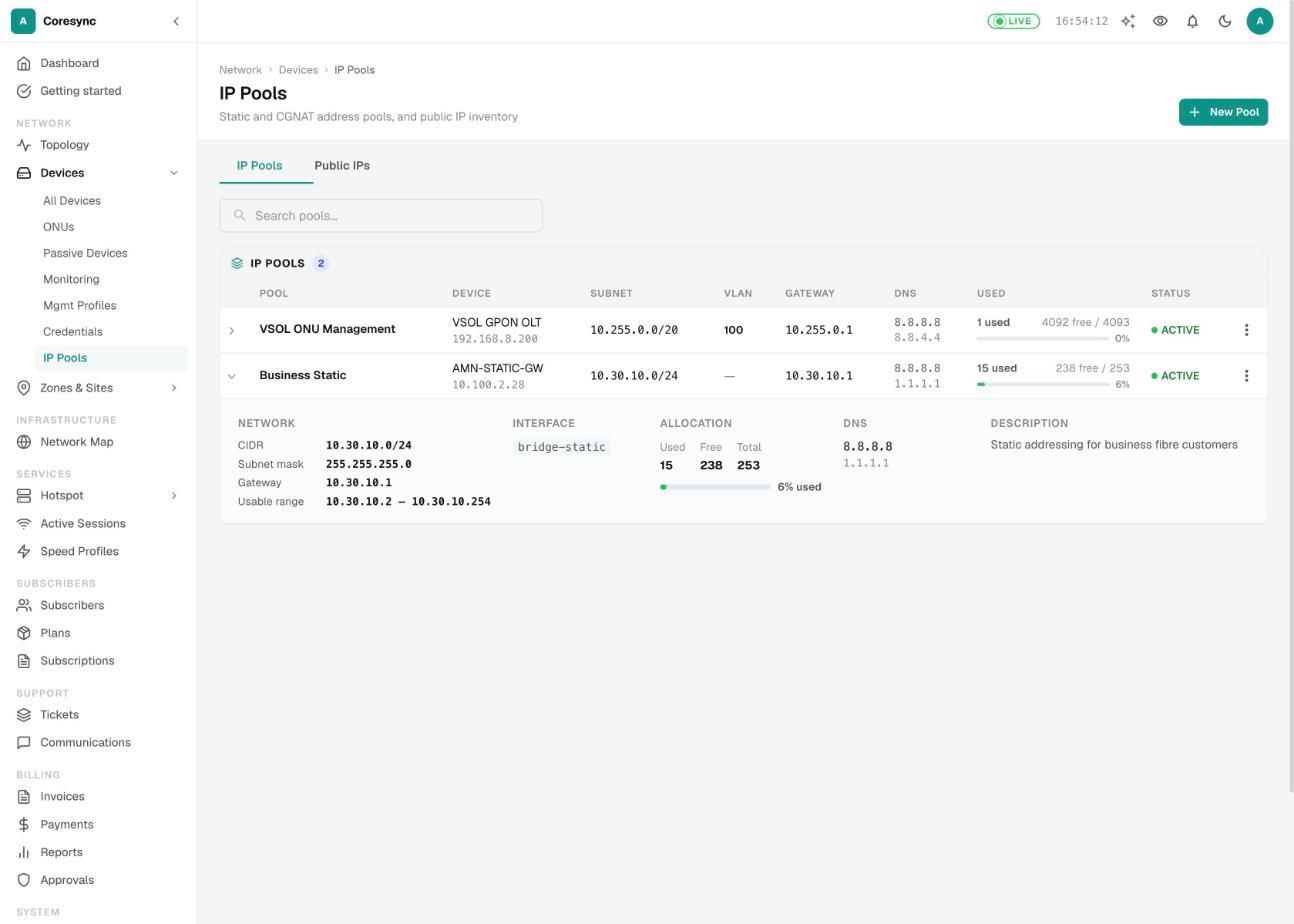
An IP pool is a range of addresses CoreSync and your routers hand out. Open Devices → IP Pools. The page has two tabs: IP Pools and Public IPs.
| Pool Purpose | Used for |
|---|---|
| Pppoe | Addresses for PPPoE customers. |
| Static | Fixed addresses for static IP customers. |
| Hotspot | Addresses for hotspot guests. |
| Dhcp | Addresses for DHCP clients. |
| Management | Management addresses for ONUs and CPEs, on an OLT or router. No CGNAT. |
A pool in the shared range from 100.64.0.0 to 100.127.255.255 is a CGNAT pool: many customers share a few public IPs. CoreSync marks it CGNAT and asks which public IPs it goes out through.
- Press New Pool and choose the Pool Purpose.
- Choose the Router / NAS Device (only online routers are listed) and type a Pool Name. You can't change the name later: it's what the router calls the pool.
- Type the Subnet (CIDR), or type a number in Target Subscribers (optional) and let CoreSync pick a CGNAT subnet big enough. The range and gateway fill in from the subnet.
- Check Range Start, Range End, Gateway and Interface. For static pools, choose the Block Allocation: /30 (a router-side IP and a customer IP for each customer) or /32 (a single address each).
- For a CGNAT pool, pick the CGNAT public IP target(s). With several, customers are spread across them, and each customer always goes out through the same one.
- Optional: press Check on router to see if the pool already exists there, and tick Push pool + NAT rule to router on save.
- Press Create Pool.
A CGNAT pool also shows, under its status, whether the router has it:
- Synced: the router has the pool as CoreSync has it.
- Mismatch: the router's copy is different.
- Not pushed: it only exists in CoreSync so far.
The menu at the end of each row has:
- Check on router and Push to router (CGNAT pools): compare with the router, or send the pool and its NAT rule to it.
- Edit: change the range, gateway, interface, public IPs and DNS.
- Apply to Subscribers: put matching subscribers on this pool in RADIUS. Filter by account and connection status, then press Apply to Matching Subscribers. They get addresses from it the next time they connect.
- Delete.
The Public IPs tab is your list of public addresses per router. Press Add Public IP to add one, or a whole range with a Start IP, End IP and Label Prefix. CGNAT pools pick their public IPs from this list.
Expired, rogue and hotspot pools on a router#
Each router also needs a few standard pools: one for expired customers (with a firewall that only lets them reach DNS and your payment page), one for unknown or blocked logins, and one for hotspot guests. CoreSync can create them for you.
- Open the router's page and go to its IP Pools tab.
- In Auto-provision NAS Pools, tick Rogue pool, Expired pool + firewall and/or Hotspot pool.
- Press Create & Push. CoreSync picks ranges that don't clash with your other pools, pushes them to the router, and lists what it made.
Without the expired pool and its firewall, expired customers stay connected at a crawl but aren't sent to the payment page.
Active Sessions: who's online#
Active Sessions (under Services in the menu) lists everyone online right now: PPPoE customers and hotspot guests. It refreshes every 30 seconds.
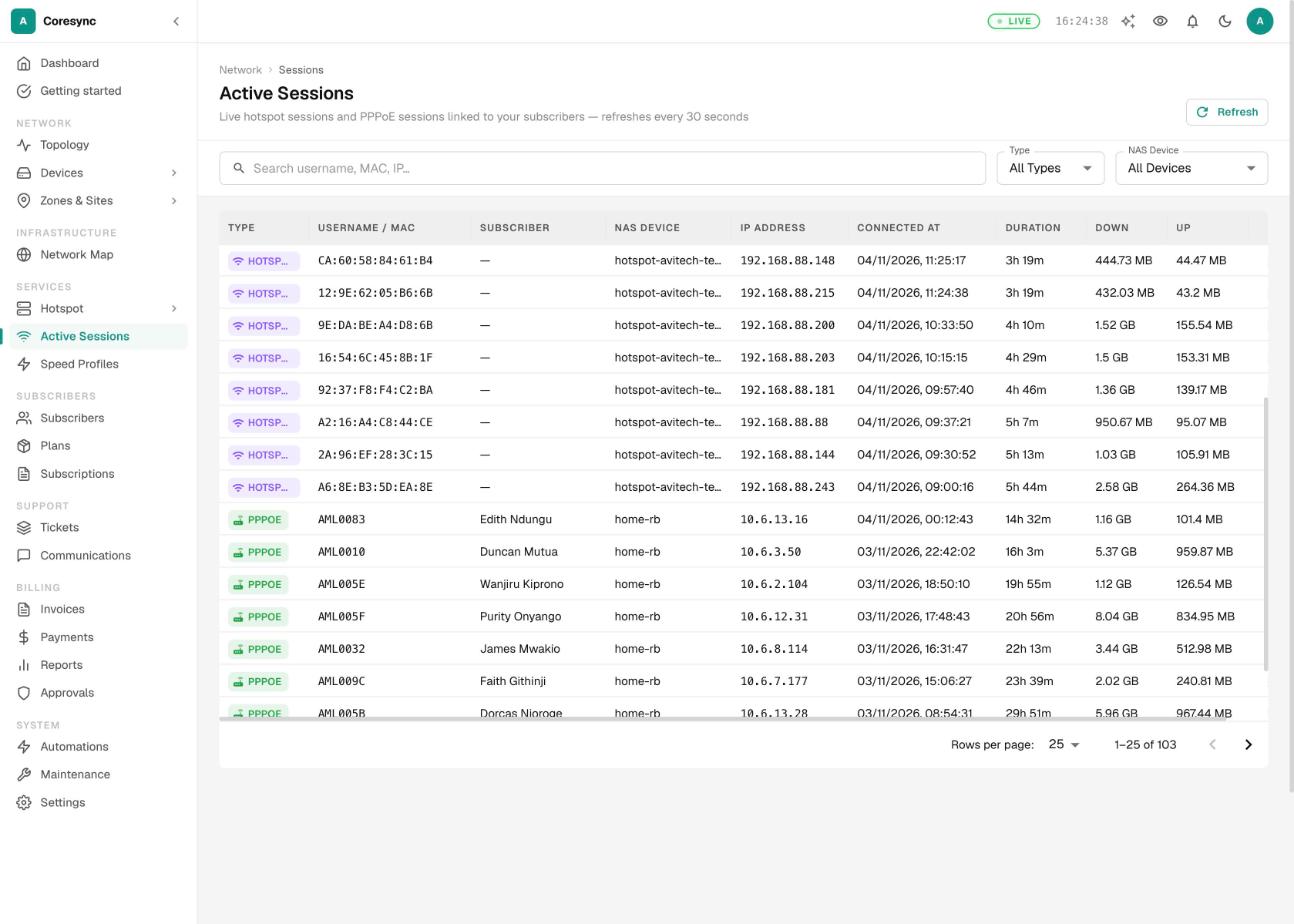
- Each row shows the Type, Username / MAC, Subscriber, NAS Device, IP Address, when they connected, how long, and data Down and Up.
- Search by username, MAC or IP, and filter by Type (Hotspot or PPPoE) or by NAS Device.
- To kick a session, open the row menu and choose Disconnect.
- Check the name and router, then press Disconnect. CoreSync tells the router to drop that session.
A PPPoE customer's router dials straight back in. Use this after you change someone's plan, speed or IP, so the change takes effect.
RADIUS logs: accepted and rejected logins#
Maintenance → RADIUS Logs shows every login attempt and session start and stop from your routers. It's the first place to look when a customer says they can't connect.
- Type the customer's username in Filter by username....
- Narrow it with Zone, NAS / Router, Event Type and Period (1 hour up to 7 days).
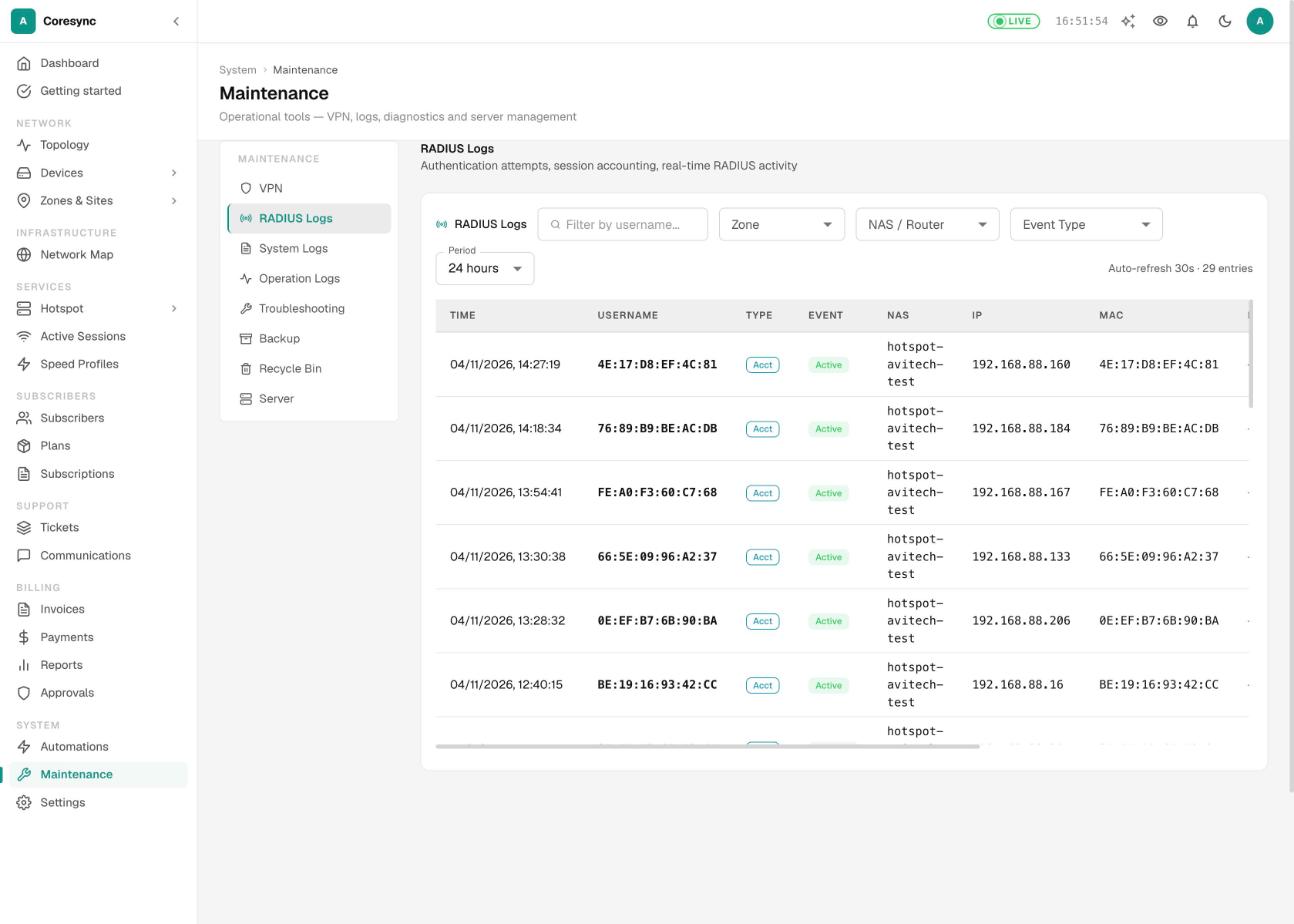
- Read the Event and the Detail / Reason column. Hover over it for more.
For a rejected login, CoreSync works out why:
| Reason | What to do |
|---|---|
| User not found | The username doesn't exist on this router's ISP. Check the spelling on the customer's router, or create the account. |
| Account suspended | Reactivate the customer if they should be online. |
| Account terminated | The account is closed. Restore it if that was a mistake. |
| Subscription expired — ended (date) | They need to pay or be renewed. |
| Subscription paused | Resume the subscription. |
| RADIUS expired — (date) | RADIUS still holds an old expiry. Use Resync RADIUS on the customer's page. |
| Blocked — flagged as rogue/abuse | The login was blocked on purpose. Only unblock it if you know why it was blocked. |
| Device MAC not allowed (MAC lock) | A new router is using the account. Clear the MAC binding on the customer's page if the change is genuine. |
| Password mismatch | The password on the customer's router is wrong. Re-enter it, or push it again. |
For session stops, the reason says how it ended, for example Idle timeout, Physical disconnect (cable or signal) or Disconnected by administrator. Times are shown in East Africa Time. The list refreshes every 30 seconds.
Each customer also has their own RADIUS Logs tab on their page. See Subscribers.
The RADIUS settings tab#
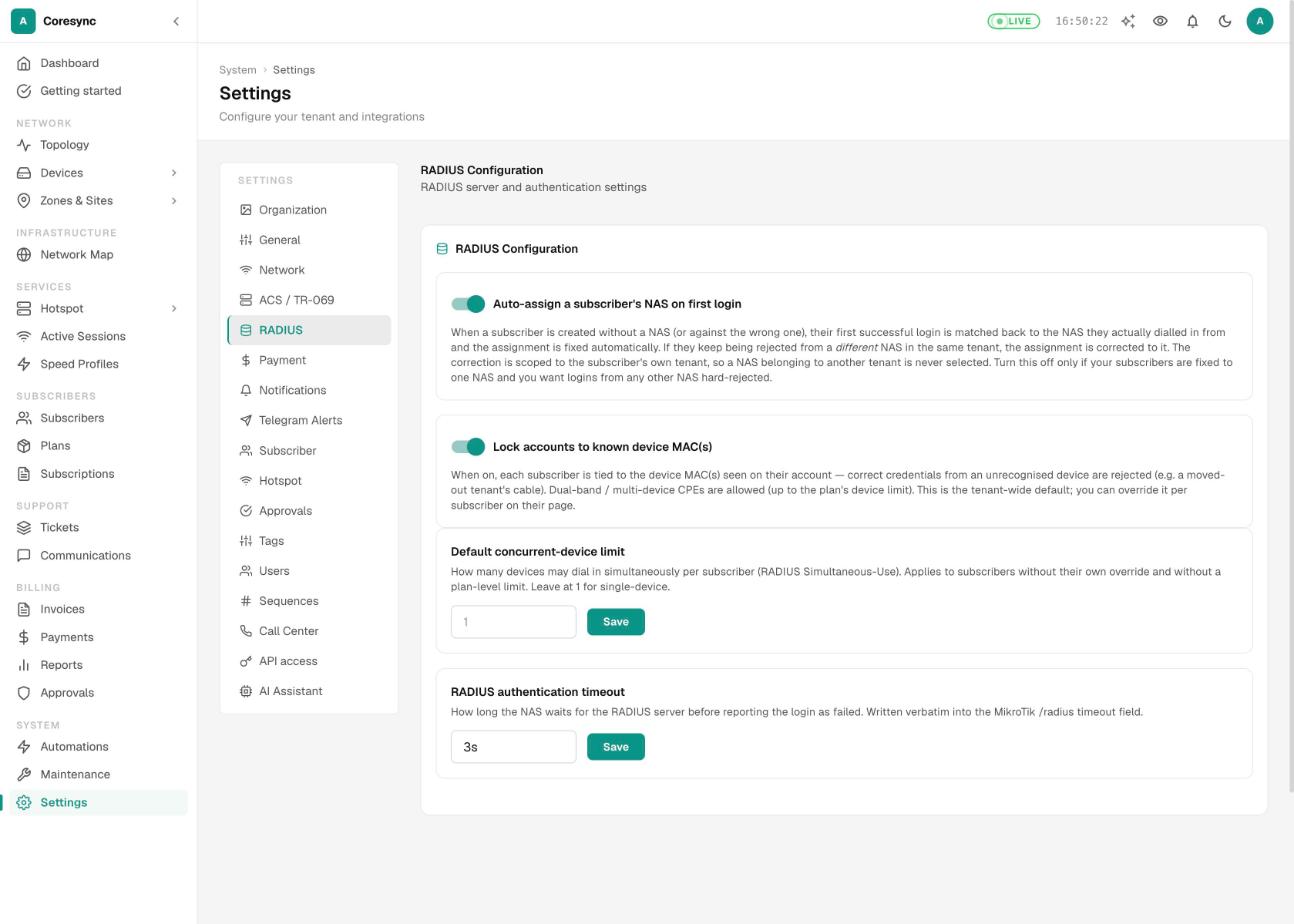
Settings → RADIUS holds the login rules for all your customers.
| Setting | What it does |
|---|---|
| Auto-assign a subscriber's NAS on first login | If a customer was created without a router, or against the wrong one, CoreSync fixes it from the router they actually dial in from. Turn it off only if logins from any other router should be refused. |
| Lock accounts to known device MAC(s) | Ties each account to the devices seen on it. The right password from an unknown device is refused, for example a cable taken to another house. You can change it per customer on their page. |
| Default concurrent-device limit | How many devices can be logged in on one account at once. A plan's or customer's own limit wins over this. Leave it at 1 for one device. |
| RADIUS authentication timeout | How long the router waits for CoreSync before giving up on a login. The default is 3s. |
Static IP customers#
Static IP customers don't log in with a username and password. Their router has a fixed address, and CoreSync manages them on your MikroTik directly:
- Their speed is a queue on the router, set from their plan.
- When they expire or are suspended, CoreSync blocks their IP on the router.
- When they pay, CoreSync unblocks the IP and restores their plan speed.
Because of this, CoreSync must be able to reach the router over its management tunnel. If it can't, a payment is recorded but the customer stays blocked until the router is reachable again.
- Make a Static pool for the router first (see IP pools).
- When you add the subscriber, choose the service type Static IP. Under Static IP Details, pick the IP Pool. CoreSync suggests the next free address in Client IP.
- Save. Give the technician the Client Config box: IP, gateway and DNS for the customer's router.
To switch an existing customer between PPPoE and static, use Convert to Static IP or Convert to PPPoE on their Overview tab. To change the address, use Edit static IP. See Subscribers.
Static customers don't log in, so their page has no RADIUS Logs tab and they don't show in Active Sessions.
Maintenance tools#
Maintenance (under System in the menu) gathers the operational tools. Pick a tool on the left.
| Tool | What it's for |
|---|---|
| VPN | The management tunnels to your routers: WireGuard and OpenVPN. |
| RADIUS Logs | Login attempts and sessions, explained above. |
| Recycle Bin | Deleted subscribers, to restore or remove for good. |
| System Logs, Operation Logs, Troubleshooting, Backup, Server | Not available yet. They show "This section is not yet available". |
Check a router's tunnel (VPN)#
Maintenance → VPN has a WireGuard tab and an OpenVPN tab. The WireGuard tab counts Total Peers, Connected and Problems, then lists each router (peer) with its Last Handshake, data sent and received, and Status.
| Status | Meaning |
|---|---|
| Connected | The tunnel is up. |
| Stale | No recent handshake. The router may be off, or its internet is down. |
| No Handshake | The router has never connected on this tunnel. |
| Config Drift | The live tunnel settings differ from the saved ones. It can look connected but carry no traffic. |
| Not in Runtime | The peer is saved but not loaded. |
- Find the router in the list. A handshake older than a few minutes means the tunnel is down.
- If it shows DRIFT or Config Drift, press Repair on that row. It restores that peer's settings only.
- If it's Stale, check the router itself first: power, its internet connection, and its own WireGuard settings.
The OpenVPN tab lists the client certificates CoreSync issued (Issued Certs), which are connected, and their virtual address.
Recycle Bin#
When a subscriber is deleted, they go to Maintenance → Recycle Bin first. Search the deleted records, then use Restore to bring one back, or Delete Permanently to remove it for good.
Only subscribers are kept here for now. The Payments and Tickets tabs say (soon).
Common mistakes#
- A different RADIUS secret on the router. Every login fails. Fix it from the NAS health check, or save the secret with Push RADIUS config to router via SSH.
- Pressing Apply via SSH without reading the script. Press Get Script first.
- Leaving a migrated router's RADIUS timeout very short. Logins fail with "radius timeout". Keep 3s.
- Deleting a pool customers still use. Move them to another pool first.
- Expecting a plan change to apply at once. PPPoE customers pick up a new speed or IP when they reconnect. Disconnect them, or use Force Redial (CoA).
- Clearing a MAC lock for every reject. Only clear it when the customer really changed their router. Otherwise, someone else may be using their login.
- Full Reload to fix one tunnel. It drops every tunnel. Repair the one peer.
If it doesn't work#
| What you see | What to check |
|---|---|
| One customer can't connect | Search their username in Maintenance → RADIUS Logs and read the reason. If there's no entry at all, their router isn't reaching yours: check the customer's router, ONU and cable. |
| Nobody on one router can connect | Open the router in All Devices. If it's offline, check its tunnel in Maintenance → VPN. If it's online, run the NAS health check. |
| Logins fail with radius timeout | Check the tunnel, then the RADIUS timeout (3s) and the NAS Record IP line of the health check. |
| Customer paid but is still slow | Their session needs to restart. Use Force Redial (CoA), or Resync RADIUS on their page. |
| Expired customers aren't sent to the payment page | Create the Expired pool + firewall on that router's IP Pools tab. |
| A static customer paid but has no internet | CoreSync couldn't reach the router to unblock them. Check that the router is online, then reactivate the customer. |
More help: Troubleshooting.