All guides
Start here
Customers and billing
Hotspot
Network
- Devices, OLTs and ONUs
- Routers, RADIUS and sessions
- TR-069 and remote ONU setup
- Zones, nodes, topology and the map
Support and messaging
Your team and settings
For your subscribers
Troubleshooting
On this page
- Subscribers and their status
- The subscriber list
- Search and filters
- The subscriber code
- Add a subscriber
- Static IP and hotspot customers
- Add many subscribers at once
- The subscriber page
- Edit a subscriber
- Suspend and reactivate
- Archive old accounts
- Terminate and restore
- RADIUS credentials (the PPPoE login)
- Device lock (MAC binding)
- Extend many subscribers at once
- Send a message
- Exporting your list
- Common mistakes
- If it doesn't work
Subscribers and their status#
A subscriber is one customer account: their name and phone, their login for the network, and the plan they pay for. The plan and the expiry date live on their subscription. Renewing, extending and changing plans are explained in Plans and renewals.
Every subscriber has a status:
| Status | What it means |
|---|---|
| Active | Paid up, or inside their free start window. They can connect. |
| Suspended | Cut off from the internet, by hand or because they expired without paying. |
| Draft | Saved but not set up on the network yet. |
| Pending | Waiting to be fully set up. |
| Terminated | Closed for good. The record is kept for history. |
Two more labels sit under the status chip in the list. PAUSED means the subscription is on hold (the status stays Active). ARCHIVED means the account was filed out of the working list. Both are explained below.
The subscriber list#
Open Subscribers in the menu. The cards at the top count Total, Active, Online Now, No Internet, Offline and Suspended. Click a card to filter the list to it.
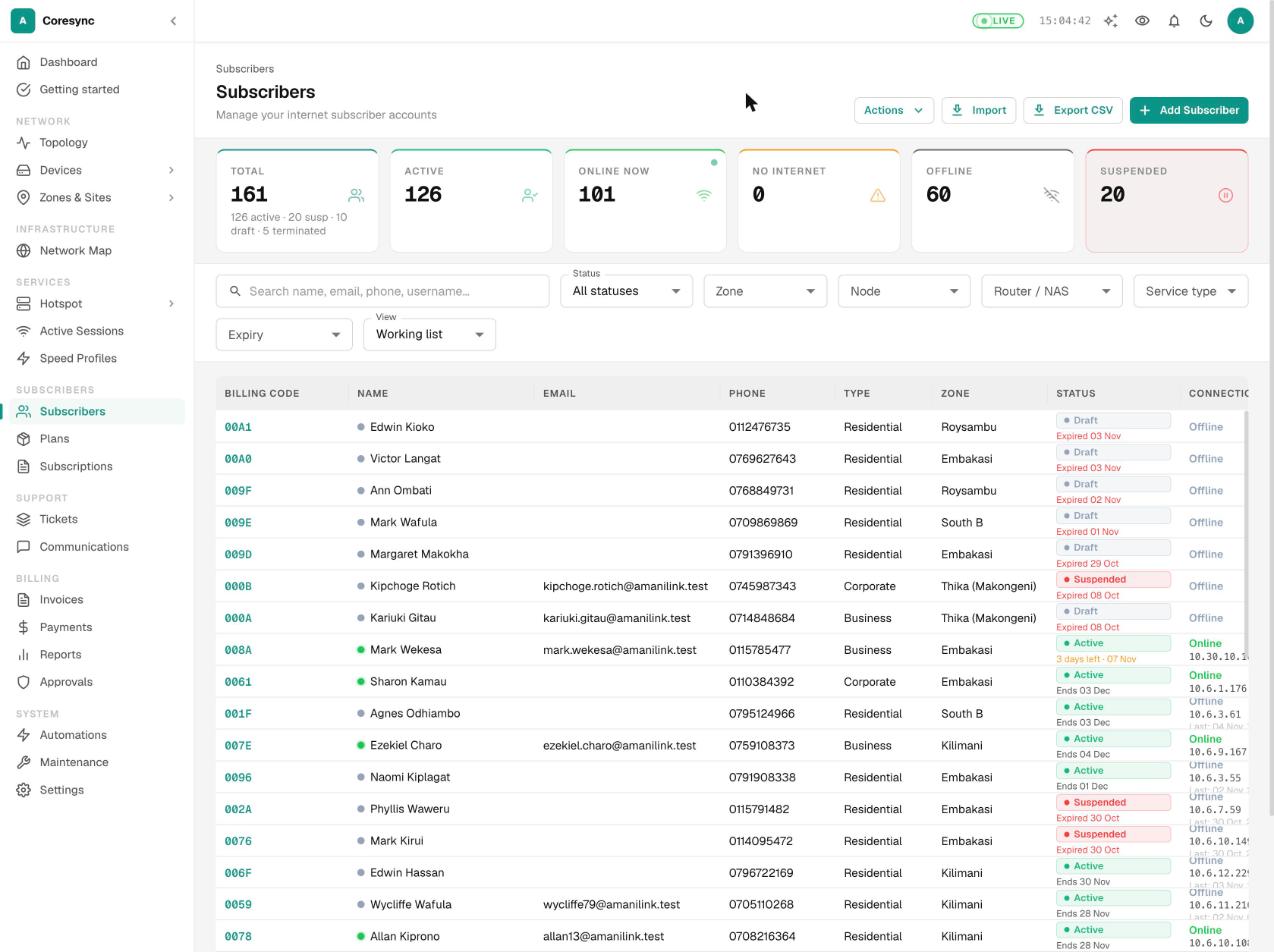
Each row shows:
- Billing Code: the subscriber code customers pay with. See the next section.
- A coloured dot before the name: green is online, amber is connected but blocked, grey is offline.
- The status chip, with the expiry under it (for example "2 days left · 06 Nov" or "Expired 01 Nov").
- Connection: online or offline now, their IP address, and when they were last online.
- MTD Usage: data used this month. A red FUP label means they're slowed down for going over their fair-use limit.
Click a row to open that subscriber's page.
Search and filters#
Type in the search box to find someone by first name or surname, phone, email, username or subscriber code. Type one name, not both: Wekesa finds Jane Wekesa, but Jane Wekesa doesn't yet. Phone numbers work in any form: 0712 345 678, 254712345678 and 712345678 all find the same person.
Then narrow the list with the filters:
| Filter | Choices |
|---|---|
| Status | Online now, No internet, Offline, Dormant (30+ days with no connection), Active, Suspended, Paused, Draft, Pending, Terminated. |
| Zone | One zone. Picking a zone narrows the Node list to that zone. |
| Node | One node (building or site), if your ISP uses nodes. |
| Router / NAS | Customers on one router. |
| Service type | PPPoE, Hotspot, Static or Both. |
| Expiry | Already expired, Expiring today, Expiring in 3 days, Expiring in 7 days, Expiring in 30 days. |
| View | Working list (the normal view) or Archived. |
Press Clear filters to start again. On a phone the filters fold away behind a Filters button, which shows how many are on.
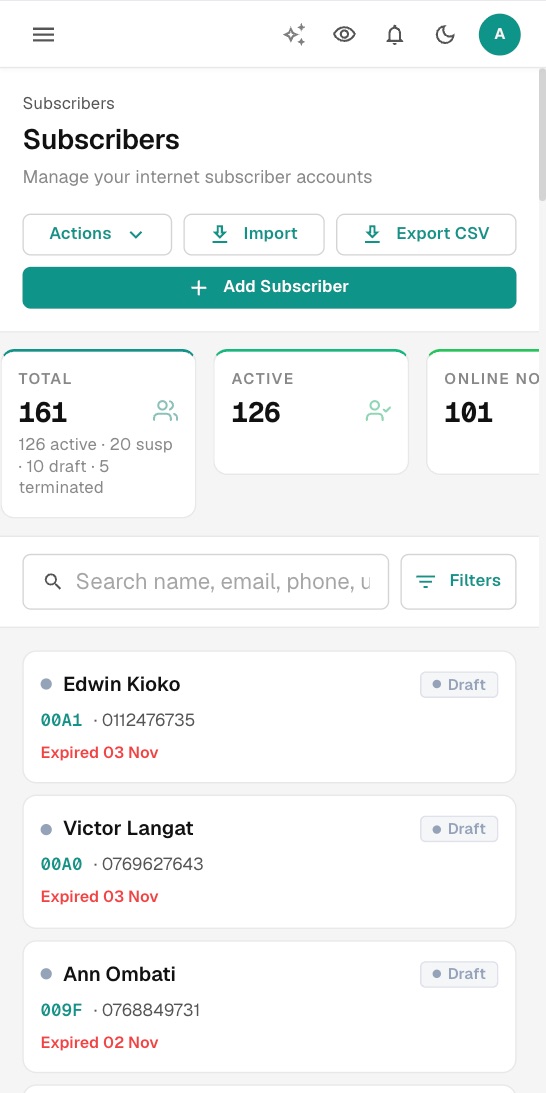
A search also finds archived accounts, even in the working list. Filters are not saved: they reset when you leave the page.
The subscriber code#
Every subscriber has one subscriber code. It's the only reference your customers need: they type it as the account number when they pay by M-Pesa, and it appears in their SMS and invoices. The list calls it Billing Code, and the subscriber page shows it next to the name, for example #AL1042.
When you add someone and leave the code blank, CoreSync makes one for you. Your admin chooses how in Settings → Subscriber → Billing Code Policy for New Subscribers: from your code sequence (the default), from the phone number, or from the email address. The sequence pattern itself is set on the Sequences tab.
The Overview tab also shows an Account #. That's an internal number CoreSync uses. Don't give it to customers, and don't ask them for it.
Add a subscriber#
Use this for one new customer, for example after an installation.
- On the Subscribers page, press Add Subscriber.
- Under Personal Information, type the First Name, Last Name, Phone and, if they have one, Email. Choose the Subscriber Type: Residential, Business or Corporate. Business and Corporate also ask for a Business Name.
- Under Account Credentials, leave Username, Subscriber Code (payment reference) and Password blank unless you have a reason. CoreSync fills them in from your ISP's policies, and the hint under each box says what it will use. To pick a username yourself, tick Set the username manually.
- Under Service Configuration, choose the Connection Type: PPPoE or Static IP. Then pick the Service Plan and the Billing Cycle (1, 3, 6 or 12 months).
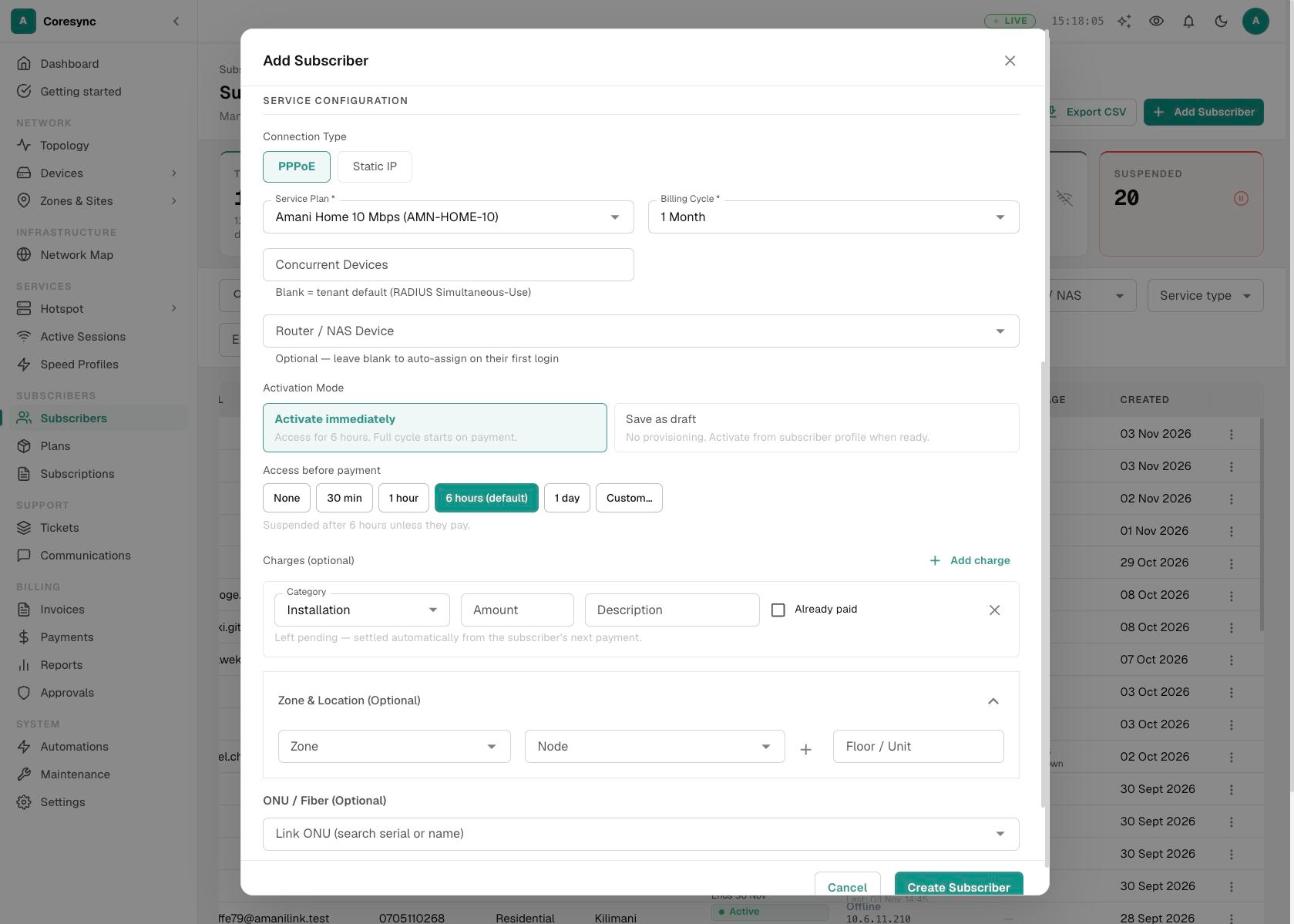
- Pick the Router / NAS Device. For PPPoE you can leave it blank: CoreSync links the customer to the router they first log in through. For Static IP it's required (see below).
- Choose the Activation Mode (see the table below). For Activate immediately, also pick the Access before payment: None, 30 min, 1 hour, 6 hours, 1 day or a custom time.
- Open Zone & Location (Optional) and choose the Zone, the Node and the Floor / Unit. Zones decide which plans, staff and payment numbers apply, so always set one.
- For fibre customers, find their ONU under ONU / Fiber (Optional). Tick Provision PPPoE now to send the login to the ONU straight away. See Devices and ONUs.
- If they owe an installation or router fee, fill in the row under Charges (optional). It starts as an Installation charge; press Add charge for another. Choose the Category, type the Amount, and tick Already paid if they paid you on the spot.
- Press Create Subscriber.
| Activation Mode | What happens |
|---|---|
| Activate immediately | The account goes live with the access window you picked. When the window ends, they're suspended unless they've paid. Their first full cycle starts when they pay. |
| Queue on router, await payment | Static IP only. The customer's queue is put on the router but switched off until they pay. |
| Save as draft | Nothing is set up on the network. Use it when the install isn't done yet. |
A new subscriber gets a welcome message when your SMS provider is connected. To finish a draft later, open the row menu (⋮) and choose Continue Draft.
Static IP and hotspot customers#
For a Static IP customer, choose Static IP as the connection type, then pick the router. CoreSync checks the router is reachable. If it isn't, the form switches to Save as draft so you don't set up a customer on a dead router.
- Under Static IP Details, pick the IP Pool. CoreSync suggests the next free address and fills in Client IP.
- Check the Client IP. If you type your own, CoreSync checks it's free when you leave the box.
- Copy the Client Config — share with technician box (IP, gateway and DNS) for whoever sets up the customer's router.
- Press Create Subscriber. CoreSync shows each step as it sets the customer up on the router. You can press Close (runs in background) and it carries on.
Hotspot customers aren't added here. People who buy a package on your hotspot page are kept separately, under Hotspot → Customers. See Hotspot.
Add many subscribers at once#
There's no spreadsheet-style Bulk Add for subscribers. To add many at once, press Import on the Subscribers page and upload a CSV file. CoreSync lets you match your columns to its fields, map your old package names to your plans, and preview the result before anything is saved.
Imports have rules of their own, such as setting up payments and SMS first. Read Moving from another system before you import.
The subscriber page#
The top of the page shows the name, the subscriber code, the status and the zone. A coloured banner warns you when the subscription is about to expire, has expired, or the account is suspended, with a Renew or Reactivate button.
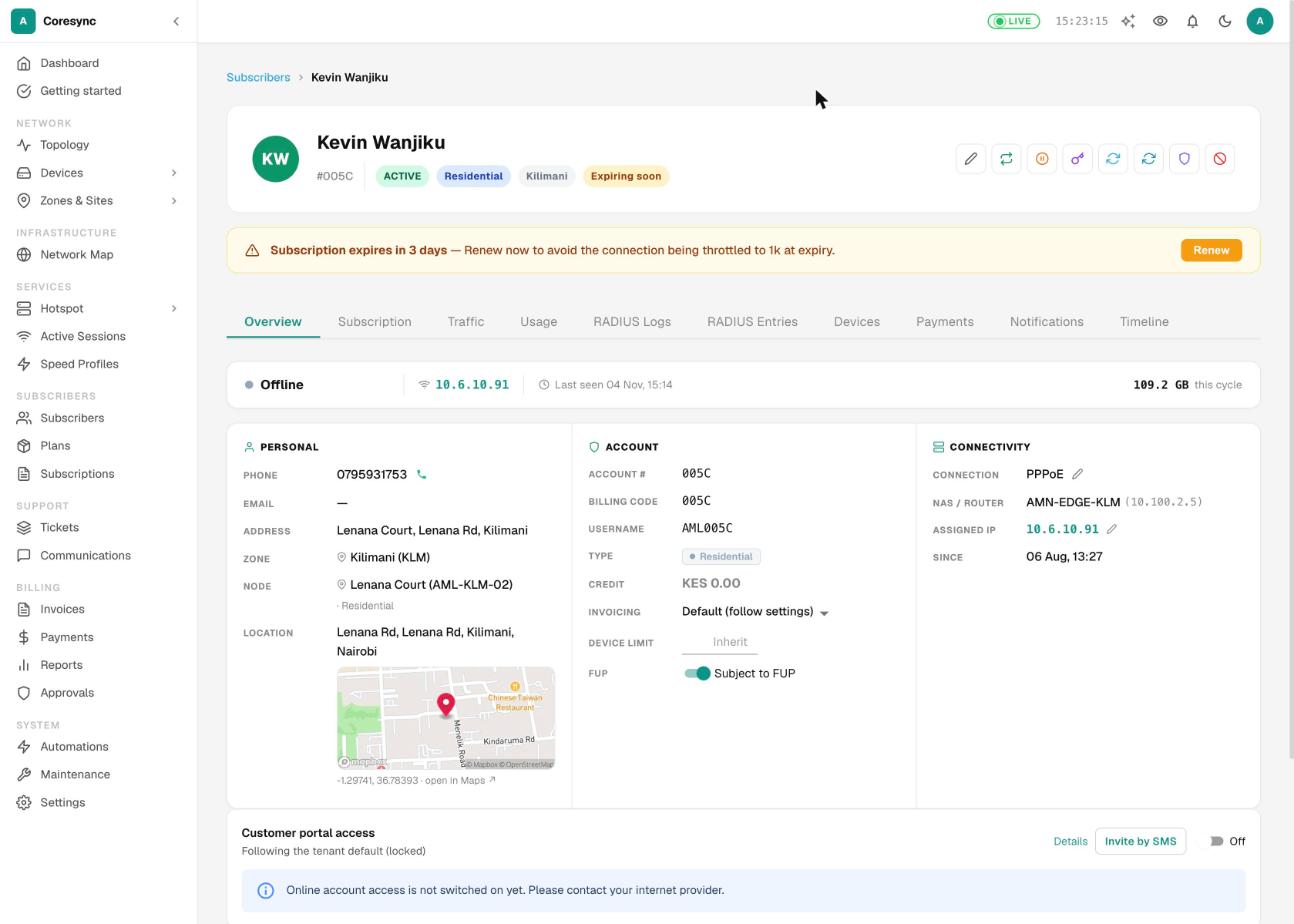
The tabs:
| Tab | What's in it |
|---|---|
| Overview | Contact details, zone and node, subscriber code, username, credit, device limit, router or ONU, and IP address. |
| Subscription | Plan, price and expiry, with Renew, Quick Extend, Pause and more. See Plans and renewals. |
| Traffic | Their live speed, while they're online. |
| Usage | Data used this month and in total. |
| RADIUS Logs | Login attempts, with the reason when a login was refused. |
| RADIUS Entries | The raw login settings. For technicians only. |
| Devices | Device lock (MAC binding). See below. |
| Payments | Their payments, and a Charges view for installation and other fees. |
| Notifications | Every SMS and email sent to them, with Send SMS and Send Email buttons. |
| Timeline | Everything that happened to the account and who did it. |
| Customer 360 | Tickets, payments, messages and notes in one timeline. Only with the CRM module. |
| Calls | Calls with this customer. Only when the call center is connected. |
Some tabs hide when they don't apply: static IP customers have no RADIUS tabs or Devices tab, and terminated accounts have no Traffic, RADIUS Entries or Devices tab.
The round buttons beside the name (hover to see each label):
| Button | What it does |
|---|---|
| Edit | Change contact details, zone, router and ONU. |
| Renew Plan | Renew or change plan with a payment. See Plans and renewals. |
| Suspend | Cut them off. Active accounts only. |
| Reactivate | Lift a suspension. Suspended accounts only. |
| RADIUS Credentials | See and copy their login, or text it. PPPoE only. |
| Force Redial | Drop their session so their router reconnects. |
| Resync RADIUS | Rebuild their access to match the account. The first fix for "paid but still slow". |
| Reset MAC | Clear the device lock so a new router can log in. |
| Terminate account | Close the account for good. |
Everyone who can open the page sees every button, but CoreSync checks your role when you press one. Edit, Suspend, Reactivate, Force Redial and Reset MAC need Edit Subscribers. Resync RADIUS needs Create Subscribers. Terminate account needs Delete Subscribers.
Edit a subscriber#
Use this when a customer changes phone number, moves, or was saved in the wrong zone.
- Open the subscriber and press the pencil button (Edit).
- Change what you need: name, Email, Phone, Subscriber Code (payment ref), Address, Zone, Type, NAS / Router or Link ONU (optional).
- Press Save Changes.
The plan isn't changed here: use Renew / Change Plan on the Subscription tab. The login is changed with Change credentials (see below).
Suspend and reactivate#
Suspend cuts a customer off by hand, for example after a dispute. You don't need it for people who don't pay: CoreSync suspends them by itself when they expire.
- Open the subscriber and press Suspend, or use Suspend in the row menu (⋮) on the list.
- Confirm. They're disconnected at once. PPPoE and hotspot customers reconnect on a blocked, very slow connection. Static IP customers are blocked on the router.
If your ISP needs sign-off for suspensions, you see Suspension requires approval and nothing happens until someone approves it. This only applies to customers who haven't expired yet. See Approvals (four-eyes).
Reactivate lifts a suspension.
- Open the subscriber and press Reactivate. The Reactivate Subscriber box opens.
- Type a Reason, for example "billing error" or "verified in person". It goes on the Timeline.
- Press Confirm Reactivation.
Archive old accounts#
Archiving files a lapsed customer out of the working list, so the list only shows people you still serve. Nothing is deleted: they keep their username, IP address and ONU, and they come back to the working list by themselves the moment they pay.
- On the list, open the row menu (⋮) of a suspended or expired customer and choose Archive.
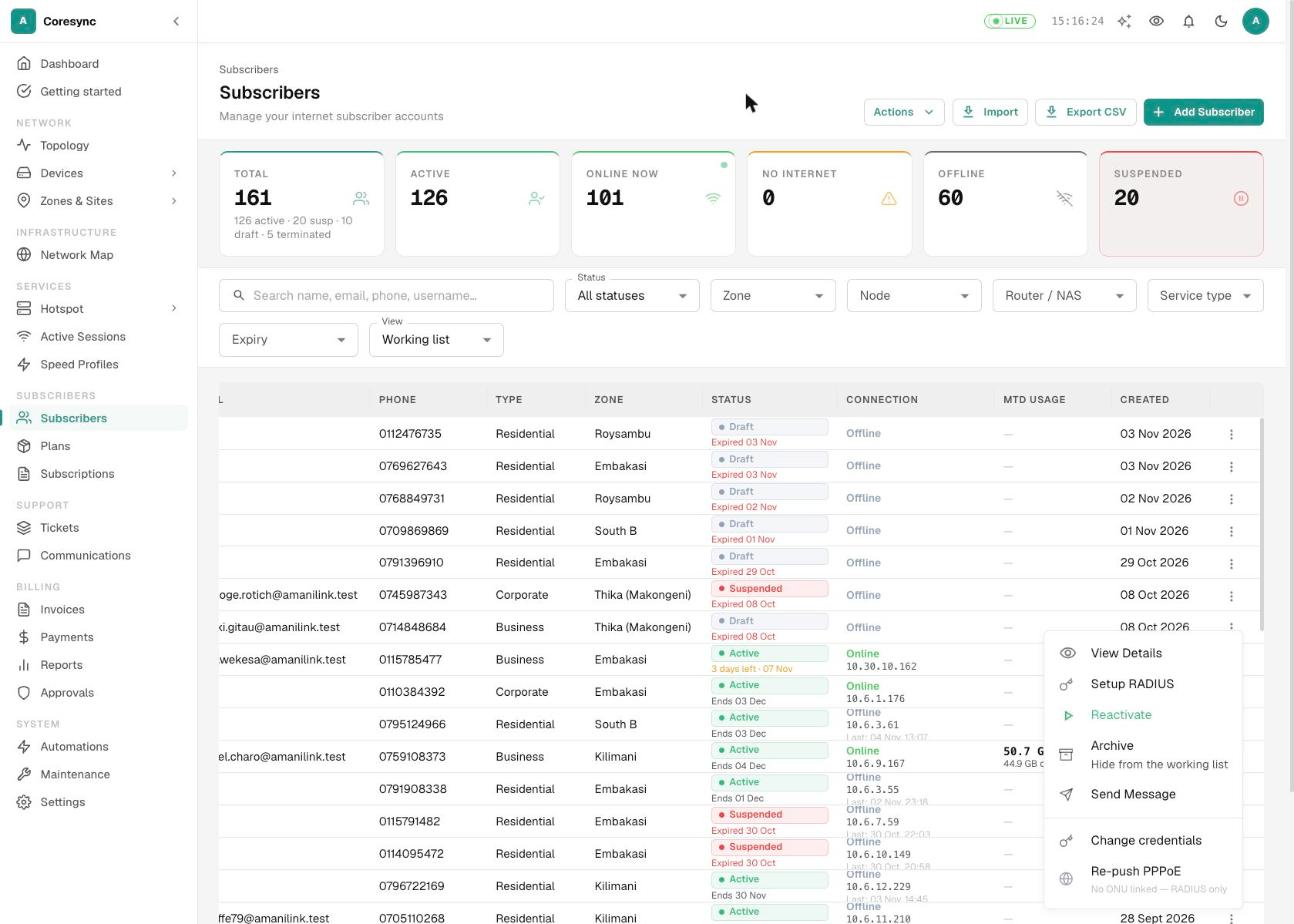
- Confirm.
To see archived accounts, set View to Archived. To bring one back by hand, open its row menu and choose Restore to list.
Active and draft accounts can't be archived. Your admin can also archive long-lapsed accounts automatically, in Settings → Subscriber → Auto-archive long-lapsed accounts. It never archives anyone lapsed less than 30 days.
Terminate and restore#
Terminate closes an account for good, for example when a customer moves away. Their subscriptions are cancelled and their login is removed. Their username, subscriber code and account number get a termination tag, so the originals are free for a new customer. The record stays under the Terminated status filter.
- Open the subscriber and press the red Terminate account button, or Terminate Account on the Subscription tab.
- Type the Termination reason, for example "relocated". It's required.
- Confirm.
If your ISP needs sign-off for terminations, the request waits in Approvals and nothing changes until it's approved. See Approvals (four-eyes).
After termination, any payment that quotes the old code is held for someone to check. It's never applied by itself.
Restore a terminated account if you closed the wrong one, or the customer came back:
- Open the account and press Restore account (in the banner or beside the name), or choose Restore account in the row menu on the list.
- Optionally set a New expiry (optional). Leave it blank to keep the last expiry.
- Press Restore account. The original username, subscriber code and account number come back. If the subscription hasn't expired the account is active, otherwise it comes back suspended until it's renewed. Auto-renew stays off.
Restoring fails if a new customer has since taken the old username or code.
Terminate many archived accounts at once: set View to Archived, tick the accounts, and press Terminate selected. Only archived accounts can be terminated this way. Anyone who paid since being archived is skipped.
RADIUS credentials (the PPPoE login)#
A PPPoE customer's router logs in with a username and password. CoreSync checks that login, through RADIUS, every time they connect. There are two places to work with it.
See, copy or text the login. Use this when a technician is setting up the customer's router.
- Open the subscriber and press the key button (RADIUS Credentials), or choose Setup RADIUS in the row menu on the list.
- Under Current credentials, press the eye to show the password, or the copy button to copy it.
- To text the login, tick Send credentials to subscriber, or tick Send credentials to technician via SMS and pick the technician (or type a phone number). Press Save & send SMS.
Change the username or password. Use Change credentials in the row menu on the list. It keeps a record of the old login, and pushes the new one to the customer's ONU when it's linked over TR-069.
- On the list, open the row menu (⋮) and choose Change credentials.
- Change the Username, or type a New password (blank = unchanged). Add a Reason (optional, for the record).
- Leave Push new credentials to the ONU and Disconnect the current session so it re-authenticates now ticked, unless you'll set up the router by hand.
- Press Apply.
Changing credentials on a static IP or hotspot account moves it onto PPPoE. For more on routers and RADIUS, see Routers and RADIUS.
Device lock (MAC binding)#
Device lock ties an account to the customer's own router. Even with the right username and password, another device is refused. It stops a login being shared, or used by a neighbour on a cable left behind.
CoreSync learns the device by itself: every few minutes it binds the devices a customer is connected from, up to their limit (never fewer than two, so a dual-band router works).
- Open the subscriber and go to the Devices tab.
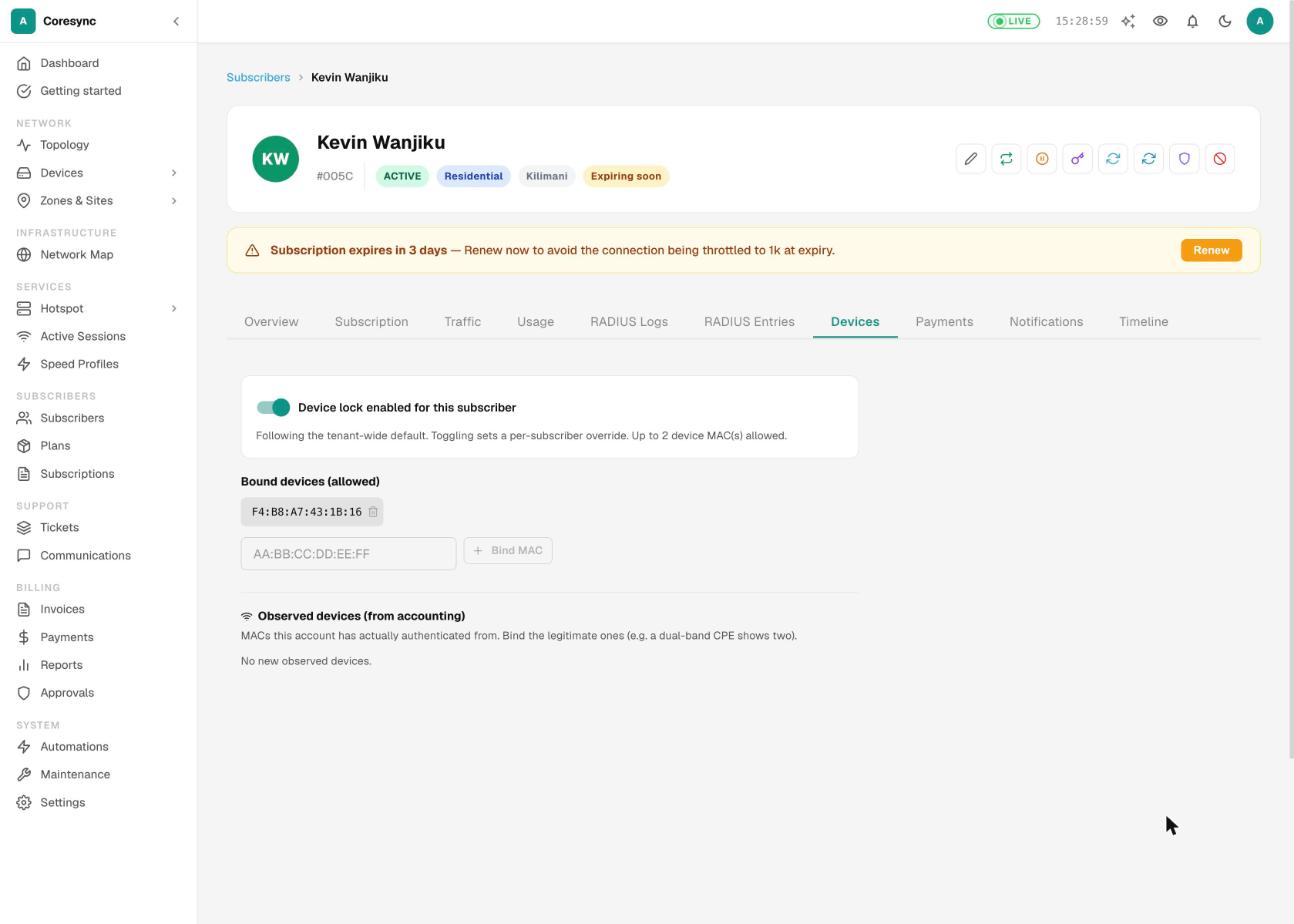
- The switch shows whether device lock is on for this subscriber. Turning it on or off here overrides your ISP's default for this one account. Reset to tenant default undoes that.
- Bound devices (allowed) lists the devices that may log in. Press the bin on one to remove it, or type a MAC address and press Bind MAC.
- Observed devices (from accounting) lists other devices this account has logged in from. Press Bind next to the ones that belong to the customer.
The customer changed their router? Press Reset MAC beside the name (or Reset MAC Binding on the Subscription tab). That clears every bound device. The new router is learned after it logs in.
Changes to device lock apply the next time the customer logs in.
Your admin sets the ISP-wide default in Settings → RADIUS → Lock accounts to known device MAC(s). It's on unless someone turned it off.
Extend many subscribers at once#
Use this to give free days to a whole area after an outage, for example two days to everyone on one router.
- On the Subscribers page, press Actions and choose Extend subscriptions….
- Under Audience, choose the Account status (All statuses, Active or Suspended), and narrow it with Zone, Router / NAS and Service type.
- Press Preview affected subscribers. Check the count and the names it shows.
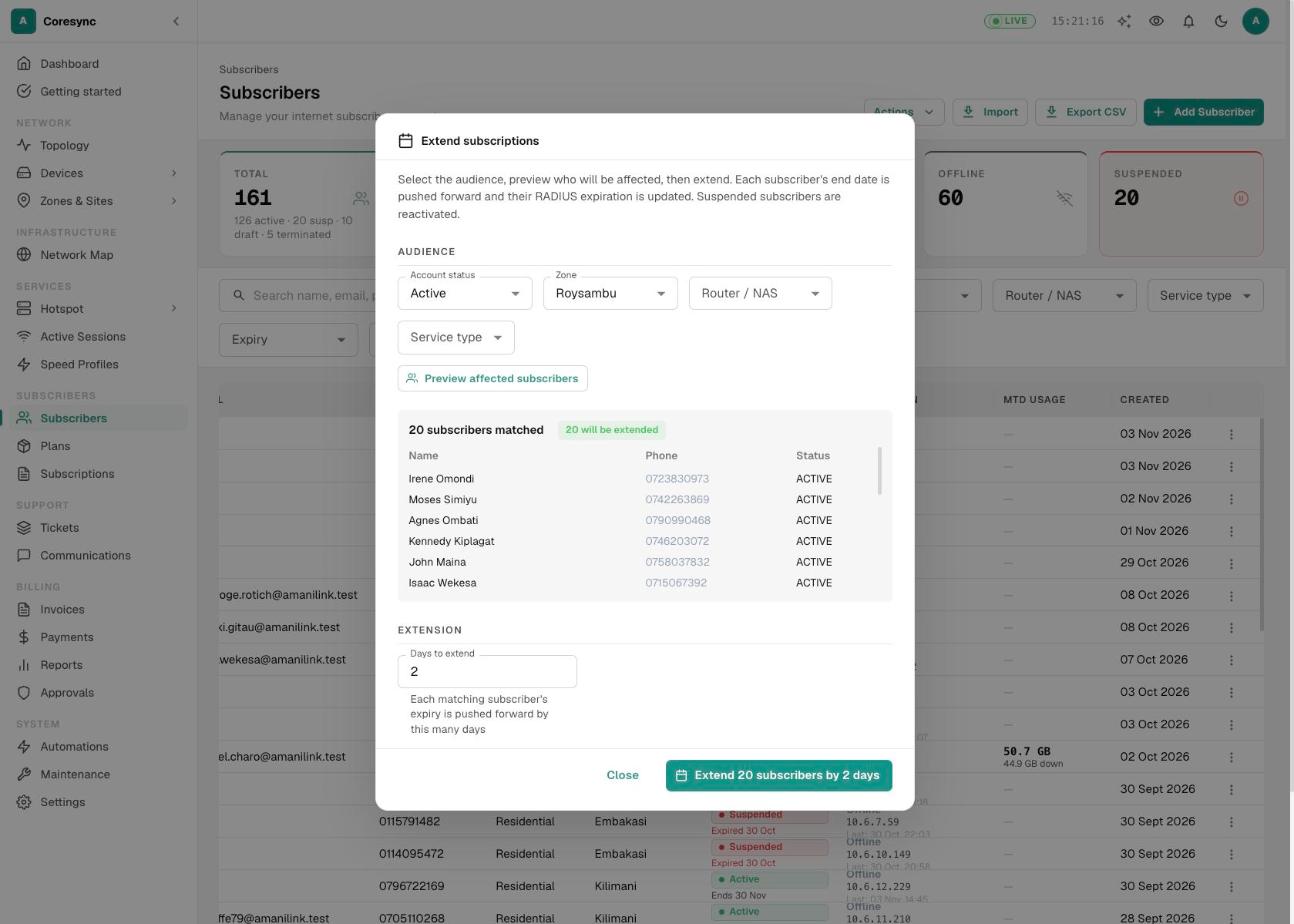
- Type the Days to extend, then press Extend … subscribers by … days. The button only works after a preview.
Each customer's expiry moves forward by that many days, counted from their current expiry. Suspended customers are made active again. Archived accounts are left out. Someone who expired weeks ago may still be expired after a short extension, so preview with Active, not All statuses, unless you mean to include them.
Send a message#
Use this to text or email one customer, for example to tell them a technician is on the way.
- On the list, open the row menu (⋮) and choose Send Message. Or open the subscriber, go to the Notifications tab and press Send SMS or Send Email.
- From the list, choose SMS or Email. For SMS you can start from a saved quick SMS in the drop-down. For email, type a Subject.
- Type the Message. The line under the box shows the number or address it goes to.
- Press Send SMS (or Send EMAIL).
Each SMS uses your SMS credit. Everything sent shows on the Notifications tab.
To message many customers at once, use a campaign. See Communications.
Exporting your list#
Bulk exports of customer data are switched off for ISP staff, so Export CSV doesn't download a file. If you need a copy of your subscriber data, ask Avitech in writing.
Common mistakes#
- Recording money in the wrong place. Don't take payments through Reactivate or the Add Subscriber form. Record them on the Payments page with the receipt number.
- Reactivating an expired customer for free by accident. Reactivate gives a whole plan period without payment. Use it only when you mean to.
- Changing a subscriber code without telling the customer. Their next payment goes unmatched.
- Giving out the Account #. Customers pay with the subscriber code only.
- Saving a subscriber without a zone. The wrong plans, payment number or staff may apply.
- Terminating when you meant to archive. Archive is undone by a payment. Termination frees the customer's identifiers for someone else.
- Pressing Extend twice. Each press adds the days again.
- Changing the login in the RADIUS Credentials box. Use Change credentials, so the ONU gets the new login too.
If it doesn't work#
| Problem | What to try |
|---|---|
| Paid, but still slow or no internet | Check the payment reached them (Payments tab). Then press Resync RADIUS. If it's still stuck, press Force Redial. |
| Login refused after a new router | The device lock is refusing the new router. Press Reset MAC, then ask them to reconnect. |
| Not sure why they can't log in | Open the RADIUS Logs tab. A refused login shows the reason, such as expired, suspended or wrong password. |
| Suspend or Terminate did nothing | It may be waiting for approval. Ask an approver to check Approvals. |
| A button says you're not allowed | Your role doesn't include that action. Ask your admin. |
| Restore account fails | A newer customer now uses the old username or code, so the original can't come back while they have it. |
More fixes are in Troubleshooting.