All guides
Start here
Customers and billing
Hotspot
Network
- Devices, OLTs and ONUs
- Routers, RADIUS and sessions
- TR-069 and remote ONU setup
- Zones, nodes, topology and the map
Support and messaging
Your team and settings
For your subscribers
Troubleshooting
On this page
- How it fits together
- Create a speed profile
- Create a plan
- Change, deactivate or archive a plan
- Fair usage (FUP)
- The Subscriptions page
- How renewal dates are worked out
- Your expiry time setting
- What happens at expiry, and grace periods
- Renew a subscriber who paid you in person
- Change a subscriber's plan
- Quick extend: give free days
- Grant a pay-later extension
- Pause and resume
- Set a custom (negotiated) price
- Change an expiry date by hand
- Common mistakes
- If it doesn't work
How it fits together#
Three things decide what a customer gets and pays:
| Thing | What it is | Where |
|---|---|---|
| Speed profile | A download and upload speed, such as 10 Mbps down and 5 Mbps up. | Services → Speed Profiles |
| Plan | A speed profile with a price and a length, such as 1 month for KES 2,500. | Subscribers → Plans |
| Subscription | One subscriber on one plan, with a start date and an expiry date. | Subscribers → Subscriptions, and each subscriber's Subscription tab |
Build them in that order: speed profiles first, then plans. Subscriptions are made for you when you add a subscriber. See Subscribers.
Create a speed profile#
A speed profile is the speed limit CoreSync sends to your routers through RADIUS. Several plans can share one profile.
- In the menu, open Services → Speed Profiles and press Add Profile.
- Type a Profile Name, for example 10 Mbps Home.
- Fill in Download Speed and Upload Speed, and pick Kbps, Mbps or Gbps next to each.
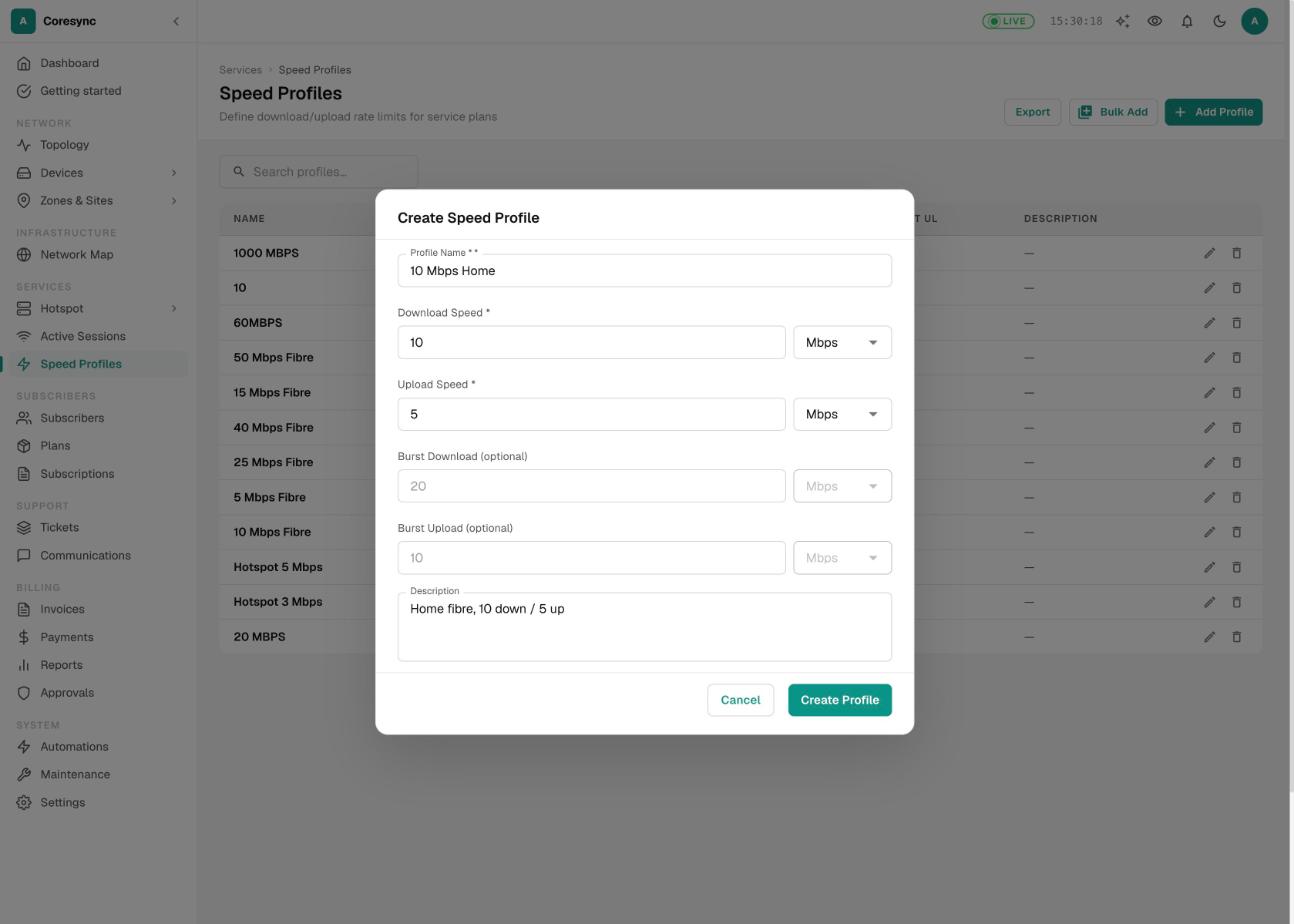
- Press Create Profile.
Setting up many at once? Press Bulk Add. It works like a spreadsheet, and you can paste rows straight from Excel or Google Sheets. Press Save All when you're done.
Create a plan#
A plan is what you sell. It sets the price, the speed and how long one payment lasts.
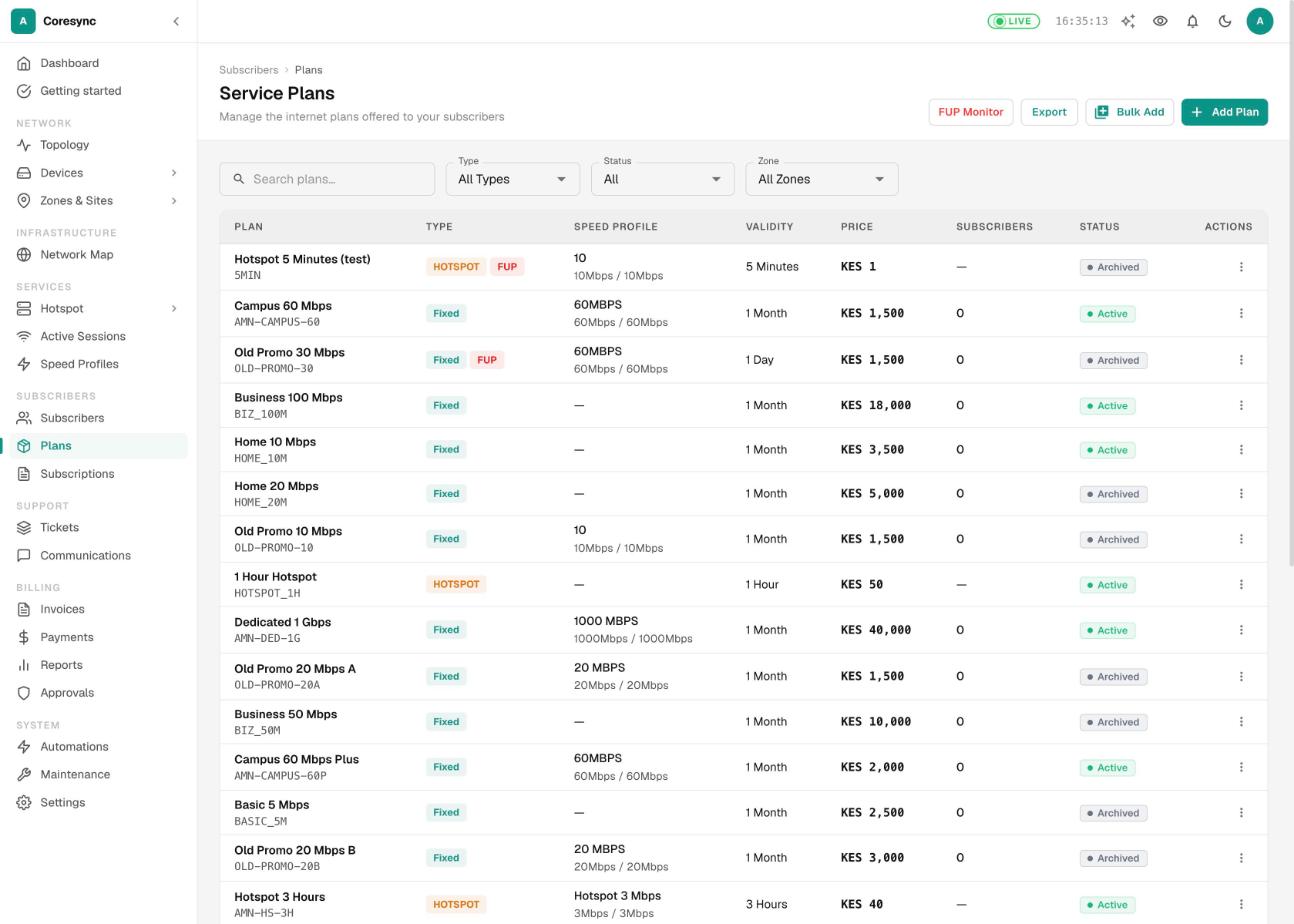
- Open Subscribers → Plans and press Add Plan.
- Type a Plan Name (what customers see, like Home 10 Mbps) and a short Plan Code (like HOME10). The code must be unique.
- Pick the Plan Type: Fixed for PPPoE and static home or business lines, Hotspot for vouchers and the hotspot login page.
- Pick the Speed Profile.
- Set how long one payment lasts. For a fixed plan, choose the Billing Unit (days, weeks, months or years) and the Duration. For a monthly plan that's Months and 1.
- Type the Price and check the Currency.
- Optional: tick Enable FUP throttling after data threshold (see Fair usage below), pick a Zone, or untick Visible in public pricing.
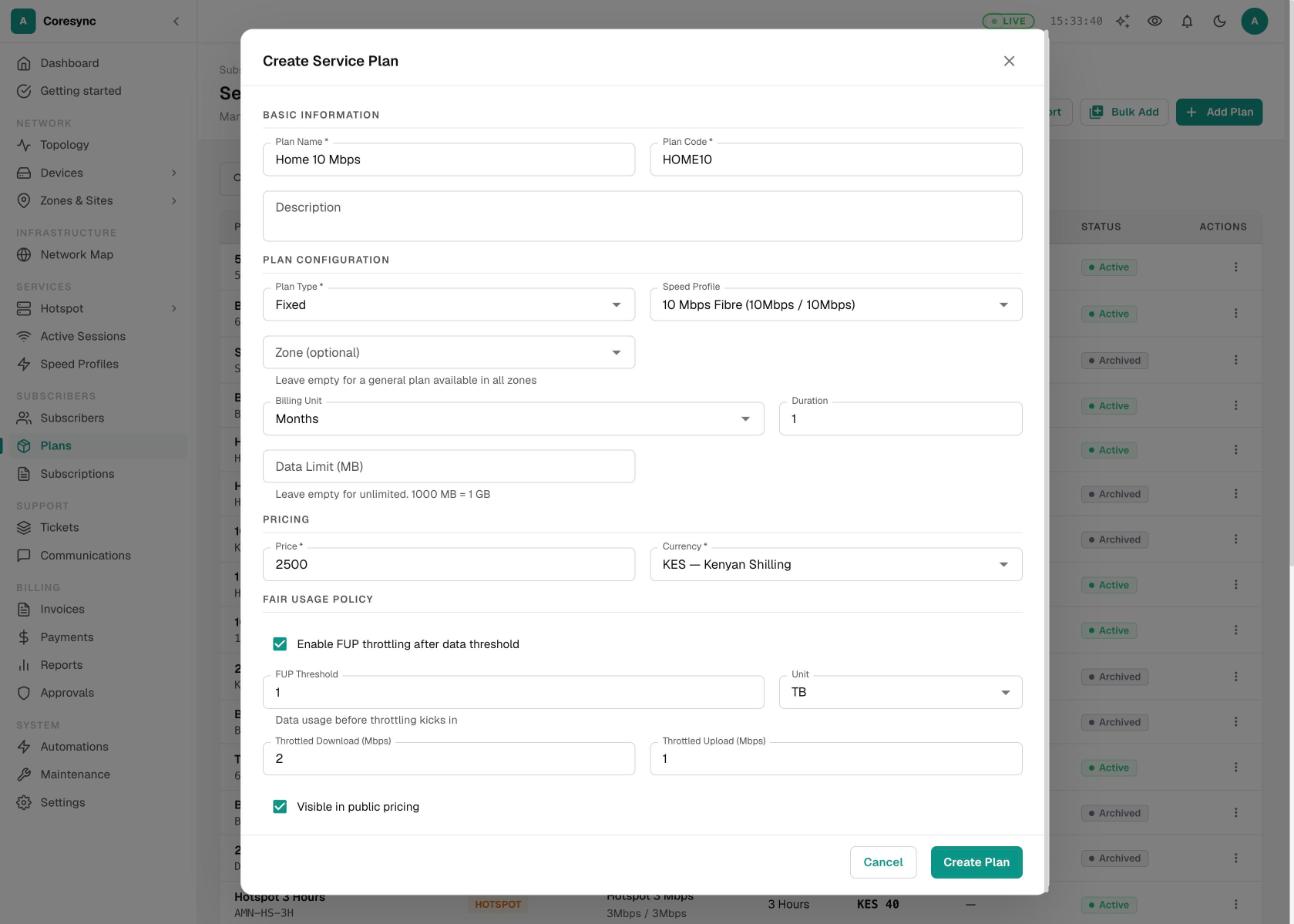
- Press Create Plan.
What each option does:
| Option | What it does |
|---|---|
| Zone (optional) | Leave it empty and the plan is offered in every zone. Pick a zone and the hotspot page only offers it there. Two plans can share a code if they are in different zones. |
| Visible in public pricing | Unticked, the plan doesn't show on your hotspot page or in the customer portal's plan list. Your staff can still give it to people. |
| Data Limit (MB) | A data cap. CoreSync enforces it on hotspot plans. 1000 MB is 1 GB. For fixed plans, use fair usage instead. |
| Max Devices | Hotspot plans only. How many devices can be online at once on one purchase. |
| Trial plan (one-time use per device) | Hotspot plans only. A free or taster package each device can use once. |
Hotspot plans can also last minutes or hours, and you can leave the length empty for a data-only package. Selling them is covered in Hotspot.
Many plans to set up? Bulk Add takes one row per plan. You can edit fair usage on each plan afterwards.
Change, deactivate or archive a plan#
Press the ⋮ button at the end of a plan's row. You'll see Edit and the status actions that fit the plan: Deactivate, Activate, Archive, Restore and Delete Permanently.
| Action | What happens |
|---|---|
| Edit | A new price applies from each subscriber's next renewal. A new speed profile or new FUP speeds reach everyone on the plan straight away. |
| Deactivate | Customers stop being offered the plan. Subscribers already on it keep it. |
| Archive | Hidden everywhere. Subscribers already on it keep it. |
| Restore | Brings an archived plan back as active. |
| Delete Permanently | Only works when nothing uses the plan: no subscriptions, sessions or vouchers. Otherwise CoreSync refuses and says what still uses it. |
Fair usage (FUP)#
Fair usage slows a subscriber down once they've used a set amount of data in their current billing cycle. Full speed comes back when they renew.
- Edit the plan and tick Enable FUP throttling after data threshold.
- Set the FUP Threshold and its Unit (MB, GB or TB). For example, 1 and TB.
- Set the slower speeds: Throttled Download (Mbps) and Throttled Upload (Mbps).
- Press Update Plan.
CoreSync checks usage every hour, so someone can go a little over the threshold before they slow down.
To see who is affected, press FUP Monitor at the top of the Plans page. It has three tabs: Currently Throttled, Nearing Limit and Top Usage.
To keep one subscriber at full speed whatever they use, open them, go to the Overview tab and switch off the FUP switch. It then reads Exempt — never throttled.
The Subscriptions page#
Subscribers → Subscriptions lists every subscription with its plan, price, start date, expiry and days left. Search by name, username, phone or plan, and filter by Status, Service, Zone or Router / NAS.
People who can see revenue also get three cards at the top: Monthly Recurring Revenue, Month-to-Date Revenue and Today's Revenue.
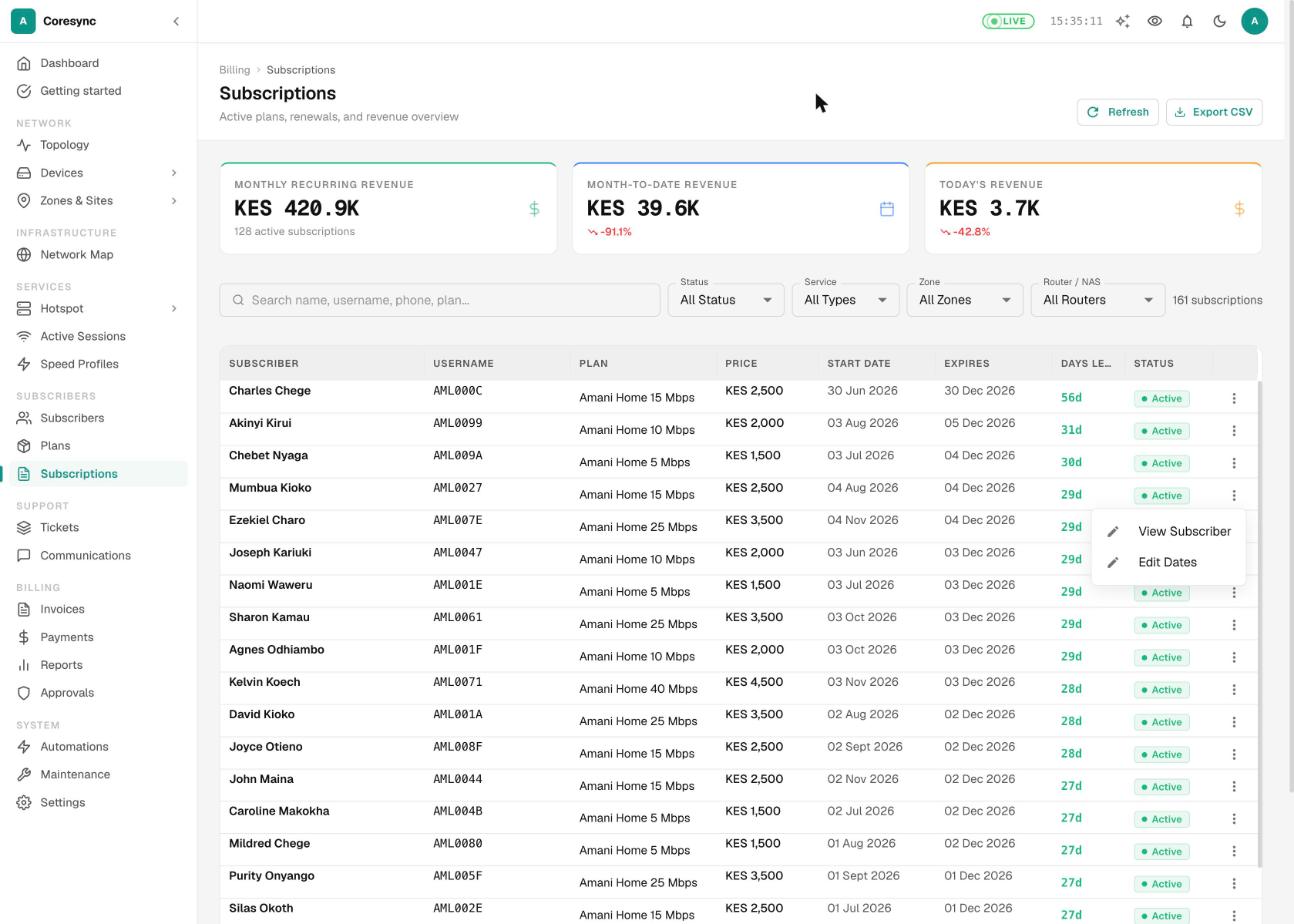
The ⋮ menu on a row has View Subscriber and Edit Dates. Editing dates is covered in Change an expiry date by hand.
How renewal dates are worked out#
When a payment renews a subscriber, CoreSync works out the new expiry with these rules:
- Months are calendar months, not 30 days. 10 March becomes 10 April.
- The time of day is kept. A customer who paid at 18:40 expires at 18:40.
- Paid before expiry: the new period is added on to the old expiry, so nobody loses days by paying early.
- Paid after expiry: the new period starts the moment they pay. They aren't charged for the days they were off.
- Month-end customers stay at month-end. Someone who started on the 31st goes back to the 31st after a short month.
- Day and week plans add exactly that many days. A 30-day plan is always 30 days, so its expiry moves around the calendar. A 1-month plan stays on the same date.
For example, Wanjiru Kamau is on Home 10 Mbps, a 1-month plan:
| She pays | Expiry before | New expiry |
|---|---|---|
| 31 Jan at 18:40, after her old plan lapsed | Already expired | 28 Feb, 18:40 |
| 25 Feb, early | 28 Feb, 18:40 | 31 Mar, 18:40 |
| 29 Mar, early | 31 Mar, 18:40 | 30 Apr, 18:40 |
| 3 May at 09:15, late | 30 Apr, 18:40 (lapsed) | 3 Jun, 09:15 |
These rules apply to M-Pesa payments, payments you record on the Payments page, and renewals from credit. If someone pays less than the price, they get fewer days instead of a full period, depending on your policy. See Payments.
Renewing from credit. If a subscriber has enough credit on their account when they expire, CoreSync renews them from it automatically. The Auto-Renew line on the Subscription tab shows whether this is on for them.
Your expiry time setting#
By default, each subscriber expires at the time of day they paid. If you'd rather everyone expires at one fixed time, set it once for your whole ISP.
- Open Settings, choose Payment, then the Policies tab.
- Find the Expiry time card and pick an option:
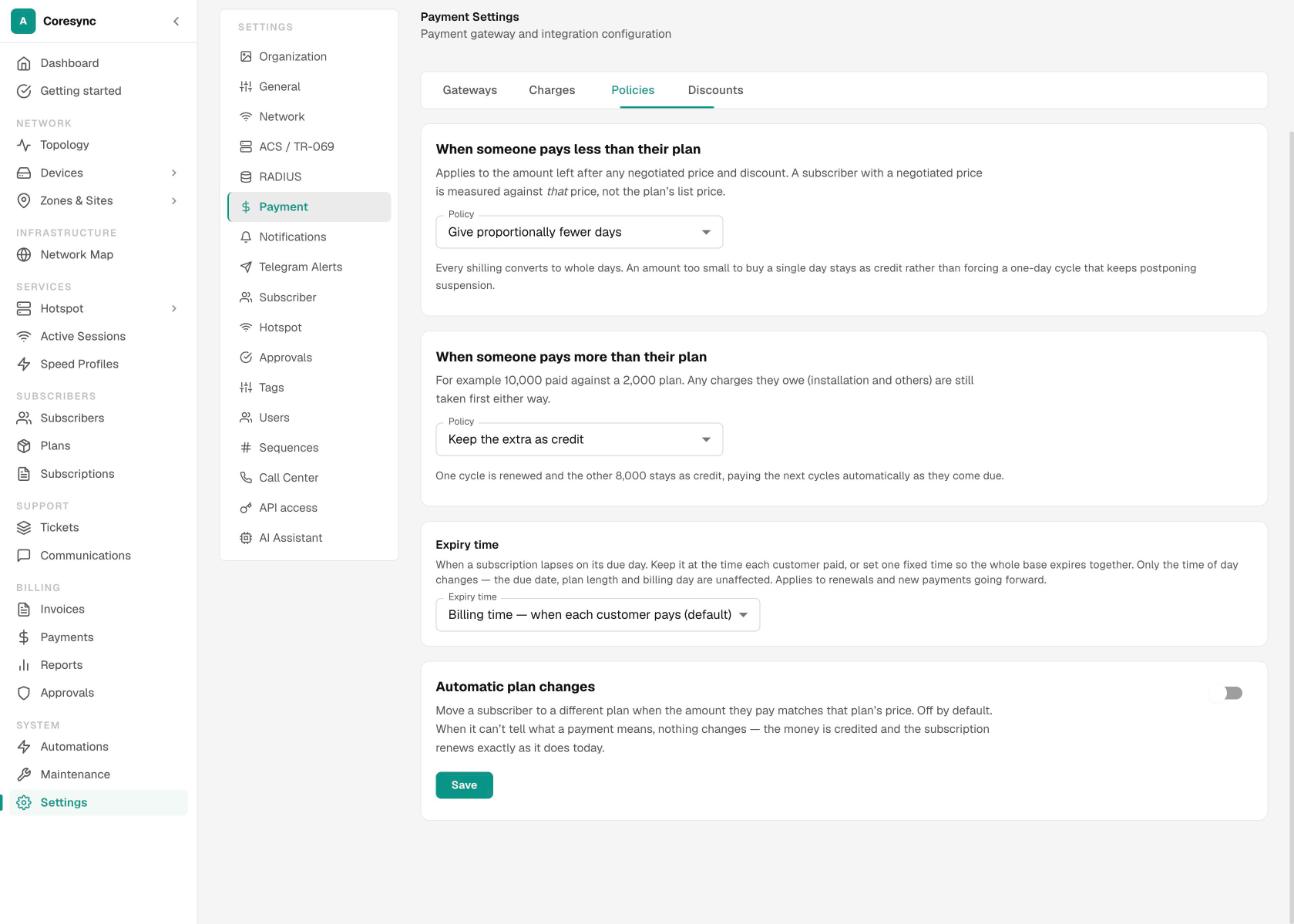
| Option | Expiry happens at |
|---|---|
| Billing time — when each customer pays (default) | The time each customer paid. |
| End of day — 23:59 | 23:59 on the due date. |
| Midnight — 00:00 (ends the previous day) | The very start of the due date. |
| Noon — 12:00 | 12:00 on the due date. |
| Custom time… | Any time you choose. |
Only the time of day changes. The due date, the plan length and the customer's billing day stay the same. It applies to renewals from now on, not to expiry dates already set.
The setting doesn't change dates you type yourself in the Renew Subscription dialog. Those are used exactly as you enter them.
What happens at expiry, and grace periods#
There's no automatic grace period. Within about five minutes of the expiry time, CoreSync:
- Renews the subscriber from their credit, if they have enough and auto-renew is on. If so, nothing else happens.
- Otherwise marks the subscription Expired and the account Suspended.
- Slows a PPPoE or hotspot connection to almost nothing. The customer stays connected, so their router keeps trying, and full speed comes back the moment they pay.
- Blocks a static customer on the router.
- Sends the expiry SMS, if you have it switched on. Between 20:00 and 08:00 it waits until morning. See Communications.
If you want to give someone more time, you have these choices:
| You want to | Use |
|---|---|
| Give a few days the customer will pay back | Grant a pay-later extension |
| Give free days, for example after an outage | Quick extend |
| Expire everyone at the end of the day instead of mid-afternoon | Your expiry time setting |
| Let a brand-new subscriber browse for a while before they pay | Settings → Subscriber → Access for New Subscribers (6 hours by default) |
Renew a subscriber who paid you in person#
M-Pesa payments to your paybill or till renew subscribers by themselves. Use Renew when someone paid you cash or by bank, or when you want to send them an M-Pesa prompt.
- Open the subscriber and go to the Subscription tab.
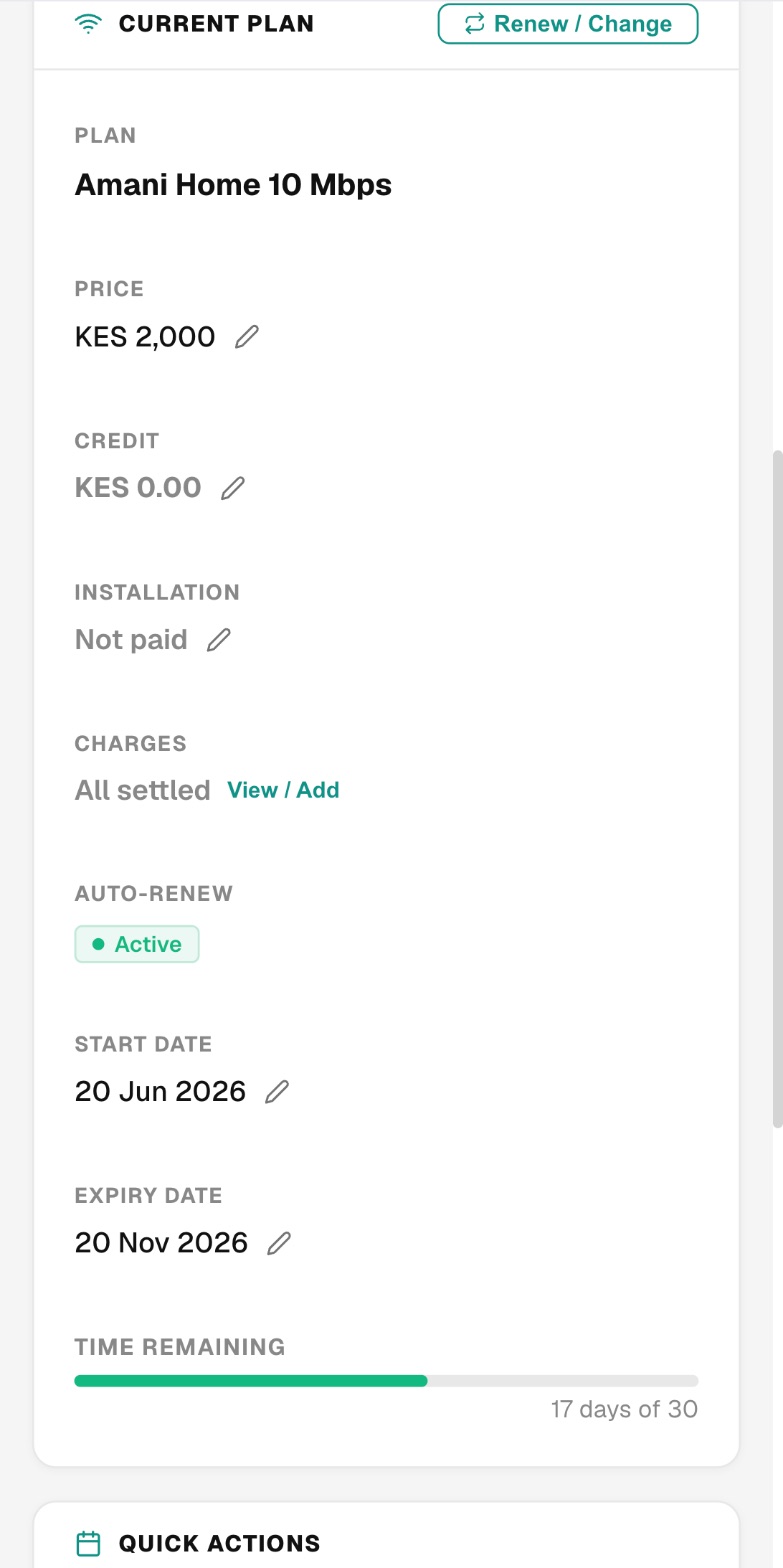
- Press Renew / Change Plan under Quick Actions. The Renew Subscription dialog opens with their current plan picked.
- Check the start and expiry dates CoreSync filled in. It starts from their current expiry if they still have time, or from now if they've lapsed. You can change both.
- Under Payment, pick CASH, BANK TRANSFER or MOBILE MONEY. Type the Amount (KES) and the Reference / Receipt.
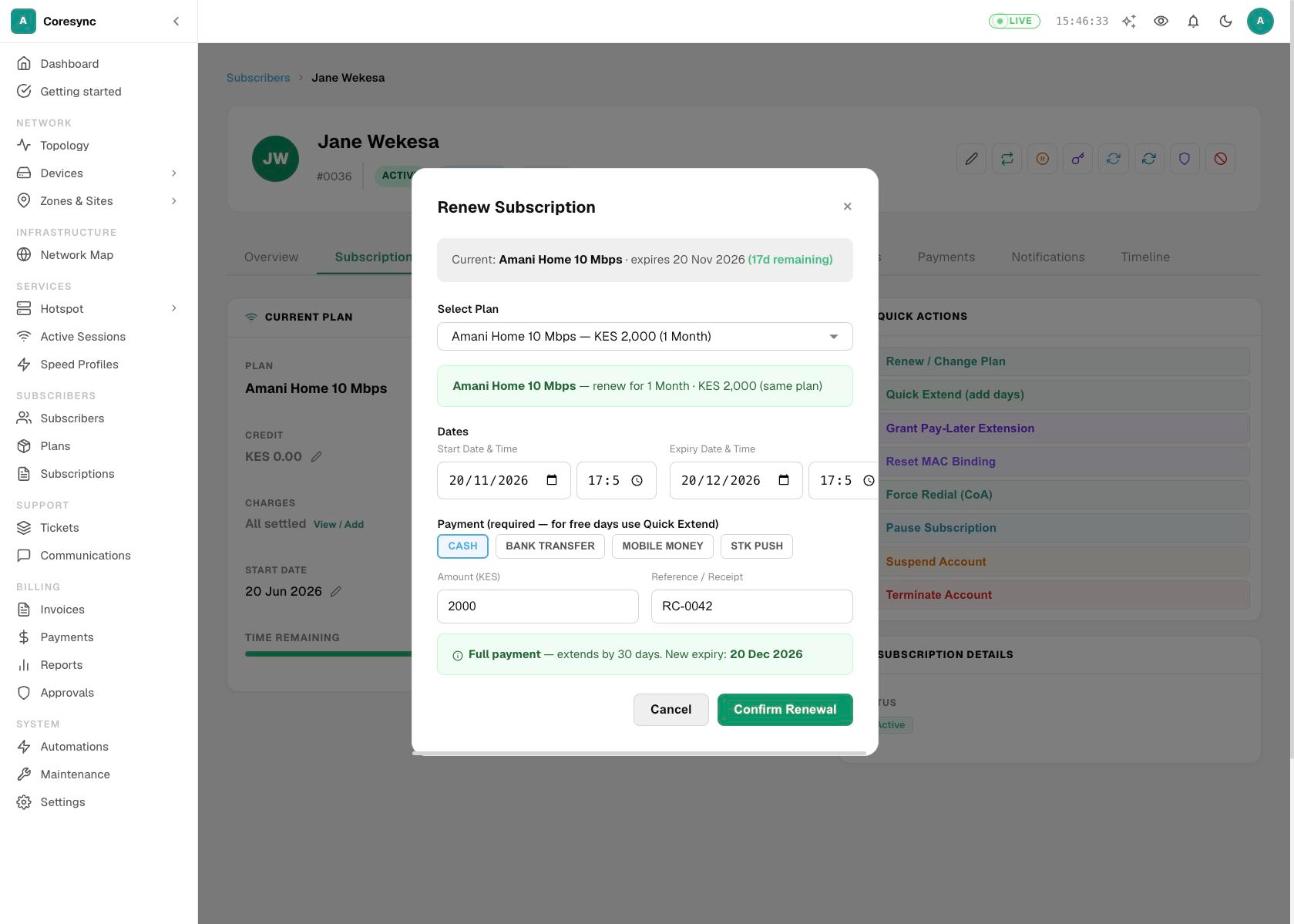
- Read the line under the amount. Full payment shows the new expiry. Partial payment shows the smaller number of days the amount buys.
- Press Confirm Renewal. CoreSync records the money, restores full speed and reconnects them.
To send an M-Pesa prompt instead, pick STK PUSH and press Send STK Push. Nothing is renewed yet. The subscriber renews when they enter their PIN.
A renewal always needs a payment. For free days, use Quick extend. You can also record cash on the Payments page, which renews them the same way an M-Pesa payment does. See Payments.
Change a subscriber's plan#
Use this for upgrades, downgrades, and fixing someone who was put on the wrong plan.
- On the Subscription tab, press Renew / Change Plan.
- In Select Plan, pick the new plan. The dialog title changes to Change Plan.
- Choose Record a payment if they paid for the new plan now. The expiry moves on as in a renewal.
- Or choose No payment (downgrade / correction). Then pick a Reason for change. The speed changes now and the expiry stays where it is.
- Press Change Plan or Change Plan (no payment).
The reason is required when there's no payment. Other… also needs notes. Both are kept on the subscriber's Timeline.
CoreSync can also move someone to another plan when the amount they pay matches that plan's price. This is off by default. Turn it on in Settings → Payment → Policies → Automatic plan changes.
Quick extend: give free days#
Quick extend adds free days, for example to make up for an outage. It's recorded with your name and your reason.
- On the Subscription tab, press Quick Extend (add days).
- Type the Days to add and a Reason (required — for audit), such as outage compensation, 2 Nov.
- Check the New expiry and press the Extend button. It shows the number of days, such as Extend 3 days.
If the subscriber still has time, the days are added to their expiry. If they've already lapsed, the days count from now, and full speed comes back straight away.
To extend many subscribers at once after an outage, use Bulk extend on the Subscribers page. See Subscribers.
Grant a pay-later extension#
A pay-later extension lends the customer a few days. They keep browsing now and pay those days back when they next pay in full.
- On the Subscription tab, press Grant Pay-Later Extension.
- Type the Days to extend, and a note if you like, such as pays on salary day.
- Check the New expiry and press the Grant button, such as Grant 7-Day Extension.
How the borrowed days are paid back: when the customer next pays for a full period, the new period starts from their old expiry plus the borrowed days they actually used.
For example, Otieno's plan expired on 1 Nov at 18:40 and you lent him 7 days. He pays on 5 Nov, having used 4 of them. His new month starts on 5 Nov at 18:40 and runs to 5 Dec, 18:40. A part payment doesn't settle borrowed days. Only a full one does.
Pause and resume#
Pause a subscription when a customer is travelling or closing for a while. While paused, they're slowed to a very low speed. When the pause ends, the paused days are added back to their expiry.
- On the Subscription tab, press Pause Subscription.
- Leave the Start date empty to pause now, or pick a later date to schedule it.
- Pick the End date (required) and add a reason if you like.
- Check the number of days shown, then press Pause Now or Schedule Pause.
The rules:
- A pause can last from 1 to 60 days.
- It must end before the subscription's expiry date.
- A subscriber can have only one pause, running or scheduled, at a time.
- The button only shows for an active subscriber who isn't already paused.
CoreSync resumes the subscriber by itself at the end date, restores their speed and adds the paused days back.
To end a pause early, press Unpause Subscription. The dialog shows how many days will be added back and the new expiry. If the customer actually came back earlier, set Treat the pause as ending at to that time, or type the days yourself in Or set the days directly (optional). Then press Unpause.
To cancel a pause that hasn't started, press Cancel Scheduled Pause, then Cancel pause. The expiry doesn't move.
Set a custom (negotiated) price#
If you agreed a different price with one customer, set it on their subscription. CoreSync then uses it everywhere: renewals, part payments, reminders and the amount it prompts for.
- On the Subscription tab, find Price under Current Plan and press the pencil next to it.
- Type the agreed price.
- Press the tick, or Enter.
A lower price shows the plan price crossed out and how much is taken off, such as KES 500 off. To go back to the plan price, clear the box or type 0.
For a time-limited offer, such as half price for three months, use a discount instead. See Payments.
Change an expiry date by hand#
You can type a new start or expiry date in two places: the pencil next to Start Date or Expiry Date on the Subscription tab, or Edit Dates on the Subscriptions page.
Use it to fix a date that's wrong. If the new expiry is in the future and the account was suspended because it expired, CoreSync reactivates it and restores full speed.
Common mistakes#
- Editing a speed profile or plan speed during the evening peak. Everyone on it changes at once and some reconnect.
- Using Renew to give free days. A renewal needs a payment. Use Quick extend, which keeps a reason.
- Renewing in the dialog when the customer already paid by M-Pesa. Their payment renewed them already. A second renewal gives them a free period. Check the Payments tab first.
- Choosing Midnight — 00:00 for the expiry time. Customers lose their last day. Choose End of day — 23:59.
- Granting pay-later days to someone who lapsed long ago. The days count from the old expiry, so they may end in the past.
- Changing a plan but forgetting the custom price. The old agreed price carries over to the new plan.
- Using a 30-day plan when you mean monthly. A 30-day plan drifts across the calendar. A 1-month plan keeps the same date.
- Giving a fixed plan a Data Limit. It isn't enforced on fixed plans. Use fair usage.
If it doesn't work#
| What you see | What to do |
|---|---|
| "A renewal requires a recorded payment. For free days use Quick Extend instead." | You pressed renew without a payment. Add the payment, or use Quick extend. |
| "A plan change without a payment requires a reason" | Pick a Reason for change, or switch to Record a payment. |
| An alert says the extension or pause was sent for approval | Nothing has changed yet. An approver accepts it on the Approvals page. See Approvals. |
| "Pause end date cannot be after the subscription expiry date" | Pick an earlier end date, or renew them first. |
| "A general plan with code … already exists" | Plan codes must be unique. Pick another code, or set a zone. |
| Renewed, but the customer is still slow | Ask them to restart their router. If that doesn't help, see Troubleshooting. |