All guides
Start here
Customers and billing
Hotspot
Network
- Devices, OLTs and ONUs
- Routers, RADIUS and sessions
- TR-069 and remote ONU setup
- Zones, nodes, topology and the map
Support and messaging
Your team and settings
For your subscribers
Troubleshooting
On this page
- How the hotspot works
- Set up a hotspot router
- The hotspot dashboard
- Hotspot plans (packages)
- Generate vouchers
- Print, copy or SMS vouchers
- Find and manage a voucher
- Hotspot sessions
- Hotspot customers
- The splash page and your branding
- Ads on the splash page
- Hotspot settings
- How a customer buys with M-Pesa
- Walled garden basics
- Common mistakes
- If it doesn't work
How the hotspot works#
A hotspot is WiFi that people pay for in small bundles, such as an hour, a day or a week. When a guest joins your WiFi, your router shows them your splash page (also called the captive portal). They pick a bundle and pay with M-Pesa, or type a voucher code. CoreSync then lets that device online for as long as the bundle lasts.
Hotspot guests are not subscribers. They don't get an account in Subscribers, and they don't get monthly bills. CoreSync remembers them by phone number and device instead.
Everything lives under Hotspot in the Services part of the menu:
| Page | What it's for |
|---|---|
| Dashboard | Who is online now, today's and this month's hotspot money, and recent vouchers. |
| Vouchers | Generate codes, print or SMS them, and pause, edit or revoke them. |
| Sessions | Every purchase and voucher use: which device, which plan, when it ends. |
| Customers | Repeat buyers, with their purchases and lifetime value. |
| Splash Page | The design and wording of the page guests see before they connect. |
| Ads | Your own ad campaigns on the splash page, and free access for watching an ad. |
Hotspot bundles themselves are plans, made on the Plans page. Hotspot settings are in Settings → Hotspot.
Set up a hotspot router#
Before anyone can buy, CoreSync has to set the hotspot up on your MikroTik router. You do this once per router.
- Add the router. On the hotspot Dashboard, press Add Device. You can also add it from Devices → All Devices. Choose Hotspot / PPPoE Router, and under Services this device handles pick Hotspot (and PPPoE too if the same router serves home customers). See Devices, OLTs and ONUs for the full wizard.
- Open the router's page and go to the NAS Setup tab. In Auto Provision Router, choose the Service (Hotspot, or Hotspot + PPPoE). Tick Configure WiFi during provisioning and fill in the SSID and Password if you want CoreSync to set the WiFi name too. Press Provision.
- CoreSync reads the router first. Pick the LAN Interface guests connect to and the WAN Interface that goes to the internet.
- Press Provision hotspot. CoreSync sets up RADIUS, the hotspot server, the walled garden and your login page on the router, and shows each step as it goes.
The hotspot dashboard#
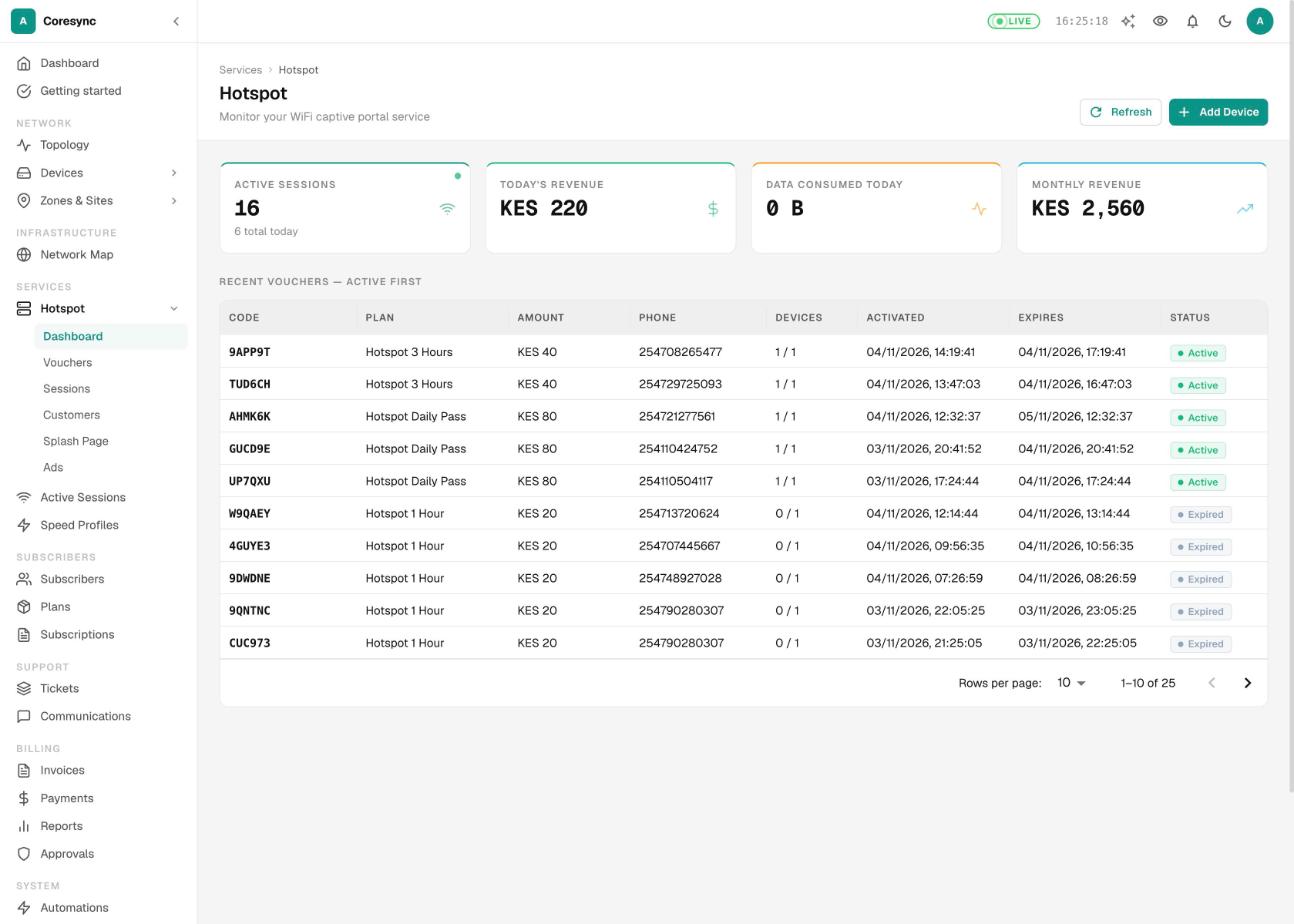
The dashboard is the hotspot at a glance. It updates itself every 30 seconds, or press Refresh.
- Active Sessions: devices online on the hotspot right now, and how many sessions started today.
- Today's Revenue and Monthly Revenue: hotspot money for today and this month.
- Data Consumed Today: how much data hotspot guests used today.
- Recent Vouchers: the latest vouchers with plan, amount, phone, devices used and expiry, active ones first.
Hotspot plans (packages)#
Each bundle you sell is a plan with the type Hotspot. Guests see your hotspot plans on the splash page, with their prices.
- Open Plans (under Subscribers in the menu) and press Add Plan.
- Fill in the Plan Name and Plan Code, and set Plan Type to Hotspot.
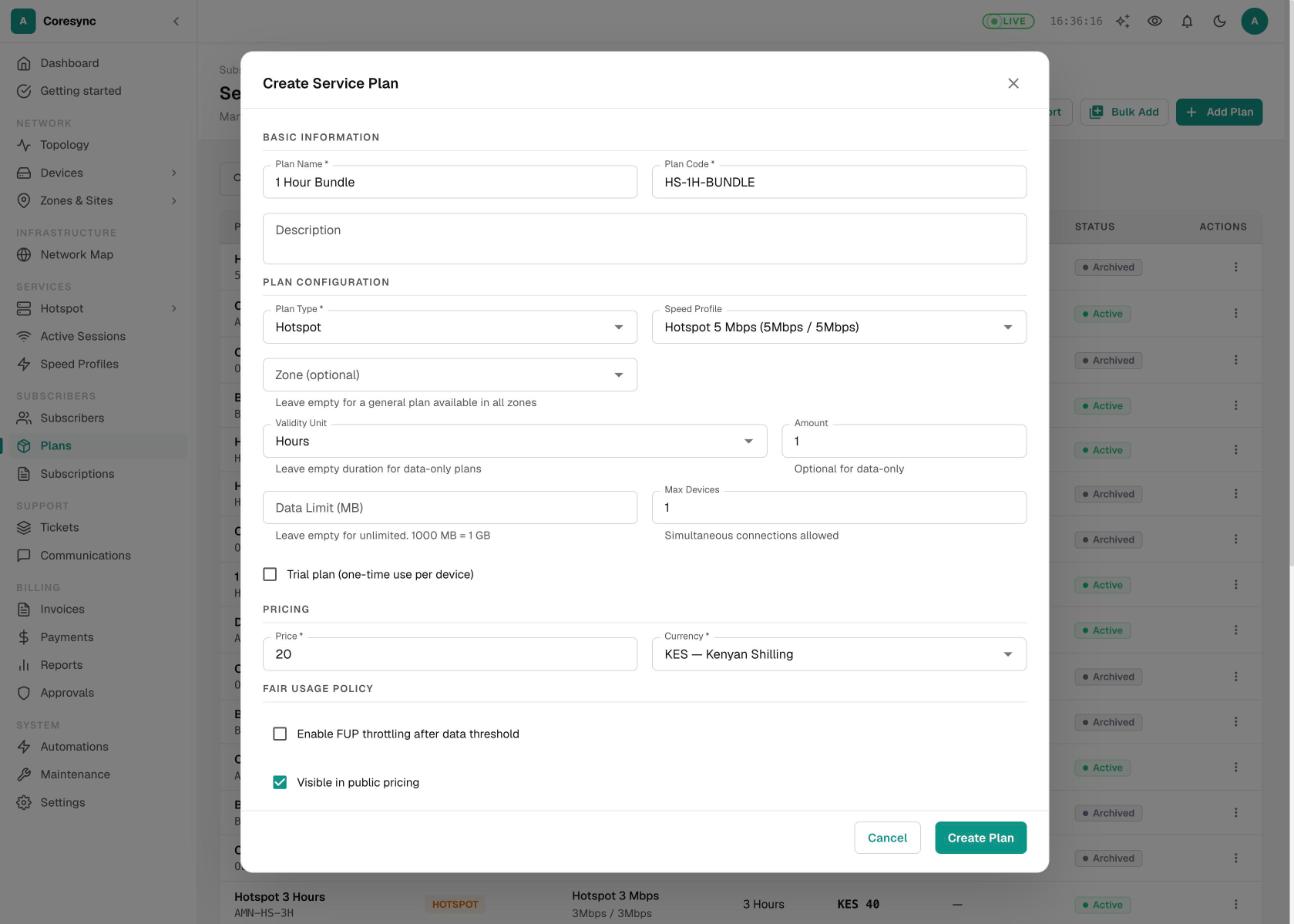
- Pick a Speed Profile. Then set how long it lasts: a Validity Unit (minutes, hours, days, weeks or months) and an Amount, for example 1 and Hours.
- Optional: a Data Limit (MB) (1000 MB = 1 GB; leave it empty for unlimited), and Max Devices, the number of devices that can use one purchase at the same time.
- For a data-only bundle, leave the duration empty and set a data limit instead.
- Tick Trial plan (one-time use per device) for a free taster. Each device can use it once.
- Set the Price and press Create Plan.
Plans in general (speed profiles, zones, editing and archiving) are explained in Plans and speed profiles.
Generate vouchers#
A voucher is a code someone types on the splash page instead of paying there. Use vouchers for cash sales, resellers, events, schools and offices.
- Open Hotspot → Vouchers and press Generate.
- Choose the Plan (access duration) and the Hotspot device (the router the codes are for).
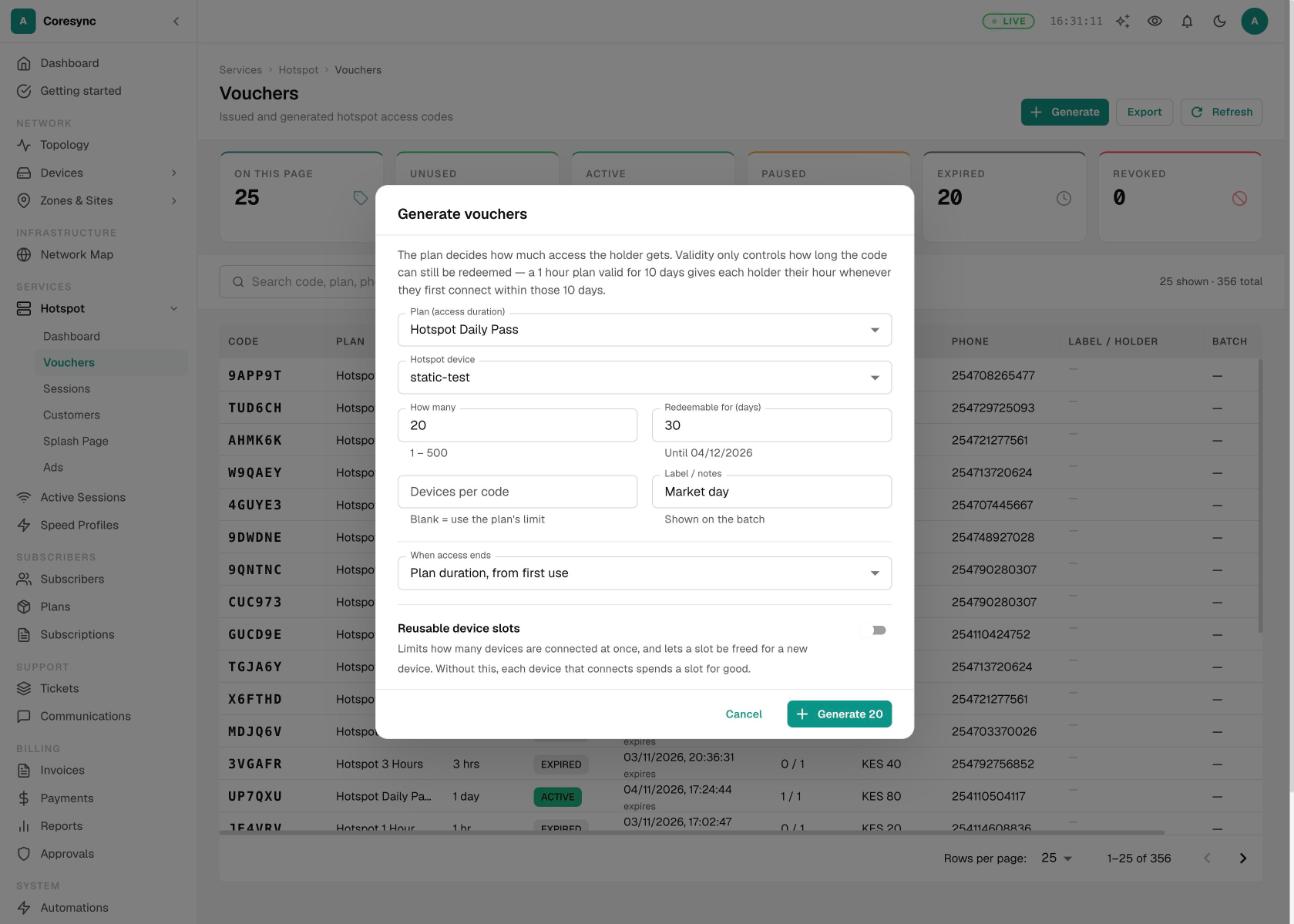
- Type How many codes you want (1 to 500) and Redeemable for (days): how long people have to use a code for the first time.
- Optional: Devices per code (leave blank to use the plan's limit) and a Label / notes such as "Church event", so you can find the batch later.
- Choose When access ends. Plan duration, from first use starts the clock when someone first connects. On a specific date stops every code in the batch at the end of the Last day of access, whenever they started.
- Turn on Reusable device slots if holders may change devices, for example students with a term-long code. You can then set Auto-free after (hours idle) and Issued to.
- Press Generate with the number, for example Generate 20.
Print, copy or SMS vouchers#
Right after you generate a batch, CoreSync shows all the codes. From there:
- Print opens a printable sheet of the batch, four codes to a row, ready to cut out.
- Copy all copies every code, so you can paste them into a spreadsheet or message.
- For a batch of 10 codes or fewer, type a Customer phone and press Send to text the codes straight to them.
Later, to send one code by SMS, open the menu at the end of its row and choose Send via SMS. Check the Phone number, edit the Message if you like, and send. The counter under the message shows how many SMS it will take.
Export at the top of the Vouchers page downloads the voucher list as a spreadsheet file (CSV), including codes, labels and batches.
Find and manage a voucher#
The cards at the top of the Vouchers page count the codes on the page you're looking at by status: Unused, Active, Paused, Expired and Revoked. The line above the table shows how many are listed and the total, for example 25 shown · 356 total. Search by code, plan, phone or batch, or filter by Status. The status filter also works on the loaded page only, so raise Rows per page if a code you expect is missing.
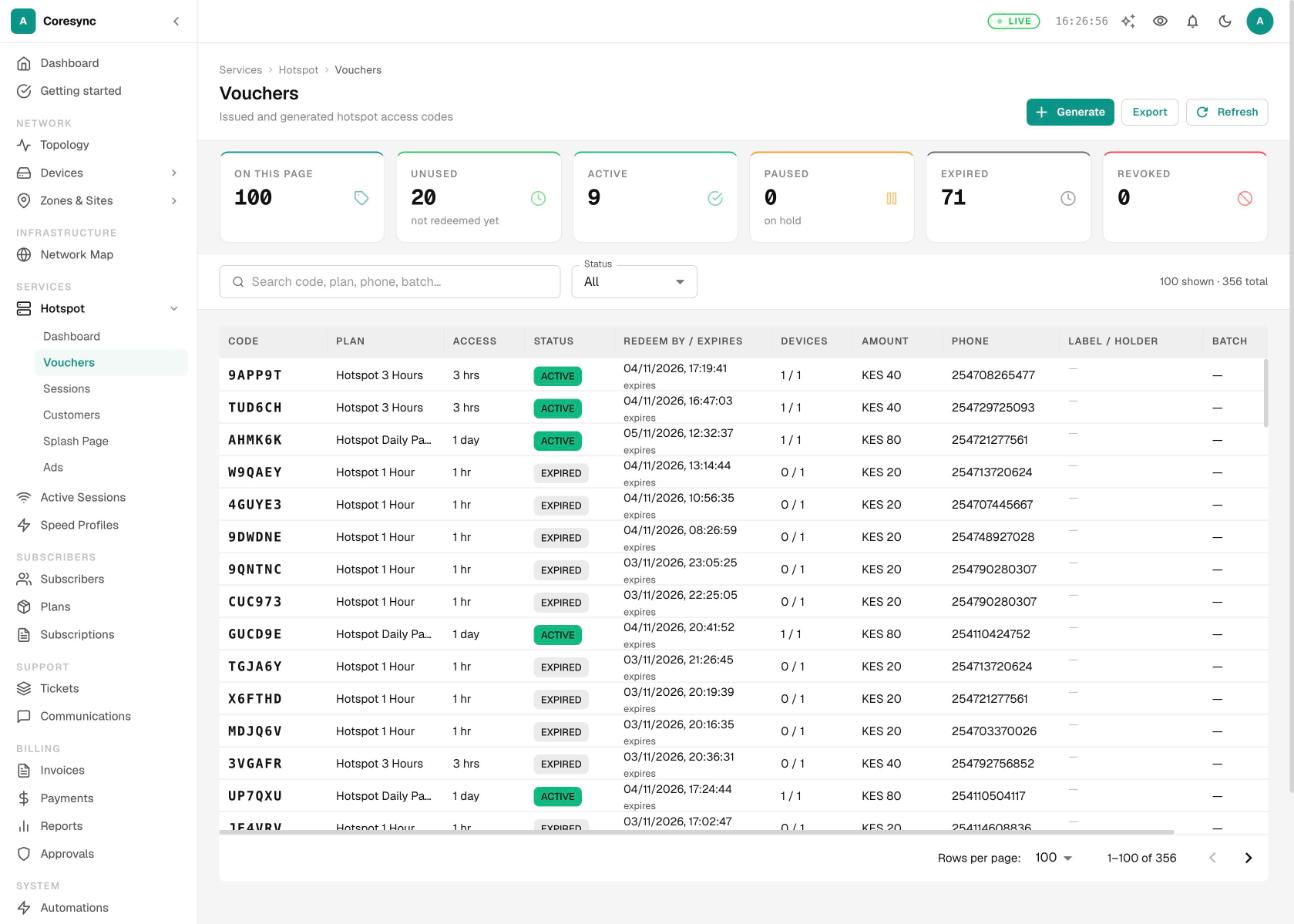
Open the menu at the end of a row for these actions:
| Action | What it does |
|---|---|
| Copy code | Copies the code. |
| Send via SMS | Texts the code to a phone number. |
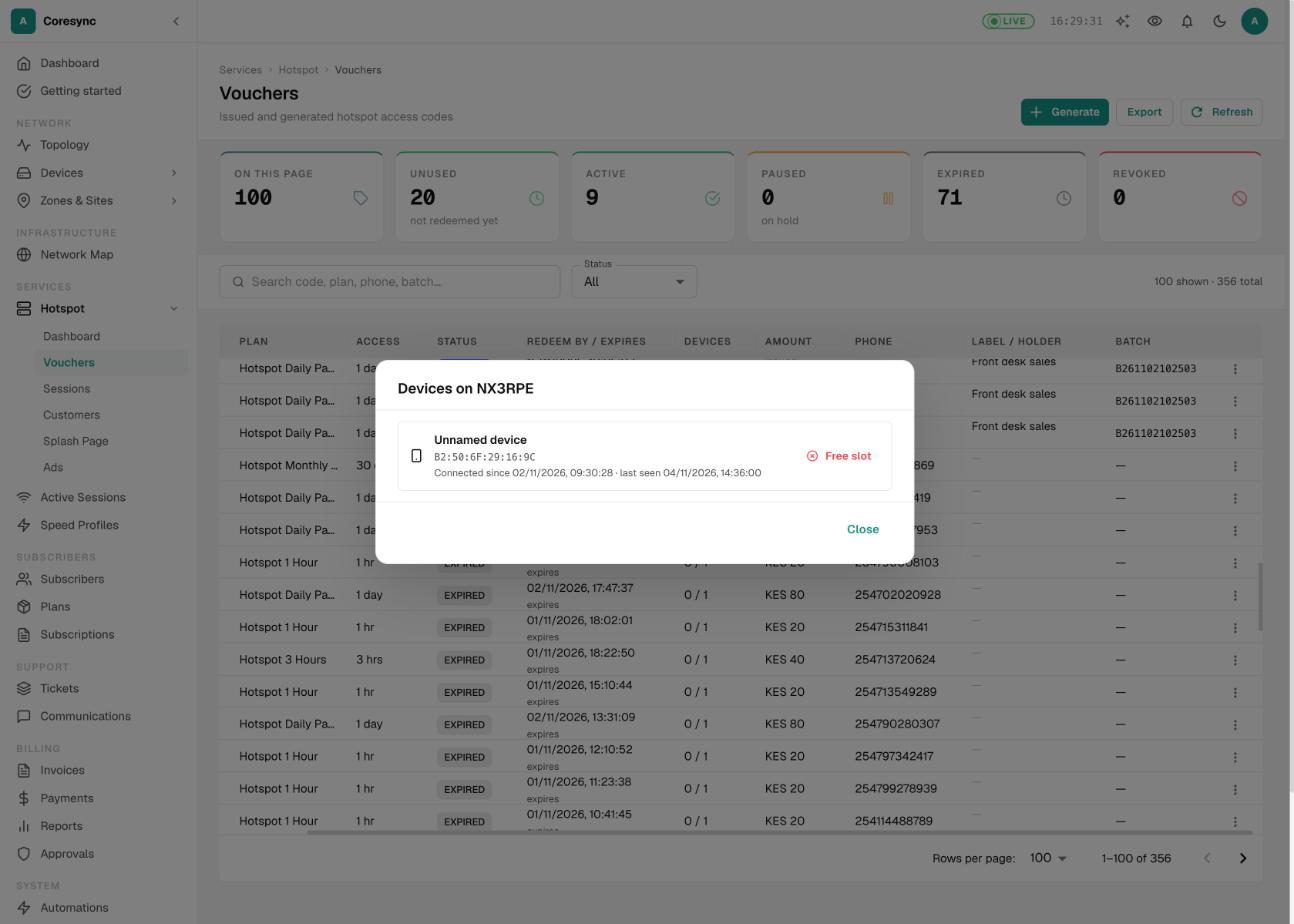
| Devices on this code | Lists the devices that used the code. With reusable slots, Free slot disconnects a device and frees its place. |
| Record payment | Notes an M-Pesa reference, amount and phone against the code, for a customer who paid but never got their code. It labels the voucher only; it doesn't record a payment anywhere else. |
| Edit voucher | Change the label, holder, customer phone, device limit, redeem-by date and when access ends. Save & send SMS also texts the holder. |
| Pause voucher | Stops the code at once and disconnects anyone on it. Their remaining time is kept. |
| Reactivate voucher | Starts a paused code again, with the time it had left. |
| Revoke voucher | Ends the code for good. If devices are on it, choose Revoke only or Revoke + disconnect. |
An expired code can come back: in Edit voucher, set a future date in Expires at (or Access ends on) and save. CoreSync updates RADIUS as well.
Hotspot sessions#
Hotspot → Sessions lists every hotspot purchase and voucher use: the device's MAC Address, the Router, the Plan, how they paid, the Amount, and when it was activated and expires.
- Search by MAC or IP, or filter by Status (Active, Expired, Revoked), by Router, and by date with From and To.
- To cut a device off, open the row menu and choose Disconnect Session, then Disconnect.
Home (PPPoE) customers and hotspot guests online right now are also listed together on Active Sessions. See Routers, RADIUS and sessions.
Hotspot customers#
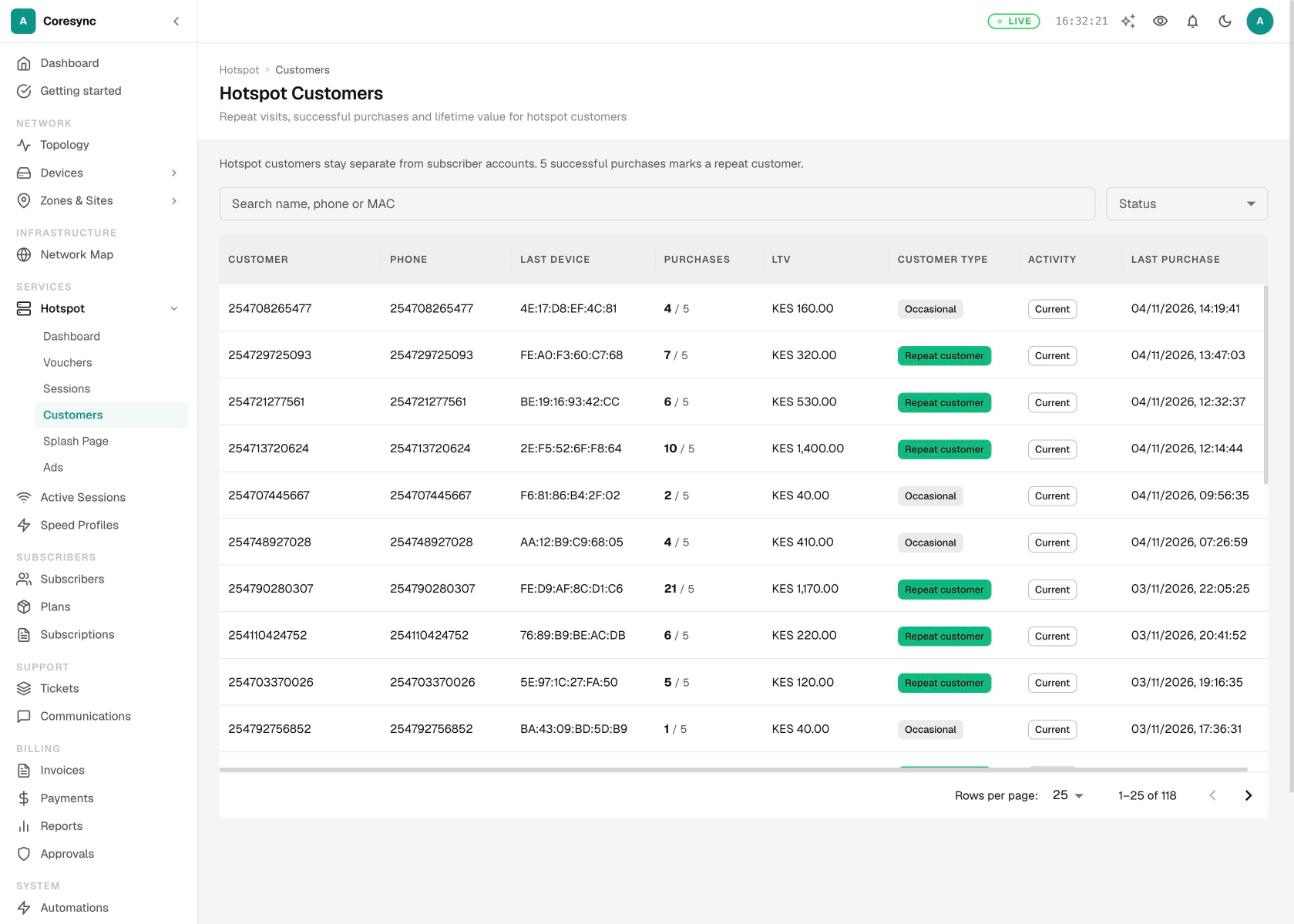
Hotspot → Customers shows the people behind the purchases. Each row has the customer, their phone, their Last device, the number of Purchases, their LTV (lifetime value: everything they've spent) and their Last purchase.
- Repeat customer or Occasional: a customer becomes a repeat customer after a set number of successful purchases (5 unless you change it in Settings → Hotspot).
- Current or Inactive: inactive customers have been archived after a long time without buying. Their history is kept.
Search by name, phone or MAC. Click a customer to see every purchase, with the reference, device, router and when the session ends.
The splash page and your branding#
Hotspot → Splash Page is where you design what guests see. The Live preview on the right changes as you edit. Nothing reaches guests until you press Save changes.
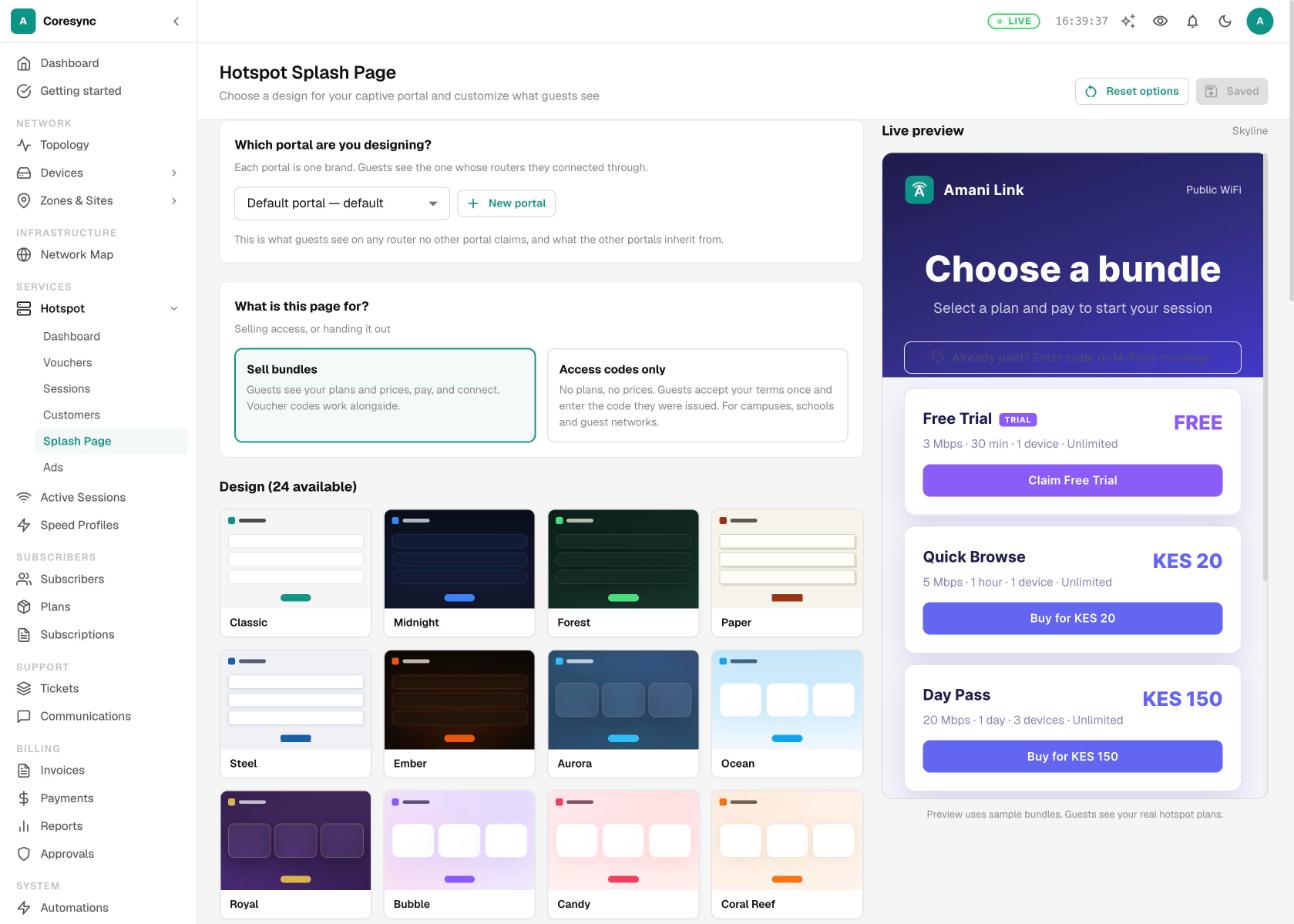
- Which portal are you designing? Most ISPs have one portal, the default. If you run a second brand, press New portal, name it, then press Choose routers to pick the routers that show it. Every other router keeps showing the default.
- What is this page for? Choose Sell bundles to show your plans and prices, or Access codes only for campuses, schools and guest networks where people only type a code they were given.
- Pick a Design from the gallery.
- Under Show or hide, switch parts of the page on or off: speed, duration, device count, data limit, prices, the voucher box, trial badges, your logo, company name, tagline, footer and support phone.
- Under Arrangement, set the Bundle order and the Voucher box position.
- Under Text content, write your welcome title, subtitle, tagline, support phone and footer.
- Under Branding, set the Accent color and Upload a logo (or Use organization logo), or paste a Logo URL. Some designs also take a Background image URL.
- Press Save changes.
Other options on the same page:
- Access code page (Access codes only): the heading guests read, Require guests to accept terms, Remember devices, Ask guests to name their device, and Notices such as help desk hours.
- Connected page: show a "You're online" screen after guests connect, with an optional link.
- Advertising: show your ads on this page. See the next section.
- TV Hotspot Purchases: lets your staff buy hotspot plans for TV devices from the dashboard.
- Voucher hold messages: the texts sent when you pause or reactivate someone's code.
Your organization logo itself is set in Settings → Organization.
Ads on the splash page#
Hotspot → Ads lets you run your own adverts on your splash and connected pages, for example for a partner shop.
- Run my own ads: show campaigns you created.
- Carry CoreSync ads: off unless you switch it on. Nothing from CoreSync appears on your pages without it.
- Allow free access for watching ads: lets guests earn free time by watching a video ad. Set Max free sessions per device per day so nobody farms free time.
- Press New campaign. Give it a Campaign name and an Advertiser (shown to guests as the ad's label).
- Under Where it runs, choose Splash banner, Rewarded video, Connected page or Success page. Set the Status, Starts, Ends and any view caps.
- For a rewarded ad, turn on Free access for watching and pick the Plan the reward grants, usually a short, capped plan.
- Save, then open the campaign's creatives and press Upload image or video.
Hotspot settings#
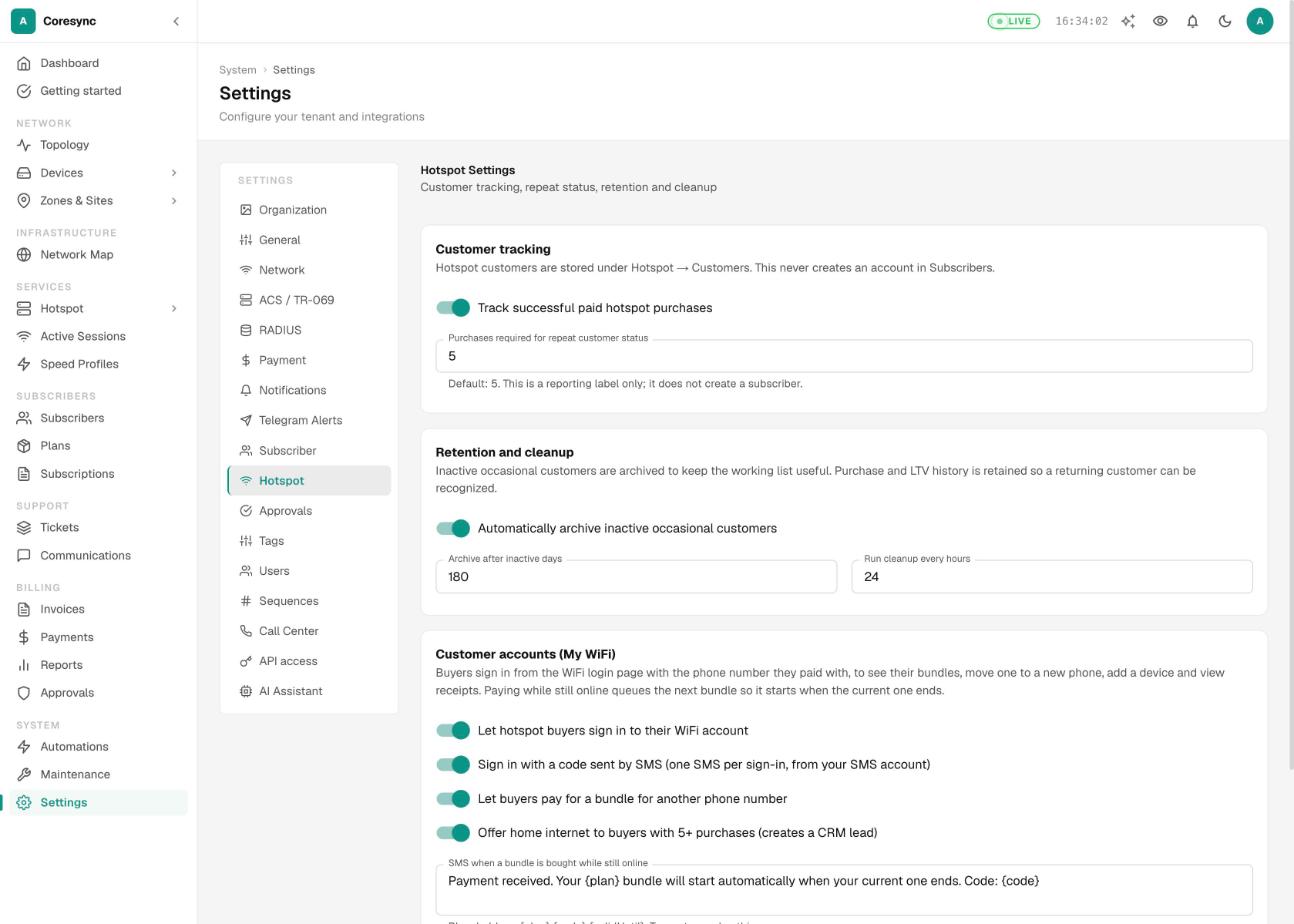
Settings → Hotspot controls how CoreSync tracks hotspot customers and what they can do. Change what you need and press Save hotspot settings.
| Setting | What it does |
|---|---|
| Track successful paid hotspot purchases | Builds the Customers list from paid purchases. It never creates a subscriber. |
| Purchases required for repeat customer status | How many purchases make a repeat customer. 5 by default. It's a label for reports only. |
| Automatically archive inactive occasional customers | Moves occasional buyers to Inactive after Archive after inactive days. Their history is kept. |
| Run cleanup every hours | How often CoreSync checks for customers to archive. |
| Let hotspot buyers sign in to their WiFi account | Lets buyers open My WiFi from the login page to see their bundles, move one to a new phone, add a device and get receipts. |
| Sign in with a code sent by SMS | Buyers sign in with a code texted to the phone they paid with. Each sign-in costs you one SMS. |
| Let buyers pay for a bundle for another phone number | Lets someone buy a bundle for a friend. The friend gets a text with the code. |
| Offer home internet to buyers with 5+ purchases (creates a CRM lead) | Shows repeat buyers an offer for home internet. The number follows your repeat-customer setting. Saying yes creates a lead in your CRM. |
The two message boxes set the SMS sent when someone buys a bundle while still online (it waits and starts when the current one ends), and the SMS sent to the person a bundle was bought for. Type - to send nothing.
How a customer buys with M-Pesa#
This is what happens on the guest's side. The full customer guide is Hotspot for customers.
- The guest joins your WiFi. Their phone opens your splash page by itself.
- They pick a bundle and type their M-Pesa number. An M-Pesa prompt appears on their phone.
- They enter their M-Pesa PIN. The splash page waits until the payment arrives.
- CoreSync receives the payment, lets that device online for the bundle, and the guest sees they're connected.
If the guest paid but wasn't connected, they can paste their M-Pesa confirmation SMS on the splash page and press Redeem & Connect. Each M-Pesa receipt can only be used once.
Hotspot payments use the M-Pesa gateway you set up in Settings → Payment. See Payments, and Hotspot for customers for the guest's view.
Walled garden basics#
Before a guest pays, the router blocks the internet. The walled garden is the short list of addresses they can still reach, so they can load your splash page and pay.
When CoreSync provisions a hotspot, it adds what it needs to the router's walled garden for you: your splash page, CoreSync's own services, RADIUS and DNS. You don't need to add these yourself.
- If you link to something outside CoreSync on your splash page, such as your own website or terms, guests can't open it until they're online, unless it's in the walled garden.
- Upload ad images and videos to CoreSync, for the same reason.
- If guests can't even see the splash page, the router's hotspot setup is usually the problem, not the walled garden. Run the NAS health check (below).
Common mistakes#
- Confusing validity with bundle length. "Redeemable for (days)" is how long a code can wait to be used. The plan sets how long it lasts once used.
- Disconnecting a session to "refresh" a guest. It revokes the purchase and they lose their time. Pause the voucher instead if you need to stop it for a while.
- Revoking when you meant to pause. A revoked code can't come back.
- Generating twice. Each press of Generate makes a new batch. If a batch seemed not to appear, press Refresh before generating again.
- Long-term codes without reusable slots. When a holder changes phone, the code runs out of slots.
- Thinking Record payment adds money to your books. It only notes the payment on the voucher.
- Leaving a new portal with no routers. No guest will ever see it. Press Choose routers.
If it doesn't work#
| What you see | What to check |
|---|---|
| Guests join the WiFi but no splash page appears | On the router's NAS Setup tab, press Run Health Check. Look at Hotspot Server and RADIUS Config, and use Fix if offered. |
| The splash page shows no bundles | You need at least one active plan with Plan Type Hotspot. |
| A guest paid but isn't online | Search their phone or MAC in Sessions. If there's nothing, ask them to paste their M-Pesa message on the splash page and press Redeem & Connect. |
| A voucher says it's used up | Open Devices on this code. With reusable slots, use Free slot. Without them, issue a new code. |
| Voucher SMS won't send | Set up an SMS provider in Settings → Notifications, and check your SMS balance. |
| Your router shows offline in CoreSync | Its management tunnel is down. See Routers, RADIUS and sessions. |
More help: Troubleshooting.